Netgear GC728X - 28-Port Gigabit Ethernet Smart Cloud Switch with 2 SFP and 2 SFP+ 10G Fiber Ports Installation Guide
Summary
This NETGEAR Managed Smart Cloud Switch delivers advanced connectivity, including 28-Port Gigabit PoE+ for powering devices and SFP fiber ports for scalable backbone networking. Included is comprehensive guidance covering initial setup using local WiFi, connecting to cloud services via the Insight App, network configuration, and troubleshooting. This manual is essential for IT administrators or network professionals needing reliable, remotely managed, and easily expandable smart switch solutions for their system infrastructure.
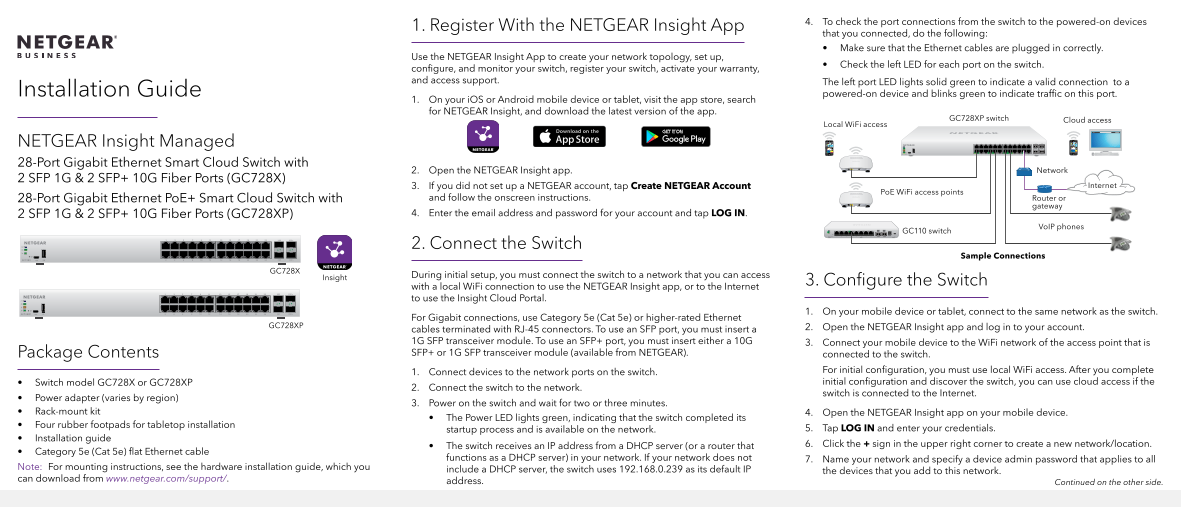
Page 1 Text Content
4. To check the port connections from the switch to the powered-on devices
1. Register With the NETGEAR Insight App
that you connected, do the following: • Make sure that the Ethernet cables are plugged in correctly.
Use the NETGEAR Insight App to create your network topology, set up,
• Check the left LED for each port on the switch.
configure, and monitor your switch, register your switch, activate your warranty, and access support. The left port LED lights solid green to indicate a valid connection to a
Installation Guide powered-on device and blinks green to indicate traffic on this port.
1. On your i OS or Android mobile device or tablet, visit the app store, search for NETGEAR Insight, and download the latest version of the app.
Cloud access GC728XP switch
Local Wi Fi access
NETGEAR Insight Managed 28-Port Gigabit Ethernet Smart Cloud Switch with
2. Open the NETGEAR Insight app. Network
2 SFP 1G & 2 SFP+ 10G Fiber Ports (GC728X)
3. If you did not set up a NETGEAR account, tap Create NETGEAR Account Internet
Po E Wi Fi access points
28-Port Gigabit Ethernet Po E+ Smart Cloud Switch with and follow the onscreen instructions. Router or
gateway
2 SFP 1G & 2 SFP+ 10G Fiber Ports (GC728XP) 4. Enter the email address and password for your account and tap LOG IN.
Vo IP phones
GC110 switch
2. Connect the Switch
Sample Connections
GC728X
During initial setup, you must connect the switch to a network that you can access
Insight
3. Configure the Switch
with a local Wi Fi connection to use the NETGEAR Insight app, or to the Internet to use the Insight Cloud Portal.
1. On your mobile device or tablet, connect to the same network as the switch.
For Gigabit connections, use Category 5e (Cat 5e) or higher-rated Ethernet
GC728XP 2. Open the NETGEAR Insight app and log in to your account.
cables terminated with RJ-45 connectors. To use an SFP port, you must insert a 1G SFP transceiver module. To use an SFP+ port, you must insert either a 10G 3. Connect your mobile device to the Wi Fi network of the access point that is Package Contents SFP+ or 1G SFP transceiver module (available from NETGEAR). connected to the switch.
1. Connect devices to the network ports on the switch. For initial configuration, you must use local Wi Fi access. After you complete • Switch model GC728X or GC728XP initial configuration and discover the switch, you can use cloud access if the
2. Connect the switch to the network.
switch is connected to the Internet.
• Power adapter (varies by region)
3. Power on the switch and wait for two or three minutes.
• Rack-mount kit 4. Open the NETGEAR Insight app on your mobile device.
• The Power LED lights green, indicating that the switch completed its
• Four rubber footpads for tabletop installation
startup process and is available on the network. 5. Tap LOG IN and enter your credentials.
• Installation guide
• The switch receives an IP address from a DHCP server (or a router that 6. Click the + sign in the upper right corner to create a new network/location.
• Category 5e (Cat 5e) flat Ethernet cable
functions as a DHCP server) in your network. If your network does not 7. Name your network and specify a device admin password that applies to all
Note: For mounting instructions, see the hardware installation guide, which you
include a DHCP server, the switch uses 192.168.0.239 as its default IP the devices that you add to this network.
can download from www.netgear.com/support/.
address. Continued on the other side.
Page Summary Contents For Netgear GC728X - 28-Port Gigabit Ethernet Smart Cloud Switch with 2 SFP and 2 SFP+ 10G Fiber Ports Installation Guide
Manual Details
| Brand | NETGEAR |
|---|---|
| Pages | 2 |
| File Size | 433.46 KB |
| Published | June 06, 2026 |
Enter the captcha to get the download link:

Frequently Asked Questions
How should I initially configure the switch?
You must connect it to a network and use the mobile NETGEAR Insight app via local WiFi access.
What does the solid amber LED light mean on an Ethernet port?
The right port LED lighting solid amber indicates that a Power over Ethernet (PoE) fault has occurred at that location.
Which cable type is required for Gigabit connections?
For Gigabit connections, use Category 5e (Cat 5e) or higher-rated Ethernet cables terminated with RJ-45 connectors.
What steps should I take if I cannot discover the switch during setup?
Temporarily disable security programs like firewalls and antivirus software to ensure proper discovery of the device.