Page 1
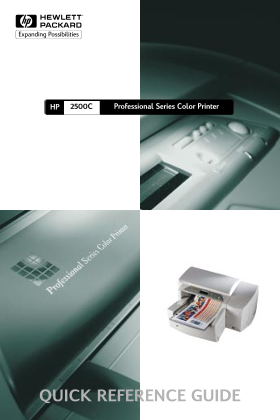
2500CHP Professional Series Color Printer QUICK REFERENCE GUIDE
Page 2
Acknowledgments HP Color Smart II, HP Photo REt II and HP Zoom Smart Scaling Technology are trademarks of Hewlett-Packard Company. Microsoft is a U.S. registered trademark of Microsoft Corporation. Wi...
Page 3
TE TS 2500CHP Contents Identifying Printer Parts Control Panel Navigating the Menu System To Check the Printer's Configuration To Print a Menu Map To Print a Diagnostic Page Common Printer Messages Lo...
Page 4
2500CHP Identifying Printer Parts Cover Printhead Latch Printhead Access Cover Ink Cartridge Paper Door Tray 1/ Back Panel Power Output Tray Button Rear Access Tray 2 Door Extended Tray 3 Tray Cover 2...
Page 5
To Print a Menu Map 1. Press [Menu] until SELF TEST MENU appears. 2. Press [Item] until PRINT MENU MAP appears. 3. Press [Select] to print the menu map. For more information on the Menu Map items, ple...
Page 6
[COLOR] PRNT-HD One of the printheads Insert the appropriate MISSING, INSERT (black, cyan, magenta printhead. or yellow) is missing. PRNT-HD ACCESS The Printhead Access Close the cover to resume COVER...
Page 7
MNL FEED LOAD You have chosen to print Load the paper type and [TYPE] [SIZE] through the Rear Manual size as specified in the LCD Feed. panel and press to continue printing. TRAY [NUMBER] The specifie...
Page 8
NON HP [COLOR] A non-HP color cartridge has Use original HP ink CART been detected. HP does not cartridges instead. guarantee non-HP cartridges. The use of incompatible cartridges may disrupt the intr...
Page 9
Rear Manual Feed - The Rear Manual Feed is designed to provide a straight paper path for printing on thicker media (up to 0.3mm) such as cardstock or labels without bending. This paper path allows you...
Page 10
4. If you are loading paper sizes such as B4, A3, 11"x17", 13"x19" and 330x483mm, unlock the tray lock, extend the tray and re-lock the tray lock. If you are loading paper sizes su...
Page 11
Loading Commonly-Used Media in Tray 3 1. Grasp the sides of Tray 3 and pull it out of the printer. 2. If you wish to change the paper size that has been set in the tray, go to step 3. If you wish to l...
Page 12
7. Re-insert Tray 3 into the printer. 8. If Tray 3 is extended, place the Extended Tray Cover over the tray. 9. On the control panel, press [Menu] until PAPER HANDLING MENU appears. 10.Press [Item] to...
Page 13
Loading Paper in the Rear Manual Feed 1. Set your driver to pick from the Rear Manual Feed and print your document. For more information on how to set your print settings, please refer to the Toolbox ...
Page 14
2500CHP Maintaining The Printer Clean Printheads Whenever print quality noticeably decreases it is a good idea to perform the cleaning procedure. You may “Clean Printhead” utility either through the T...
Page 15
To run the “Align Printheads” utility through the Control Panel: 1. Press [Menu] until DIAGNOSTICS MENU appears. 2. Press [Item] until ALIGN PRNT-HDS appears. 3. Press [Select]. 4. The printer will pr...
Page 16
2. Lift the Top Cover and pull out any paper that may be stuck. 3. If you are unable to free the jammed paper, pull out the handle of the Paper Knob, pull the knob away from the printer and rotate to ...
Page 17
2500CHP Resetting The Printer You can reset the printer by selecting the reset items in the Resets Menu. Use this menu with caution. You can lose buffered page data or printer configuration settings w...
Page 18
2500CHP For More Information Please check on the following documentation for more information: Getting Started Guide – Information on how to set up the printer. User’s Guide - For printer specificatio...
Page 19
©Copyright 1998 Hewlett-Packard Company 450 Alexandra Road Singapore 119960 Singapore. http://www.hp.com/go/hp2500