Page 1
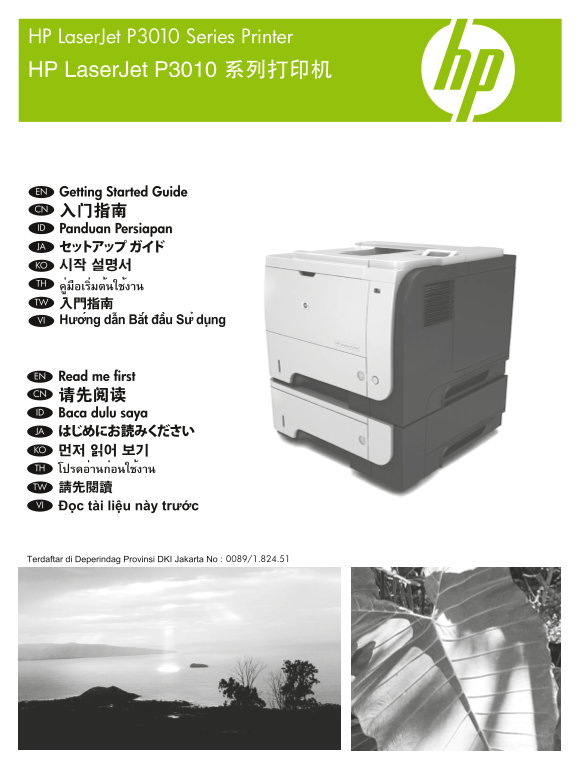
HP Laser Jet P3010 Series Printer HP Laser Jet P3010 系列打印机 EN Getting Started Guide CN 入门指南 ID Panduan Persiapan JA セットアップ ガイド KO 시작 설명서 TH คู่มือเริ่มต้นใช้งาน TW 入門指南 VI Hướng dẫn Bắt đầu Sử du...
Page 2
Copyright and License 版权与许可 © 2009 Copyright Hewlett-Packard Development Company, L.P. © 2009 Copyright Hewlett-Packard Development Reproduction, adaptation or translation without prior written Compa...
Page 3
EN TH Topic Page In-box documentation and CD contents 2 Set up the product hardware 4 Install the product software 12 CN TW 随附文档和 CD 内容 包裝盒中的文件和 CD 內容 2 ID VI Topik Halaman Chủ đề Trang Dokumentasi d...
Page 4
EN In-box documentation TH เอกสารที่อยู่ในกล่อง HP Support Flyer ใบปลิวสนับสนุนของ HP Software CD contents: • User Guide • Software drivers • Installer CN TW HP 支援傳單 HP 支持说明 軟體 CD 內容: 软件 CD 内容: Dokume...
Page 5
EN Select a sturdy, well-ventilated, dust-free area, away from direct sunlight to position the product. CN 选择一个稳固、通风良好、无尘且远离直射日光的区域放置产品。 ID Pilih tempat yang kokoh, berventilasi baik, bebas debu, jauh...
Page 6
EN Unpack the product. CN 打开产品包装。 ID Buka kemasan produk. JA 製品を開梱します。 KO 제품을 개봉합니다. TH นำเครื่องพิมพ์ออกจากกล่อง TW 打開產品包裝。 VI Mở sản phẩm. P3015, P3015d, P3015n, P3015dn 15.9 kg 35.1 lb
Page 7
Remove all orange shipping tape from the product.EN CN 从产品上撕下所有橙色装运胶带。 ID Lepaskan semua pita pengaman pengiriman warna jingga dari produk. JA プリンタからオレンジ色の保護テープをすべて剥がします。 KO 제품에서 주황색 테이프를 모두 떼어냅니다. TH...
Page 8
EN Prepare the print cartridge. CN 准备好打印碳粉盒。 ID Siapkan kartrid cetak. JA プリント カートリッジを取り付けます。 KO 토너 카트리지를 준비합니다. TH เตรียมตลับหมึกพิมพ์ TW 準備碳粉匣。 VI Chuẩn bị hộp mực in.
Page 9
EN Make sure your power source is adequate for the product voltage rating. The voltage rating is on the product label. The product uses either 100-12� Vac or 220-240 Vac and 50/�0 Hz. Connect the powe...
Page 10
EN Connect the network cable, and verify that the light on the network port is illuminated. CN 连接网线,检查网络端口上的指示灯是否亮起。 ID Hubungkan kabel jaringan, dan pastikan port jaringan menyala. JA ネットワーク ケーブルを接続し...
Page 11
EN Turn on the product. On the control panel, if prompted, select a language and a date/time for the product. CN 打开产品电源。 如果控制面板上出现提示,请为产品选择语言和日期/时间。 ID Hidupkan produk. Pada panel kontrol, jika dimint...
Page 12
EN Remove the paper tray from the product. Adjust the guides so they point to the correct paper size. Load paper. Reinsert the tray. Configure the correct paper size and type on the control panel. CN ...
Page 13
P3015 P3015d, P3015n, P3015dn, P3015x
Page 14
EN Install the product software. TH ติดตั้งซอฟต์แวร์ของเครื่องพิมพ์ CN 安装产品软件。 TW 安裝本產品軟體。 ID Instal perangkat lunak produk. VI Cài đặt phần mềm sản phẩm. JA 製品ソフトウェアをインストールします。 KO 제품 소프트웨어를 설치합니다. EN...
Page 15
EN Network connection At the product control panel, press Menu Press to highlight INFORMATION, and press OK. Press to highlight PRINT CONFIGURATION, and press OK. Locate the IP address on the Embedded...
Page 16
EN If the IP address is something other than 0.0.0.0, or 192.0.0.192, or 1�9.254.x.x, the network configuration was successful. For Windows, go to step 9. For Mac, go to step 10. Otherwise, you must m...
Page 17
TH หาก IP แอดเดรสไม่ใช่ 0.0.0.0 หรือ 192.0.0.192 หรือ 169.254.x.x แสดงว่าการกำหนดค่าเครือข่ายสำเร็จ สำหรับ Windows ให้ไปที่ขั้นตอนที่ 9 สำหรับ Mac ให้ไปที่ขั้นตอนที่ 10 หากไม่ใช่ คุณต้องกำหนดค่า IP แอ...
Page 18
EN Quit all open programs on each computer that will share the product. Install the software from the CD. Follow the onscreen instructions. When prompted, select Connected via the Network, and then cl...
Page 19
EN Quit all open programs on each computer that will share the product. Install the software from the CD. Click the product icon, and follow the onscreen instructions. Click Close when the installatio...
Page 20
TH ออกจากโปรแกรมที่เปิดทั้งหมดในคอมพิวเตอร์แต่ละเครื่องที่จะใช้เครื่องพิมพ์ร่วมกัน ติดตั้งซอฟต์แวร์จากแผ่นซีดี คลิกไอคอนเครื่องพิมพ์ และทำตามคำแนะนำบนหน้าจอ คลิก Close เมื่อการติดตั้งเสร็จสิ้น ที่คอมพ...
Page 21
EN Configure the product software to recognize the installed accessories. Highlight the product and select Printer Setup. The Installable Options dialog box appears. Select the product options that yo...
Page 22
EN Windows USB connection Quit all open programs on the computer. Install the software from the CD. Follow the onscreen instructions. When prompted, select Connected directly to the computer, and then...
Page 23
EN Macintosh USB connection Install the software from the CD. Click the product icon, and follow the onscreen instructions. Click Close. Connect the USB cable. CN Macintosh USB 连接 从 CD 安装软件。 单击产品图标,然后...
Page 24
EN Configure the product software to recognize the installed accessories. Highlight the product and select Printer Setup. The Installable Options dialog box appears. Select the product options that yo...
Page 25
EN Test the software installation. Print a page from any program to make sure that the software is correctly installed. Note: If the installation failed, reinstall the software, or see the problem sol...
Page 26
EN Product setup is complete. Register your product at www.register.hp.com. This is the quickest and easiest way for you to register to receive the following information: • Technical support updates •...
Page 27
TH การตั้งค่าเครื่องพิมพ์เสร็จสมบูรณ์ ลงทะเบียนเครื่องพิมพ์ของคุณที่ www.register.hp.com นี่คือวิธีที่รวดเร็วและง่ายที่สุดสำหรับคุณในการลงทะเบียนเพื่อรับข้อมูลต่อไปนี้: • ข้อมูลสนับสนุนล่าสุดด้านเทคนิ...
Page 28
© 2009 Hewlett-Packard Development Company, L.P. www.hp.com *CE524-90905* *CE524-90905* CE524-90905