HP LaserJet Pro M11-13 Printer Series - Quick Start Guide
Summary
This comprehensive guide provides detailed setup instructions for your LaserJet Pro M11-M13 series printer. It covers everything from initial hardware configuration to establishing a seamless connection via wireless networks or USB cable. Ideal for new users, this manual walks you through selecting the correct installation method, downloading necessary software for Windows and macOS, and troubleshooting networking issues to ensure optimal printing performance.
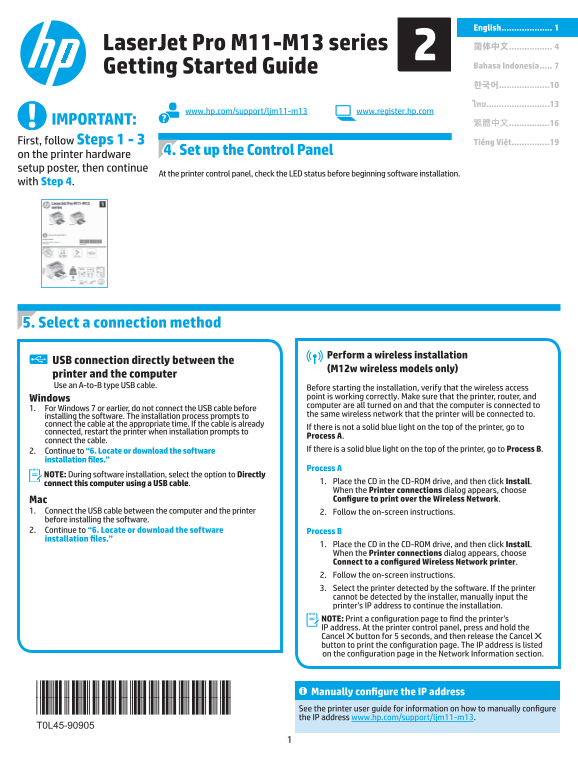
Page 1 Text Content
English ....................
Laser Jet Pro M11-M13 series 简体中文 ................. Getting Started Guide Bahasa Indonesia ..... 한국어 ....................10 ไทย .........................13
www.hp.com/support/ljm11-m13 www.register.hp.com
IMPORTANT: 繁體中文 ................16 First, follow Steps 1 - 3 Tiếng Việt ...............19
4. Set up the Control Panel
on the printer hardware setup poster, then continue
At the printer control panel, check the LED status before beginning software installation.
with Step 4.
5. Select a connection method
Perform a wireless installation
USB connection directly between the
(M12w wireless models only)
printer and the computer Use an A-to-B type USB cable.
Before starting the installation, verify that the wireless access Windows point is working correctly. Make sure that the printer, router, and computer are all turned on and that the computer is connected to
1. For Windows 7 or earlier, do not connect the USB cable before
installing the software. The installation process prompts to the same wireless network that the printer will be connected to.
connect the cable at the appropriate time. If the cable is already
If there is not a solid blue light on the top of the printer, go to
connected, restart the printer when installation prompts to
Process A.
connect the cable.
2. Continue to “6. Locate or download the software If there is a solid blue light on the top of the printer, go to Process B.
installation files.”
Process A
NOTE: During software installation, select the option to Directly
connect this computer using a USB cable. 1. Place the CD in the CD-ROM drive, and then click Install. When the Printer connections dialog appears, choose Mac Configure to print over the Wireless Network.
1. Connect the USB cable between the computer and the printer 2. Follow the on-screen instructions. before installing the software. 2. Continue to “6. Locate or download the software Process B installation files.”
1. Place the CD in the CD-ROM drive, and then click Install. When the Printer connections dialog appears, choose Connect to a configured Wireless Network printer. 2. Follow the on-screen instructions. 3. Select the printer detected by the software. If the printer cannot be detected by the installer, manually input the printer’s IP address to continue the installation. NOTE: Print a configuration page to find the printer’s IP address. At the printer control panel, press and hold the Cancel button for 5 seconds, and then release the Cancel button to print the configuration page. The IP address is listed on the configuration page in the Network Information section.
Manually configure the IP address See the printer user guide for information on how to manually configure the IP address www.hp.com/support/ljm11-m13.
Page Summary Contents For HP LaserJet Pro M11-13 Printer Series - Quick Start Guide
Manual Details
| Brand | HP |
|---|---|
| Pages | 24 |
| File Size | 12.45 MB |
| Published | June 01, 2026 |
Enter the captcha to get the download link:

Frequently Asked Questions
Before starting any software installation, what initial check must I perform?
At the printer control panel, check the LED status before beginning software installation.
When performing a wireless setup, what devices must be powered on and connected to the same network?
You must ensure that the printer, router, and Windows computer are all turned on and connected to the same wireless network.
What should I do if the installation software fails to detect my printer?
Manually input the printer’s IP address. You can find this address by printing a configuration page at the control panel.
If I don't have the CD, where can I download the necessary drivers and software files?
You can go to www.hp.com/support/ljm11-m13 or use 123.hp.com to select your model.