HP Deskjet D2500 Series Printer Reference Guide
Summary
A comprehensive support guide for the HP Deskjet D2500 series printer, designed for new users and owners requiring full operational knowledge. This manual provides step-by-step instructions covering initial setup, complete installation procedures, and detailed usage guidelines. Furthermore, it equips you to handle common issues like paper jams or connectivity errors through effective troubleshooting sections. Access crucial support and regulatory details at your fingertips, ensuring smooth printing every time.
Page 1 Text Content
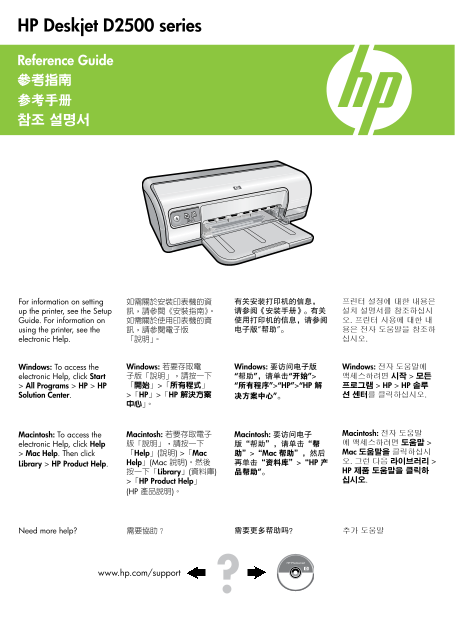
HP Deskjet D2500 series Reference Guide 參考指南 参考手册 참조 설명서
For information on setting 如需關於安裝印表機的資 有关安装打印机的信息, 프린터 설정에 대한 내용은 up the printer, see the Setup 訊,請參閱《安裝指南》。 请参阅《安装手册》。有关 설치 설명서를 참조하십시 Guide. For information on 如需關於使用印表機的資 使用打印机的信息,请参阅 오. 프린터 사용에 대한 내 using the printer, see the 訊,請參閱電子版 电子版“帮助”。 용은 전자 도움말을 참조하
electronic Help. 「說明」。 십시오.
Windows: To access the Windows: 若要存取電 Windows: 要访问电子版 Windows: 전자 도움말에 electronic Help, click Start 子版「說明」,請按一下 “帮助”,请单击“开始”> 액세스하려면 시작 > 모든 > All Programs > HP > HP 「開始」>「所有程式」 “所有程序”>“HP”>“HP 解 프로그램 > HP > HP 솔루
Solution Center. >「HP」>「HP 解決方案 决方案中心”。 션 센터를 클릭하십시오.
Macintosh: To access the Macintosh: 若要存取電子 Macintosh: 要访问电子 Macintosh: 전자 도움말 electronic Help, click Help 版「說明」,請按一下 版“帮助”,请单击“帮 에 액세스하려면 도움말 > > Mac Help. Then click 「Help」(說明) >「Mac 助”>“Mac 帮助”,然后 Mac 도움말을 클릭하십시 Help」(Mac 說明)。然後 再单击“资料库”>“HP 产 오. 그런 다음 라이브러리 >
Library > HP Product Help.
按一下「Library」(資料庫) 品帮助”。 HP 제품 도움말을 클릭하 >「HP Product Help」 십시오.
(HP 產品說明)。
Need more help? 需要協助? 需要更多帮助吗? 추가 도움말
www.hp.com/support
Page Summary Contents For HP Deskjet D2500 Series Printer Reference Guide
Manual Details
| Brand | HP |
|---|---|
| Pages | 16 |
| File Size | 4.66 MB |
| Published | June 05, 2026 |
Enter the captcha to get the download link:

Frequently Asked Questions
My printer won't turn on; what should I check?
Verify that the power cord is connected to an electrical outlet, firmly attached to the power supply, and then securely plugged into the printer itself.
What should I do if a print job gets stuck in the queue?
First, disconnect the power cord. Next, restart the Print Spooler service by stopping and then starting it through the Services console on your computer.
What paper types and weights are supported?
The printer supports Letter Paper (65-90 g/m²), Legal Paper (70-90 g/m²), Envelopes (70-90 g/m²), and up to 280 g/m² for Photo Paper.
Why is my computer not recognizing the printer?
Ensure the USB cable connects directly from your computer to the printer without using a hub. If problems persist, disable firewalls and anti-virus programs temporarily during software setup.