HP Deskjet D2500 Series Printer Setup Guide
Summary
This comprehensive setup guide provides new users with complete instructions for installing and configuring their HP Deskjet printer series. Learn how to unbox the unit, properly load color cartridges and paper, connect via USB, and power on the device. The manual covers step-by-step processes for initial hardware linking and includes detailed software installation walkthroughs for both Windows and Macintosh operating systems, ensuring a seamless printing experience right out of the box.
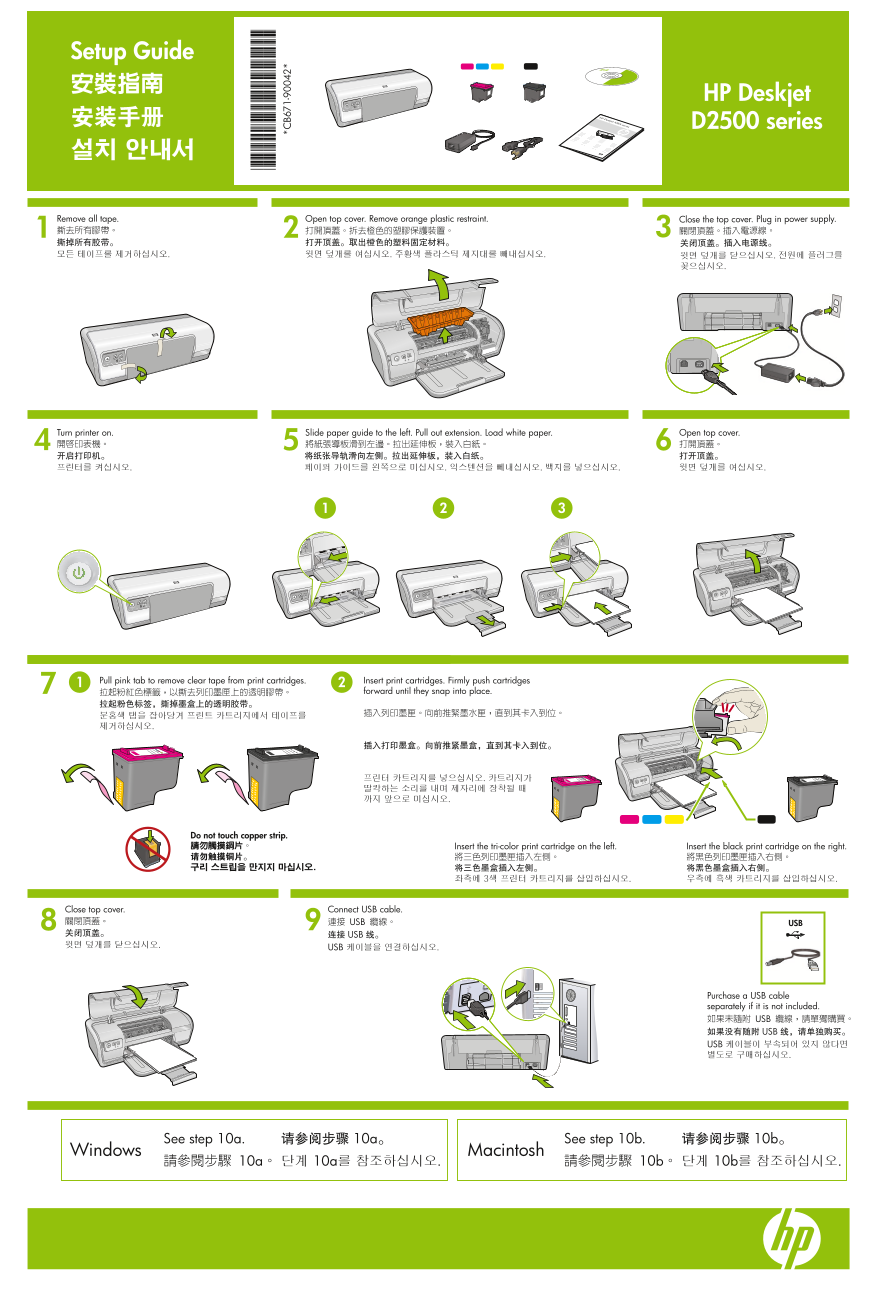
Page 1 Text Content
Setup Guide 安裝指南 HP Deskjet 安装手册 D2500 series 설치 안내서
Remove all tape. Open top cover. Remove orange plastic restraint. Close the top cover. Plug in power supply. 撕去所有膠帶。 打開頂蓋。拆去橙色的塑膠保護裝置。 關閉頂蓋。插入電源線。 撕掉所有胶带。 打开顶盖。取出橙色的塑料固定材料。 关闭顶盖。插入电源线。 모든 테이프를 제거하십시오. 윗면 덮개를 여십시오. 주황색 플라스틱 제지대를 빼내십시오. 윗면 덮개를 닫으십시오. 전원에 플러그를
Turn printer on. Open top cover.Slide paper guide to the left. Pull out extension. Load white paper.
Pull pink tab to remove clear tape from print cartridges. Insert print cartridges. Firmly push cartridges
拉起粉紅色標籤,以撕去列印墨匣上的透明膠帶。 forward until they snap into place.
Do not touch copper strip. 請勿觸摸銅片。 Insert the tri-color print cartridge on the left. Insert the black print cartridge on the right. 请勿触摸铜片。 將三色列印墨匣插入左側。 將黑色列印墨匣插入右側。 구리 스트립을 만지지 마십시오. 将三色墨盒插入左侧。 将黑色墨盒插入右侧。
Close top cover. Connect USB cable. 關閉頂蓋。 連接 USB 纜線。 USB 关闭顶盖。 连接 USB 线。 윗면 덮개를 닫으십시오.
USB 케이블을 연결하십시오.
Purchase a USB cable separately if it is not included. 如果未隨附 USB 纜線,請單獨購買。 如果没有随附 USB 线,请单独购买。 USB 케이블이 부속되어 있지 않다면 별도로 구매하십시오.
See step 10a. 请参阅步骤 10a。 See step 10b. 请参阅步骤 10b。
Windows Macintosh
Page Summary Contents For HP Deskjet D2500 Series Printer Setup Guide
Manual Details
| Brand | HP |
|---|---|
| Pages | 2 |
| File Size | 7.86 MB |
| Published | June 05, 2026 |
Enter the captcha to get the download link:

Frequently Asked Questions
Where do I place the print cartridges during setup?
Insert the three-color print cartridge on the left, and insert the black print cartridge on the right.
When should I connect the USB cable when installing software?
Do not connect the USB cable until you are specifically instructed to do so during the setup process.
What steps should I take if the printer software installation fails?
Ensure the printer is powered on and all cable connections are secure. You may also need to temporarily disable any software firewalls or anti-virus programs.