HP Deskjet 3000 Printer Series - J310 Setup Guide
Summary
The HP Deskjet 3000 Printer J310 Series provides reliable, accessible printing for home users. This quick-start guide offers comprehensive, step-by-step instructions designed to simplify setup from start to finish. Whether you are connecting via wireless Wi-Fi or directly with a USB cable, the manual covers everything—including power connection, installing ink cartridges, loading paper, and executing seamless software networking. Get your printer running quickly and connect easily to all your devices.
Page 1 Text Content
DESKJET 3000 PRINTER J310 SERIES
HP DESKJET 3000 PRINTER J310 SERIES
Start by following the setup instructions in the Setup Guide.
Black Cartridge www.hp.com/support
Tri-color Cartridge
Setup Guide
Panduan Pemasangan
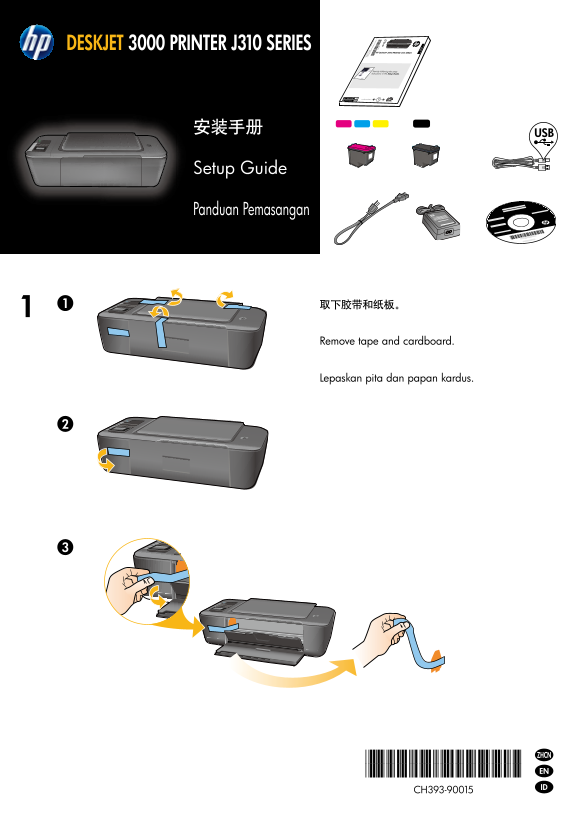
Remove tape and cardboard.
Pr in te [C
He ou nt ry
wl et t-P ac ka in te
rd ev elo pm [C ou nt
en t C om pa ry
XX ny , L .P.
Lepaskan pita dan papan kardus.
En gl ish
*CH393-90015* ZHCN *CH393-90015* EN ID
CH393-90015
Page Summary Contents For HP Deskjet 3000 Printer Series - J310 Setup Guide
Manual Details
| Brand | HP |
|---|---|
| Pages | 8 |
| File Size | 2.13 MB |
| Published | June 05, 2026 |
Enter the captcha to get the download link:

Frequently Asked Questions
What are the initial physical steps after unboxing the printer?
First, remove all tape and cardboard protection. Then, connect the power cord but do not connect the USB cable yet.
When installing the software, should I plug in the USB cable?
No, do not connect the USB cable unless prompted during the software installation process.
How can I set up a wireless connection using WPS?
If your router has a Wi-Fi Protected Setup (WPS) feature and button, press that button on the router when setting up the printer.
What should I do if my computer lacks a CD/DVD drive for installation?
For computers without a CD/DVD drive, you must go to www.hp.com/support to download and install the required printer software.