HP Deskjet D1400 Series Printer Setup Guide
Summary
Introducing the HP Deskjet D1400 series, ideal for home use and easy printing needs. This comprehensive setup guide is designed for new owners, providing clear, step-by-step instructions from unboxing through final operation. The manual walks you through all physical preparations—including prepping the unit, loading paper, and correctly installing color and black ink cartridges. Furthermore, it guides you through connecting the printer via USB and efficiently installing the necessary driver software for both Windows and Mac computers, ensuring a quick and reliable printing experience from day one.
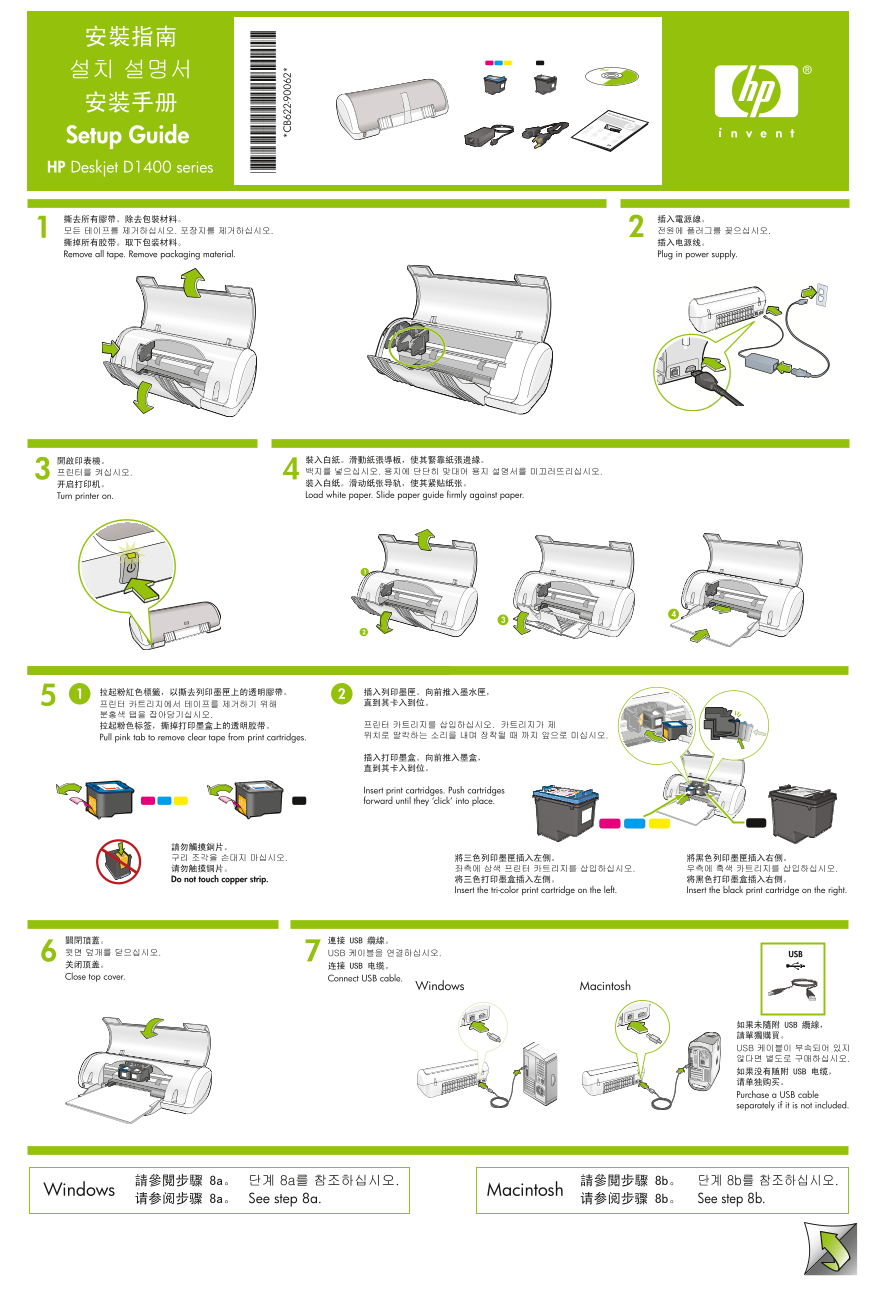
Page 1 Text Content
Setup Guide HP Deskjet D1400 series
Plug in power supply.Remove all tape. Remove packaging material.
Turn printer on. Load white paper. Slide paper guide firmly against paper.
Pull pink tab to remove clear tape from print cartridges.
Insert print cartridges. Push cartridges forward until they ‘click‘ into place.
Do not touch copper strip.
Insert the tri-color print cartridge on the left. Insert the black print cartridge on the right.
Close top cover. Connect USB cable.
Windows Macintosh
Purchase a USB cable separately if it is not included.
Windows Macintosh
See step 8a. See step 8b.
Page Summary Contents For HP Deskjet D1400 Series Printer Setup Guide
Manual Details
| Brand | HP |
|---|---|
| Pages | 2 |
| File Size | 2.51 MB |
| Published | June 18, 2026 |
Enter the captcha to get the download link:

Frequently Asked Questions
What must I do before turning on the printer?
Remove all tape, remove packaging material, plug in power supply, insert print cartridges by pushing until they click, and load white paper while sliding the guide firmly against it.
I am having trouble installing the Windows software. What should I check first?
Restart your computer, temporarily disable any software firewall or anti-virus program, and then proceed with installation.
How do I load standard paper into the printer?
Load white paper into the designated path and slide the paper guide firmly against the edge of the paper stack.
What type of cable is needed to connect the printer to a computer?
Connect a USB cable. The manual notes that an adapter or second USB cable may need to be purchased separately depending on your setup.