HP Deskjet D4200 Series Printer Setup Guide
Summary
Introducing comprehensive setup instructions for the HP Deskjet D4200 series printer. This manual guides new users through every aspect of the unboxing and installation process, from safely removing packaging materials to correctly loading paper and installing ink cartridges. It provides clear, step-by-step walkthroughs for powering on the device and completing the software setup using both Windows and Macintosh operating systems (CD or USB). Essential troubleshooting tips are included to ensure a smooth printing experience right out of the box.
Page 1 Text Content
Setup Guide HP Deskjet D4200 series
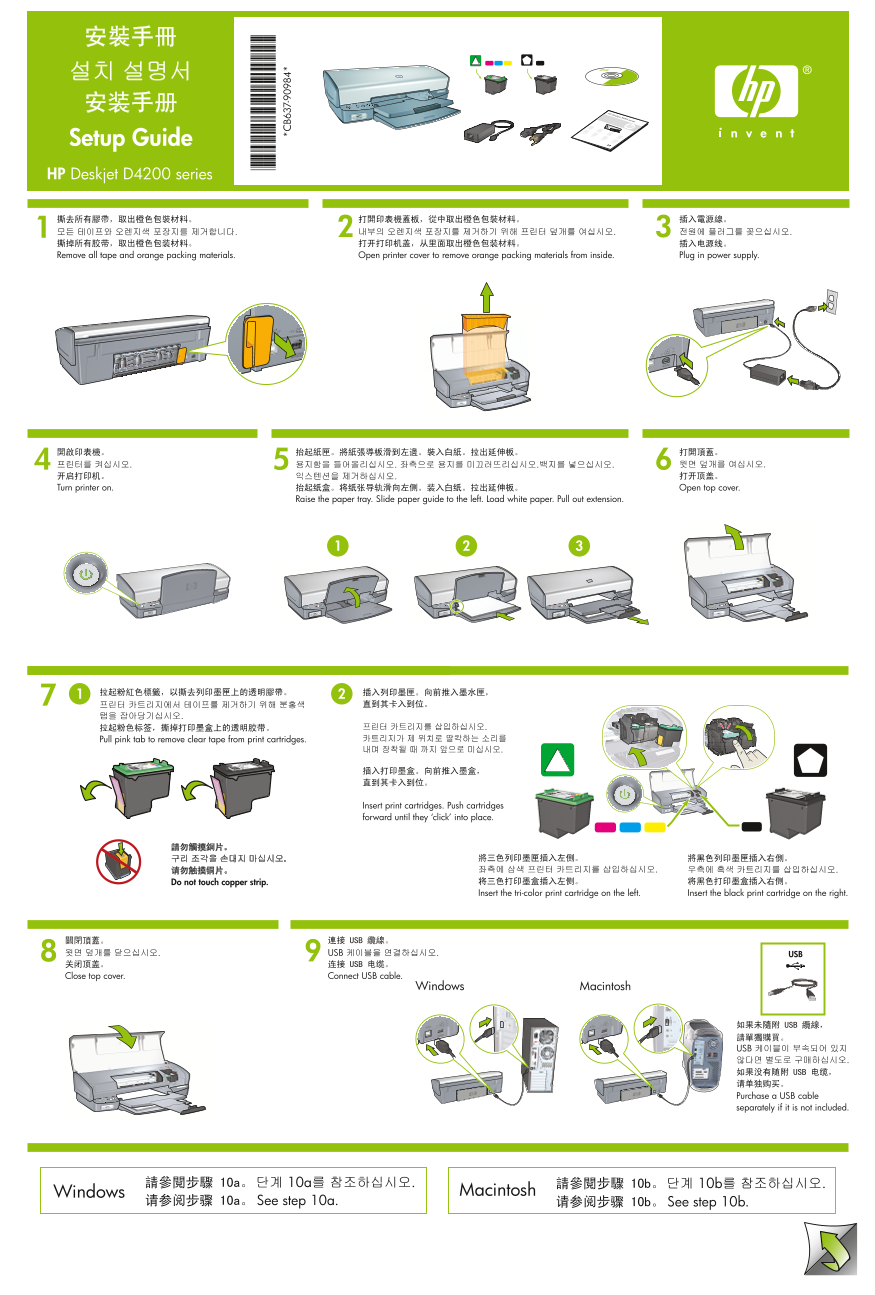
Plug in power supply.Open printer cover to remove orange packing materials from inside.Remove all tape and orange packing materials.
Open top cover.Turn printer on.
Raise the paper tray. Slide paper guide to the left. Load white paper. Pull out extension.
Pull pink tab to remove clear tape from print cartridges.
Insert print cartridges. Push cartridges forward until they ‘click’ into place.
Do not touch copper strip.
Insert the tri-color print cartridge on the left. Insert the black print cartridge on the right.
USB . USB
Close top cover. Connect USB cable.
Windows Macintosh
Purchase a USB cable separately if it is not included.
Windows Macintosh
See step 10a. See step 10b.
Page Summary Contents For HP Deskjet D4200 Series Printer Setup Guide
Manual Details
| Brand | HP |
|---|---|
| Pages | 2 |
| File Size | 2.72 MB |
| Published | June 06, 2026 |
Enter the captcha to get the download link:

Frequently Asked Questions
How do I properly install the ink cartridges?
Pull pink tabs to remove clear tape, then push the print cartridges forward until they click into place. Place the tri-color cartridge on the left and the black cartridge on the right.
What should I do if my software installation fails?
Restart the computer, check all cable connections are secure, temporarily disable any firewalls or anti-virus programs, and try setting up again.
Can I install the software without a CD-ROM drive?
Yes. You can use a USB connection to run the setup wizard instead of relying on the physical installation CD-ROM.
What is the final step after loading paper and cartridges?
Close the top cover, connect the USB cable, and then follow the onscreen instructions for setting up the printer software.