HP Deskjet 1050 Series - J410 Setup Guide
Summary
The comprehensive manual for the HP DeskJet Ink Advantage 2060 All-in-One is your essential guide to getting started with printing. It provides step-by-step instructions for initial setup, including cartridge installation and the required alignment process. Users will find extensive support resources through the electronic Help system, detailing product features, troubleshooting tips, technical specifications, regulatory compliance notices (e.g., EU Conformity), and crucial HP support contacts and OS requirements.
Page 1 Text Content
ENPri
DESKJET INK ADVANTAGE 2060 ALL-IN-ONE K110 SERIES
For setup information, see the setup poster. All other product information can be found in the electronic Help and Readme. The electronic Help is automatically installed during printer software installation. Electronic Help includes instructions on product features and troubleshooting. It also provides product specifications, legal notices, environmental, regulatory, and support information. The Readme file contains HP support contact information, operating system requirements, and the most recent updates to your product information. For computers without a CD/DVD drive, please go to www.hp.com/support to download and install the printer software. Information
DESKJET 1050 ALL-IN-ONE J410 SERIES
To find the European Union Regulatory Notice statement and compliance information, go to the onscreen Help, click Appendix > Technical information > Regulatory notices > European Union Regulatory Notice or click Technical information > Regulatory notices > European Union Regulatory Notice. The Declaration of Conformity for this product is available at the following web address: www.hp.eu/certificates.
To install the electronic Help, insert the software CD in your computer and follow the on-screen instructions. Install electronic Help
Find electronic Help Windows: Mac:
After software installation, click Start > All Programs > HP > HP Deskjet Ink Adv 2060 K110 series > Help. Mac OS X v10.5 and v10.6: From Finder Help, choose Mac Help. In the Help Viewer, click and hold the Home button, and then choose the Help for your device. Find electronic Help
Insert software CD. On software CD locate Find Readme Insert the software CD, and then double-click the Read Find Readme
select Read Me in your language. Read Me.chm. Click Read Me.chm to open and then Me folder located at the top-level of the software CD.
Get quicker service and support alerts by registering at http://www.register.hp.com. Register your HP Deskjet
Black Cartridge www.hp.com/support
Tri-color Cartridge
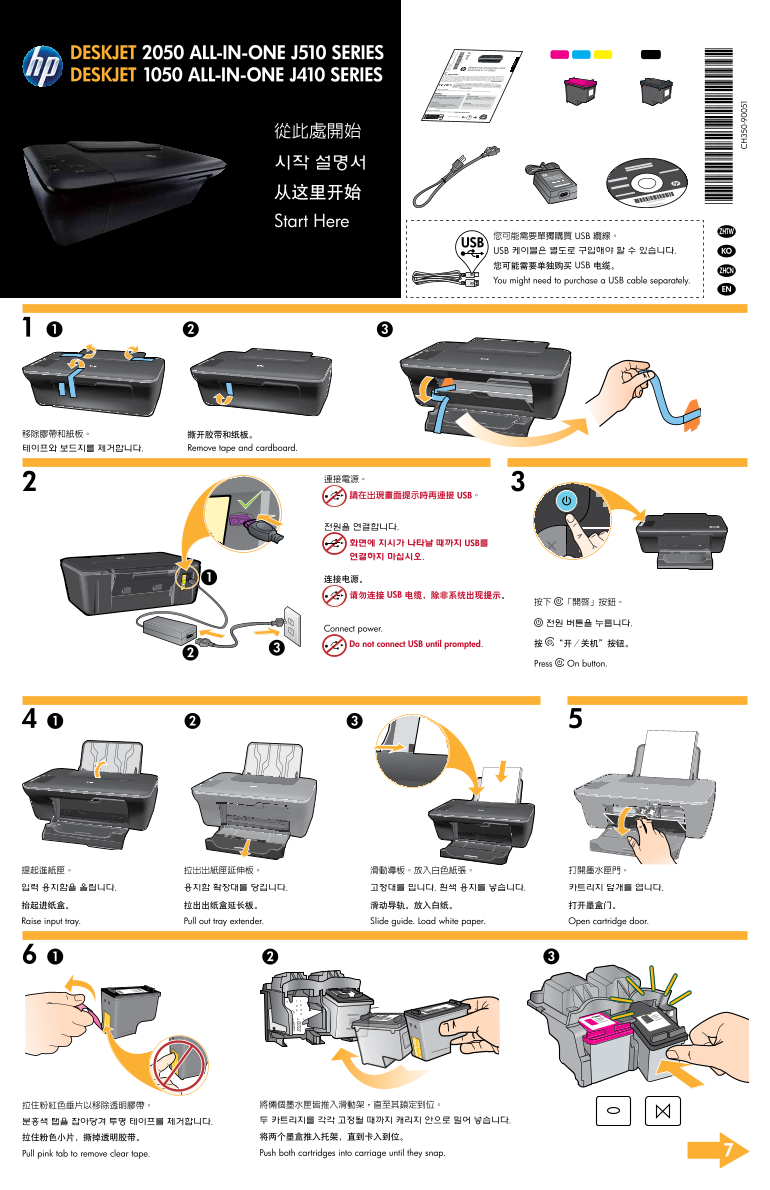
從此處開始 시작 설명서 从这里开始 Start Here
您可能需要單獨購買 USB 纜線。 USB 케이블은 별도로 구입해야 할 수 있습니다. KO 您可能需要单独购买 USB 电缆。
You might need to purchase a USB cable separately.
Pri nte in [C
ou ntr y]
테이프와 보드지를 제거합니다. Remove tape and cardboard. ew let t-P ac nte
ka rd ev elo in [C ou ntr y]
pm en t C om
pa ny , L .P.
XX X-X
連接電源。 請在出現畫面提示時再連接 USB。
En gli sh
전원을 연결합니다. 화면에 지시가 나타날 때까지 USB를 연결하지 마십시오.
USB 连接电源。
请勿连接 USB 电缆,除非系统出现提示。
Connect power.
Do not connect USB until prompted. 按 “开/关机”按钮。
Press On button.
*DESKJET 2050 ALL-IN-ONE J510 SERIES
용지함 확장대를 당깁니다. 고정대를 밉니다. 흰색 용지를 넣습니다. 카트리지 덮개를 엽니다.입력 용지함을 올립니다. 拉出出纸盒延长板。 滑动导轨。放入白纸。 打开墨盒门。抬起进纸盒。 Pull out tray extender. Slide guide. Load white paper. Open cartridge door.Raise input tray.
拉住粉紅色垂片以移除透明膠帶。 將倆個墨水匣皆推入滑動架,直至其鎖定到位。 분홍색 탭을 잡아당겨 투명 테이프를 제거합니다. 두 카트리지를 각각 고정될 때까지 캐리지 안으로 밀어 넣습니다. 拉住粉色小片,撕掉透明胶带。 将两个墨盒推入托架,直到卡入到位。 Pull pink tab to remove clear tape. Push both cartridges into carriage until they snap.
Page Summary Contents For HP Deskjet 1050 Series - J410 Setup Guide
Manual Details
| Brand | HP |
|---|---|
| Pages | 2 |
| File Size | 3.93 MB |
| Published | June 20, 2026 |
Enter the captcha to get the download link:

Frequently Asked Questions
When should I connect the USB cable?
Do not connect the USB cable unless prompted by a screen message during setup.
How do I install the printer software if I lack a CD/DVD drive?
Visit www.hp.com/support to download and install the necessary printer software.
What are the steps for performing machine alignment/calibration?
Close the lid, wait 30 seconds for the automatic page print, then press the 'Start Copy Color' button.
Where is the Declaration of Conformity for this product located online?
It can be found at the web address www.hp.eu/certificates.