Dell Dimension 4600C Installation Guide
Summary
Setup poster for a Dell desktop computer from September 2003, providing illustrated connection instructions for VGA and DVI monitor options (including VGA-to-DVI adapter for optional video cards), PS/2 keyboard and mouse, modem, and network cable. Covers additional device setup including IEEE 1394 option, CD/DVD drive, PC Card slot, front USB 2.0 connectors, and headphone jack. References the Dell Owner's Manual for stand attachment instructions and the Dell Solution Center for additional suppor
Page 1 Text Content
6X803ap3.qxd 9/4/2003 10:51 AM Page 1
Set Up Your Computer First | |
CAUTION: Before you set up and operate your Dell™ computer, read and follow the safety instructions in your Owner's Manual.
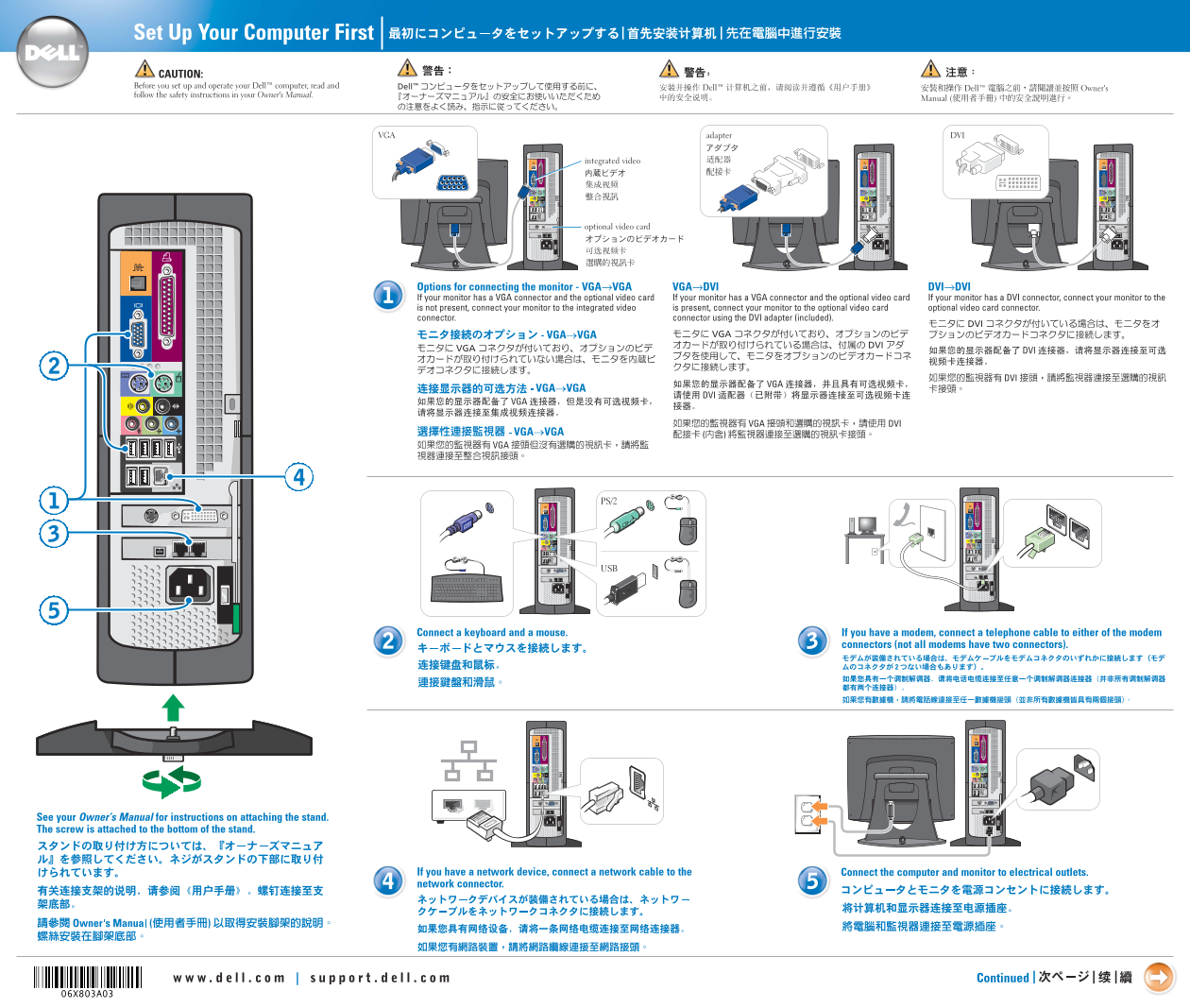
VGA adapter DVI
integrated video
optional video card
Options for connecting the monitor - VGA→VGA VGA→DVI DVI→DVI If your monitor has a VGA connector and the optional video card If your monitor has a VGA connector and the optional video card If your monitor has a DVI connector, connect your monitor to the is not present, connect your monitor to the integrated video is present, connect your monitor to the optional video card optional video card connector. connector. connector using the DVI adapter (included).
Connect a keyboard and a mouse. If you have a modem, connect a telephone cable to either of the modem
connectors (not all modems have two connectors).
See your Owner’s Manual for instructions on attaching the stand. The screw is attached to the bottom of the stand.
Connect the computer and monitor to electrical outlets.If you have a network device, connect a network cable to the
network connector.
Continued | |
Page Summary Contents For Dell Dimension 4600C Installation Guide
Manual Details
| Brand | Dell |
|---|---|
| Pages | 2 |
| File Size | 2.60 MB |
| Published | June 17, 2026 |
Enter the captcha to get the download link:

Frequently Asked Questions
What do I connect to my monitor if it has a DVI connector?
Connect your monitor directly to the optional video card connector.
How can I set up external devices like cameras or game controllers?
Connect them using the IEEE 1394, Front USB 2.0 connectors, or other specific slots (CD/DVD drive).
What should I do before operating the Dell computer?
Read and follow the safety instructions in your Owner's Manual.