Dell AP Installation Guide
Summary
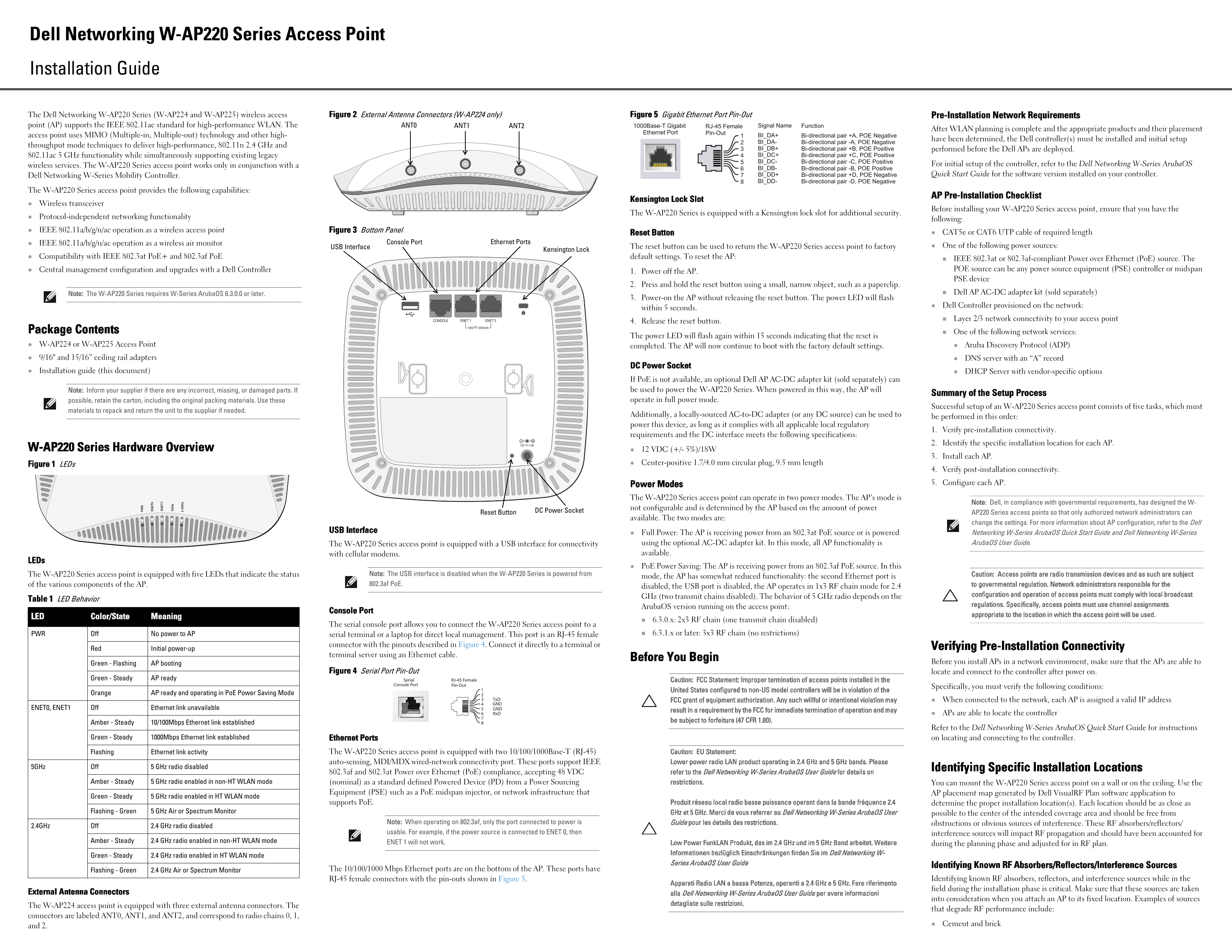
The Dell Networking W-AP220 Series (W-AP224 and W-AP225) is an enterprise wireless access point supporting IEEE 802.11ac standard. This installation guide covers MIMO technology capabilities, 2.4 GHz and 5 GHz functionality, external antenna connectors, gigabit Ethernet port pin-outs, pre-installation network requirements, controller setup prerequisites, and physical installation procedures. Target users include network administrators and wireless engineers deploying enterprise WLAN infrastructure with Dell mobility controllers.
Page 1 Text Content
Dell Networking W-AP220 Series Access Point Installation Guide
The Dell Networking W-AP220 Series (W-AP224 and W-AP225) wireless access Figure 2 External Antenna Connectors (W-AP224 only) Figure 5 Gigabit Ethernet Port Pin-Out Pre-Installation Network Requirements
point (AP) supports the IEEE 802.11ac standard for high-performance WLAN. The ANT0 ANT2ANT1 1000Base-T Gigabit RJ-45 Female Signal Name Function
After WLAN planning is complete and the appropriate products and their placement
Ethernet Port Pin-Out
access point uses MIMO (Multiple-in, Multiple-out) technology and other high- BI_DA+ Bi-directional pair +A, POE Negative
have been determined, the Dell controller(s) must be installed and initial setup
PW BI_DA- Bi-directional pair -A, POE Negative
throughput mode techniques to deliver high-performance, 802.11n 2.4 GHz and
BI_DB+ Bi-directional pair +B, POE Positive performed before the Dell APs are deployed.
EN ET
802.11ac 5 GHz functionality while simultaneously supporting existing legacy BI_DC+ Bi-directional pair +C, POE Positive
EN ET BI_DC- Bi-directional pair -C, POE Positive
wireless services. The W-AP220 Series access point works only in conjunction with a For initial setup of the controller, refer to the Dell Networking W-Series Aruba OS
BI_DB- Bi-directional pair -B, POE Positive
5G Hz
Dell Networking W-Series Mobility Controller. BI_DD+ Bi-directional pair +D, POE Negative Quick Start Guide for the software version installed on your controller.
2. 4G Hz BI_DD- Bi-directional pair -D, POE Negative
The W-AP220 Series access point provides the following capabilities:
AP Pre-Installation Checklist
Kensington Lock Slot
Wireless transceiver
Before installing your W-AP220 Series access point, ensure that you have the
The W-AP220 Series is equipped with a Kensington lock slot for additional security.
Protocol-independent networking functionality
following:
IEEE 802.11a/b/g/n/ac operation as a wireless access point Figure 3 Bottom Panel
Reset Button CAT5e or CAT6 UTP cable of required length
IEEE 802.11a/b/g/n/ac operation as a wireless air monitor Console Port Ethernet Ports
The reset button can be used to return the W-AP220 Series access point to factory One of the following power sources:
Kensington Lock USB Interface
Compatibility with IEEE 802.3at Po E+ and 802.3af Po E default settings. To reset the AP:
IEEE 802.3at or 802.3af-compliant Power over Ethernet (Po E) source. The Central management configuration and upgrades with a Dell Controller POE source can be any power source equipment (PSE) controller or midspan
1. Power off the AP.
PSE device
2. Press and hold the reset button using a small, narrow object, such as a paperclip.
Note: The W-AP220 Series requires W-Series Aruba OS 6.3.0.0 or later. Dell AP AC-DC adapter kit (sold separately)
3. Power-on the AP without releasing the reset button. The power LED will flash
Dell Controller provisioned on the network:
within 5 seconds.
Layer 2/3 network connectivity to your access point
4. Release the reset button.
Package Contents One of the following network services:
The power LED will flash again within 15 seconds indicating that the reset is
W-AP224 or W-AP225 Access Point completed. The AP will now continue to boot with the factory default settings. Aruba Discovery Protocol (ADP) 9/16" and 15/16” ceiling rail adapters DNS server with an “A” record
DC Power Socket
Installation guide (this document) DHCP Server with vendor-specific options
If Po E is not available, an optional Dell AP AC-DC adapter kit (sold separately) can Note: Inform your supplier if there are any incorrect, missing, or damaged parts. If be used to power the W-AP220 Series. When powered in this way, the AP will
Summary of the Setup Process
possible, retain the carton, including the original packing materials. Use these operate in full power mode.
Successful setup of an W-AP220 Series access point consists of five tasks, which must
materials to repack and return the unit to the supplier if needed.
Additionally, a locally-sourced AC-to-DC adapter (or any DC source) can be used to
be performed in this order:
power this device, as long as it complies with all applicable local regulatory
1. Verify pre-installation connectivity.
requirements and the DC interface meets the following specifications:
2. Identify the specific installation location for each AP.
W-AP220 Series Hardware Overview 12 VDC (+/- 5%)/18W
3. Install each AP.
Figure 1 LEDs Center-positive 1.7/4.0 mm circular plug, 9.5 mm length
4. Verify post-installation connectivity. Power Modes 5. Configure each AP.
The W-AP220 Series access point can operate in two power modes. The AP’s mode is
Note: Dell, in compliance with governmental requirements, has designed the W-
not configurable and is determined by the AP based on the amount of power
DC Power Socket Reset Button
AP220 Series access points so that only authorized network administrators can
available. The two modes are:
change the settings. For more information about AP configuration, refer to the Dell
USB Interface
Full Power: The AP is receiving power from an 802.3at Po E source or is powered Networking W-Series Aruba OS Quick Start Guide and Dell Networking W-Series The W-AP220 Series access point is equipped with a USB interface for connectivity using the optional AC-DC adapter kit. In this mode, all AP functionality is Aruba OS User Guide.
with cellular modems. available.
Po E Power Saving: The AP is receiving power from an 802.3af Po E source. In this
The W-AP220 Series access point is equipped with five LEDs that indicate the status Note: The USB interface is disabled when the W-AP220 Series is powered from Caution: Access points are radio transmission devices and as such are subject
mode, the AP has somewhat reduced functionality: the second Ethernet port is
of the various components of the AP. 802.3af Po E. to governmental regulation. Network administrators responsible for the
disabled, the USB port is disabled, the AP operates in 1x3 RF chain mode for 2.4
configuration and operation of access points must comply with local broadcast
GHz (two transmit chains disabled). The behavior of 5 GHz radio depends on the
Table 1 LED Behavior
regulations. Specifically, access points must use channel assignments
Aruba OS version running on the access point:
Console Port
appropriate to the location in which the access point will be used.
LED Color/State Meaning
6.3.0.x: 2x3 RF chain (one transmit chain disabled)
The serial console port allows you to connect the W-AP220 Series access point to a
PWR Off No power to AP serial terminal or a laptop for direct local management. This port is an RJ-45 female 6.3.1.x or later: 3x3 RF chain (no restrictions)
connector with the pinouts described in Figure 4. Connect it directly to a terminal or
Red Initial power-up Verifying Pre-Installation Connectivity
terminal server using an Ethernet cable.
Before You Begin
Green - Flashing AP booting Before you install APs in a network environment, make sure that the APs are able to
Figure 4 Serial Port Pin-Out locate and connect to the controller after power on.
Green - Steady AP ready Serial RJ-45 Female
Caution: FCC Statement: Improper termination of access points installed in the
Console Port Pin-Out
Specifically, you must verify the following conditions:
United States configured to non-US model controllers will be in violation of the
Orange AP ready and operating in Po E Power Saving Mode
Tx D FCC grant of equipment authorization. Any such willful or intentional violation may When connected to the network, each AP is assigned a valid IP address GND
ENET0, ENET1 Off Ethernet link unavailable GND
result in a requirement by the FCC for immediate termination of operation and may
Rx D APs are able to locate the controller
be subject to forfeiture (47 CFR 1.80).
Amber - Steady 10/100Mbps Ethernet link established
Refer to the Dell Networking W-Series Aruba OS Quick Start Guide for instructions
Green - Steady 1000Mbps Ethernet link established Ethernet Ports on locating and connecting to the controller.
Flashing Ethernet link activity The W-AP220 Series access point is equipped with two 10/100/1000Base-T (RJ-45) Caution: EU Statement:
auto-sensing, MDI/MDX wired-network connectivity port. These ports support IEEE Lower power radio LAN product operating in 2.4 GHz and 5 GHz bands. Please
5GHz Off 5 GHz radio disabled Identifying Specific Installation Locations
802.3af and 802.3at Power over Ethernet (Po E) compliance, accepting 48 VDC refer to the Dell Networking W-Series Aruba OS User Guide for details on
Amber - Steady 5 GHz radio enabled in non-HT WLAN mode (nominal) as a standard defined Powered Device (PD) from a Power Sourcing restrictions. You can mount the W-AP220 Series access point on a wall or on the ceiling. Use the
Equipment (PSE) such as a Po E midspan injector, or network infrastructure that AP placement map generated by Dell Visual RF Plan software application to
Green - Steady 5 GHz radio enabled in HT WLAN mode
supports Po E. Produit réseau local radio basse puissance operant dans la bande fréquence 2.4 determine the proper installation location(s). Each location should be as close as
Flashing - Green 5 GHz Air or Spectrum Monitor GHz et 5 GHz. Merci de vous referrer au Dell Networking W-Series Aruba OS User
possible to the center of the intended coverage area and should be free from
Note: When operating on 802.3af, only the port connected to power is Guide pour les details des restrictions. obstructions or obvious sources of interference. These RF absorbers/reflectors/
2.4GHz Off 2.4 GHz radio disabled
usable. For example, if the power source is connected to ENET 0, then interference sources will impact RF propagation and should have been accounted for
Amber - Steady 2.4 GHz radio enabled in non-HT WLAN mode ENET 1 will not work.
Low Power Funk LAN Produkt, das im 2.4 GHz und im 5 GHz Band arbeitet. Weitere during the planning phase and adjusted for in RF plan. Informationen bezlüglich Einschränkungen finden Sie im Dell Networking W-
Green - Steady 2.4 GHz radio enabled in HT WLAN mode
Series Aruba OS User Guide
Identifying Known RF Absorbers/Reflectors/Interference Sources
Flashing - Green 2.4 GHz Air or Spectrum Monitor The 10/100/1000 Mbps Ethernet ports are on the bottom of the AP. These ports have
RJ-45 female connectors with the pin-outs shown in Figure 5. Identifying known RF absorbers, reflectors, and interference sources while in the
Apparati Radio LAN a bassa Potenza, operanti a 2.4 GHz e 5 GHz. Fare riferimento
field during the installation phase is critical. Make sure that these sources are taken
External Antenna Connectors alla Dell Networking W-Series Aruba OS User Guide per avere informazioni
into consideration when you attach an AP to its fixed location. Examples of sources
detagliate sulle restrizioni.
The W-AP224 access point is equipped with three external antenna connectors. The
that degrade RF performance include:
connectors are labeled ANT0, ANT1, and ANT2, and correspond to radio chains 0, 1,
Cement and brick
and 2.
Page Summary Contents For Dell AP Installation Guide
Manual Details
| Brand | Dell |
|---|---|
| Pages | 2 |
| File Size | 1.23 MB |
| Published | June 24, 2026 |
Enter the captcha to get the download link:

Frequently Asked Questions
What power sources are supported for the W-AP220?
It supports IEEE 802.3at/af PoE, a Dell AC-DC adapter kit, or a local DC source (12VDC/18W, center-positive).
How do I reset the access point to factory settings?
Power off the AP, press and hold the reset button with a paperclip, power on without releasing the button, and wait for the LED to flash.
What software version is required for W-AP220 operation?
The W-Series ArubaOS version must be 6.3.0.0 or later.
What are the hardware capabilities of the W-AP220?
It supports IEEE 802.11ac/n/g/b/a operation as an access point or air monitor, with central management via Dell Controller.