Page 1
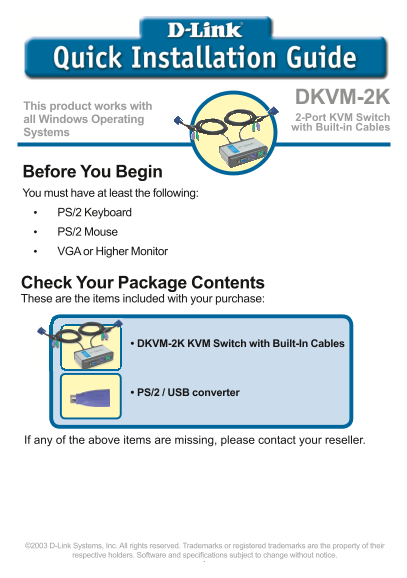
DKVM-2KThis product works with all Windows Operating 2-Port KVM Switch with Built-in Cables Systems Before You Begin You must have at least the following: • PS/2 Keyboard • PS/2 Mouse • VGA or Higher ...
Page 2
Installing the DKVM-2K Make sure that all your computers are turned OFF before installing the DKVM-2K to avoid mouse and keyboard errors when booting up your computers. Attach your monitor’s HDDB 15 V...
Page 3
Installing the DKVM-2K The following steps below apply to both the computers that you are using with your DKVM-2K. Attach the DKVM-2K‘s built-in monitor cable to the VGA port located on the back of yo...
Page 4
Switching with the DKVM-2K The DKVM-2K features a Select Button located on the front panel and keyboard Hot Keys to switch quickly and easily between both your computers. Select Button To enter Hot Ke...
Page 5
Troubleshooting Tips Keyboard If your keyboard is not functional, not detected, or there is a keyboard error on boot- up, check the following: • Make sure that the keyboard is properly connected to th...
Page 6
Technical Support You can find software updates and user documentation on the D-Link website. Tech Support for customers within Australia: D-Link Technical Support over the Telephone: Monday to Friday...
Page 7
Technical Support You can find software updates and user documentation on the D-Link website. Tech Support for customers within South Eastern Asia and Korea: D-Link South Eastern Asia and Korea Techni...
Page 8
Technical Support You can find software updates and user documentation on the D-Link website. Tech Support for customers within India D-Link Technical Support over the Telephone: +91-22-26526741 +91-2...
Page 9
Technical Support You can find software updates and user documentation on the D-Link website. D-Link provides free technical support for customers for the duration of the warranty period on this produ...
Page 10
Technical Support You can find software updates and user documentation on the D-Link website. Tech Support for customers within the U.A.E & North Africa: D-Link Technical Support over the Telephon...
Page 11
Technical Support You can find software updates and user documentation on the D-Link website. Tech Support for customers within South Africa and Sub Sahara Region: D-Link South Africa and Sub Sahara T...
Page 12
Technical Support You can find software updates and user documentation on the D-Link website. Tech Support for Latin America customers: D-Link Technical Support over the followings Telephones: Argenti...
Page 13
DKVM-2KЭтот продукт работает со всеми ОС Windows 2-портовый KVM переключатель со встроенными кабелями Прежде чем начать Необходимо наличие следующего оборудования: • Клавиатура PS/2 • Мышь PS/2 • Мони...
Page 14
Установка DKVM-2K Убедитесь, что все компьютеры отключены перед установкой DKVM-2K для избежания возникновения ошибок, связанных с клавиатурой или «мышью» при загрузке компьютеров. Подключите 15-конта...
Page 15
Установка DKVM-2K Шаги, описанные ниже, выполняются на обоих компьютерах, которые Вы используете с DKVM-2K. Подключите встроенный в DKVM-2K мониторный кабель к VGA порту, расположенному на задней пане...
Page 16
Переключение с помощью DKVM-2K Быстро и просто переключаться между двумя компьютерами DKVM-2K позволяет с помощью кнопки Select, расположенной на передней панели и с помощью «горячих клавиш» клавиатур...
Page 17
Если Ваша клавиатура не функционирует, не определяется, или возникли ошибки клавиатуры при загрузке, проверьте следующее: • Убедитесь, что клавиатура правильно подключена к компьютеру и к DKVM-2K. Про...
Page 18
Техническая поддержка Обновления программного обеспечения и документация доступны на Интернет-сайте D-Link. D-Link предоставляет бесплатную поддержку для клиентов в D-Link по телефону или через Интерн...
Page 19
Este producto funciona DKVM-2K con todos los sistemas Conmutador KVM de 2 puertos con cables operativos Windows integrados Antes de empezar Debe disponerse, al menos, de lo siguiente: • Teclado PS/2 •...
Page 20
Instalar el DKVM-2K Antes de instalar el DKVM-2K, comprobar que todos los ordenadores están APAGADOS, así se evitan errores del ratón o del teclado cuando se reinicien los mismos. Introducir el conect...
Page 21
Instalar el DKVM-2K Los siguientes pasos se han de realizar en los dos ordenadores que se están usando con el DKVM-2K. Conectar el cable del monitor, integrado en el DKVM-2K, en el puerto VGA que se e...
Page 22
Conmutando con el DKVM-2K El DKVM-2K dispone de un botón selector en el panel frontal y de un teclado de teclas de acceso rápido que permiten que la conmutación entre los dos ordenadores sea más rápid...
Page 23
Consejos para solucionar problemas Teclado Si el teclado no funciona, no es detectado o da un error al iniciar, hágase lo siguiente: • Comprobar que el teclado está correctamente conectado al ordenado...
Page 24
Asistencia Técnica D-Link Latin América pone a disposición de sus clientes, especificaciones, documentación y software mas reciente a través de nuestro Sitio Web www.dlinklatinamerica.com El servicio ...
Page 25
DKVM-2KEste produto trabalha com todos os Sistemas Switch KVM de 2 Portas com Cabos Operacionais Windows Incorporados Antes de Você Começar Você deve ter pelo menos os seguintes itens: • Teclado PS/2 ...
Page 26
Instalando o DKVM-2K Certifique-se que todos os seus computadores estejam DESLIGADOS antes de instalar o DKVM-2K para evitar erros de mouse e teclado ao iniciar os seus computadores. Plugue o conector...
Page 27
Instalando o DKVM-2K As etapas a seguir aplicam-se a ambos os computadores que você está utilizando com o seu DKVM-2K. Conecte o cabo de monitor incorporado do DKVM-2K na porta VGA localizada na parte...
Page 28
Comutando com o DKVM-2K O DKVM-2K possui um Botão de Seleção (Select) localizado no painel dianteiro e Hot Keys no teclado para comutar rápida e facilmente entre ambos os seus computadores. Botão Sele...
Page 29
Dicas para Identificação de Problemas Teclado Se o teclado não está funcionando, não é detectado ou há um erro de teclado na inicialização, verifique o seguinte: • Certifique-se que o teclado esteja d...
Page 30
Suporte Técnico Você pode encontrar atualizações de software e documentação de usuário no site da D-Link Brasil www.dlinkbrasil.com.br. A D-Link fornece suporte técnico gratuito para clientes no Brasi...
Page 31
DKVM-2K 本產品與所有Windows 作業系統共用 內建纜線的2埠 KVM交換器 開始之前 必須具備以下條件: ‧ PS/2鍵盤 ‧ PS/2滑鼠 ‧ VGA或更高等級的顯示器 ‧內建纜線的DKVM-2K KVM交換器 ‧PS/2-USB轉換頭(器) ©2004版權所有。D-Link與D-Link商標為友訊科技的商標,其他註冊商標分別隸屬該公司所有。最新規格以原廠通告為準,恕不另行通知.
Page 32
安裝DKVM-2K 在安裝DKVM-2K之前請確認所有的電腦都處於關機狀態,以避免電腦� 動時出現滑鼠或鍵盤錯誤。 將監視器的HDDB 15 VGA連接器 與DKVM-2K的螢幕控制埠連接 將鍵盤的6pin PS/2公頭連接器 與DKVM-2K鍵盤埠連接 將滑鼠的6pin PS/2公頭連接器 與DKVM-2K滑鼠埠連接
Page 33
安裝DKVM-2K 以下步驟適用於與DKVM-2K共同使用的電腦 將DKVM-2K內建顯示器電纜與 電腦機殼背面的VGA埠相連接 將DKVM-2K內建鍵盤電纜與 電腦機殼背面的PS/2鍵盤埠 相連接 將DKVM-2K內建滑鼠電纜與 電腦機殼背面的PS/2滑鼠埠 相連接 Type A 完成DKVM-2K的安裝後,打開所有連接的電腦
Page 34
用DKVM-2K進行切換 DKVM-2K在前面板具有選擇按鈕(Select Button),鍵盤上有熱鍵(Hot Keys), 可以在2台電腦之間快速便捷地進行切換。 Select 按鈕 還可使用鍵盤在2台電腦之間切換。按Scroll Lock鍵2次,進入熱鍵切換模式。 出現嗶聲確認熱鍵模式已啟動。 Scroll Lock + Scroll Lock + 1 : 切換到PC1 Scroll Loc...
Page 35
疑難排解 鍵盤 如鍵盤不可使用、偵測不到或在啟動時發生鍵盤錯誤,請檢查以下內容: ‧ 確認鍵盤已正確連接到電腦和DKVM-2K。檢查鍵盤是否連接了正確的鍵盤埠 而不是PS/2滑鼠埠。 ‧ 當鍵盤直接連接電腦後,請確認鍵盤工作正常。請先關閉電腦以完成本步操作。 ‧ 閱讀您的主機板的說明,確認電腦中PS/2鍵盤IRQ功能設定已啟動。這步驟可 在多數電腦的BIOS設置中完成。 ‧ 試著使用其他鍵盤 滑鼠...
Page 36
Web: http://www.dlinktw.com.tw/ FAQ: http://www.dlinktw.com.tw/support.asp Email: [email protected] Phone: 0800-002-615 如果您是台灣地區以外的用戶,請參考使用手冊 中記載的D-Link 全球各地分公司的聯絡資訊 產品維修與保固相關資訊,請參考友冠資訊網頁說明: http:/...