PHILIPS HTS3540 Quick User Guide
Summary
Your comprehensive guide to optimizing your Philips audio/video home theater system. This manual provides detailed setup instructions for coupling all components, including speaker placement, connecting antennas, and integrating subwoofers. Within this resource, users will learn how to navigate general TV settings, utilize USB connectivity, manage advanced features like sleep timers, and customize language profiles (English/Sino). It is essential reading for any homeowner or enthusiast establishing a seamless and high-performance audiovisual entertainment experience.
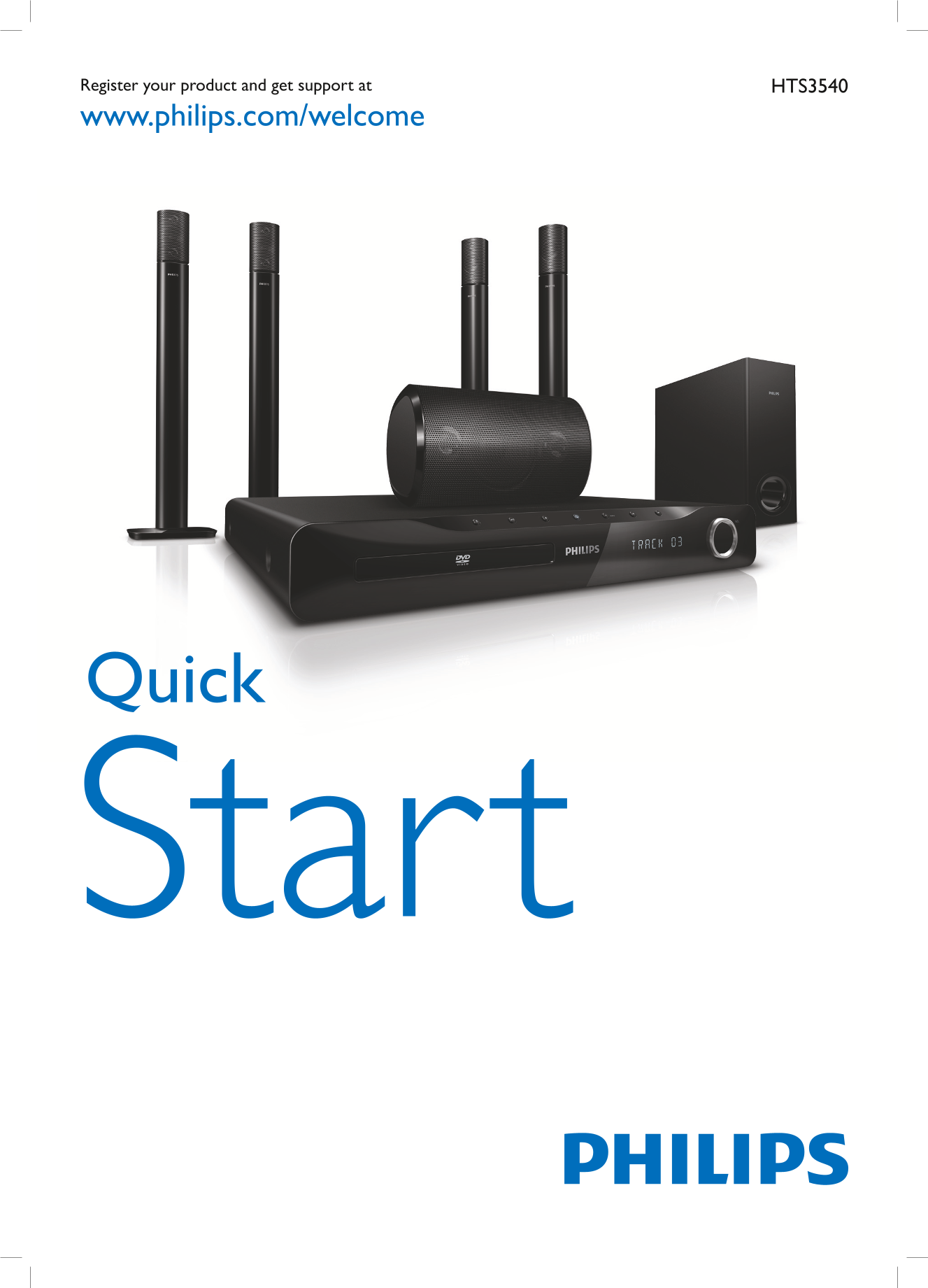
Page 1 Text Content
Register your product and get support at HTS3540 www.philips.com/welcome
Quick
Start
Page Summary Contents For PHILIPS HTS3540 Quick User Guide
Manual Details
| Brand | Philips |
|---|---|
| Pages | 8 |
| File Size | 2.07 MB |
| Published | July 07, 2026 |
Enter the captcha to get the download link:

Frequently Asked Questions
How do I change the display language?
Navigate through the 'Settings' menu on the OSD to select your desired language (e.g., English or 简体中文).
Where can I find support for this device?
You can register your product and get support at HTS3540 www.philips.com/welcome.
Which ports are used for audio and video connections?
The unit specifies cables such as Audio/Video Cable (AV 1) and includes USB settings options.
What controls the display brightness or time-out mode?
You can adjust functionality using the 'Display Dim,' 'Screen Saver,' and 'Sleep Timer' options in the setup menu.