Lenovo All-in-One Printer M800 M810 M810S Quick Installation Guide
Summary
Introducing the Lenovo M8XX Multifunction Printer (MFP), an essential all-in-one machine for printing, scanning, and copying tasks. This comprehensive guide provides step-by-step instructions designed for new users on setting up your unit successfully. The manual covers everything from unboxing and connecting cables to correctly installing print cartridges and completing the necessary software setup. Whether you are a home office professional or small business seeking reliable document handling, this quick start guide ensures you can get printing and scanning with minimal hassle.
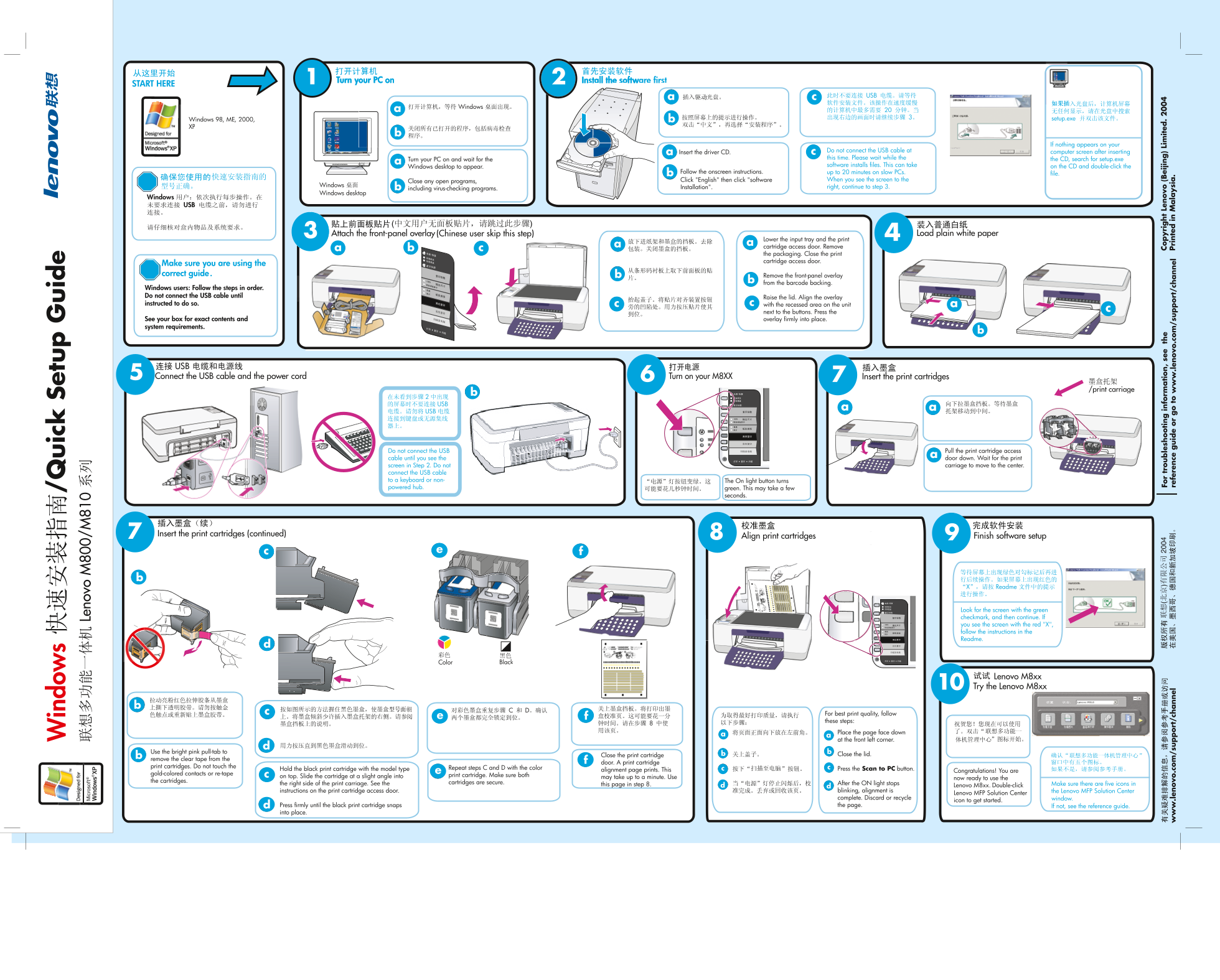
Page 1 Text Content
/Q ui ck et up ui
Turn your PC on Install the software first
START HERE
en ov 0/
Windows 98, ME, 2000,
If nothing appears on your
Do not connect the USB cable at computer screen after inserting
Insert the driver CD.
this time. Please wait while the the CD, search for setup.exe
Turn your PC on and wait for the
software installs files. This can take on the CD and double-click the
Windows desktop to appear.
Follow the onscreen instructions. up to 20 minutes on slow PCs.
file.
Click "English" then click "software When you see the screen to the
Close any open programs,
型号正确。 Installation". right, continue to step 3.
including virus-checking programs.
Windows desktop
Attach the front-panel overlay (Chinese user skip this step) Load plain white paper
Lower the input tray and the print ca cartridge access door. Remove the packaging. Close the print cartridge access door.
Make sure you are using the correct guide. Remove the front-panel overlay
from the barcode backing.
Windows users: Follow the steps in order. Do not connect the USB cable until
Raise the lid. Align the overlay
instructed to do so. with the recessed area on the unit
next to the buttons. Press the
See your box for exact contents and overlay firmly into place. system requirements.
Connect the USB cable and the power cord Turn on your M8XX Insert the print cartridges
/print carriage
Do not connect the USB Pull the print cartridge access cable until you see the door down. Wait for the print screen in Step 2. Do not carriage to move to the center.
connect the USB cable to a keyboard or non- The On light button turns
powered hub. green. This may take a few
seconds.
Align print cartridges Finish software setup Insert the print cartridges (continued)
Look for the screen with the green checkmark, and then continue. If you see the screen with the red "X", follow the instructions in the Readme.
Black Color
Lenovo M8xx Try the Lenovo M8xx
For best print quality, follow these steps:
Place the page face down 联想多功能一
at the front left corner. 体机管理中心
Use the bright pink pull-tab to
Close the print cartridge Close the lid. 联想多功能一体机管理中心
remove the clear tape from the
door. A print cartridge
print cartridges. Do not touch the
Hold the black print cartridge with the model type Repeat steps C and D with the color 扫描至电脑 Press the Scan to PC button.
alignment page prints. This Congratulations! You are
gold-colored contacts or re-tape
on top. Slide the cartridge at a slight angle into print cartridge. Make sure both
may take up to a minute. Use now ready to use the
the cartridges.
the right side of the print carriage. See the cartridges are secure. 电源 After the ON light stops
this page in step 8. Make sure there are five icons in
Lenovo M8xx.. Double-click
instructions on the print cartridge access door. blinking, alignment is the Lenovo MFP Solution Center
Lenovo MFP Solution Center
complete. Discard or recycle window.
icon to get started.
Press firmly until the black print cartridge snaps the page. If not, see the reference guide.
into place.
(北 )有 Fo tr ou le sh oo tin in fo rm tio se Co yr ig ht en ov (B ei jin Li ite
.le no vo .c om /s up or t/ ch nn el re fe re ce ui or to .le no vo .c om /s up or t/ ch nn el Pr in te in la ys ia
Page Summary Contents For Lenovo All-in-One Printer M800 M810 M810S Quick Installation Guide
Manual Details
| Brand | Lenovo |
|---|---|
| Pages | 1 |
| File Size | 9.34 MB |
| Published | June 05, 2026 |
Enter the captcha to get the download link:

Frequently Asked Questions
When do I connect the USB cable?
Do not connect the USB cable until you reach Step 6 of the setup process.
How long does the initial software setup take?
The installation can take up to 20 minutes, especially on slow PCs.
What should I do if the screen shows a red 'X' during testing?
Follow the specific instructions provided in the accompanying Readme file.
How do I properly install a print cartridge?
Slide it at a slight angle into the recess, and press firmly until you hear a snap. It must be secure.