Page 1
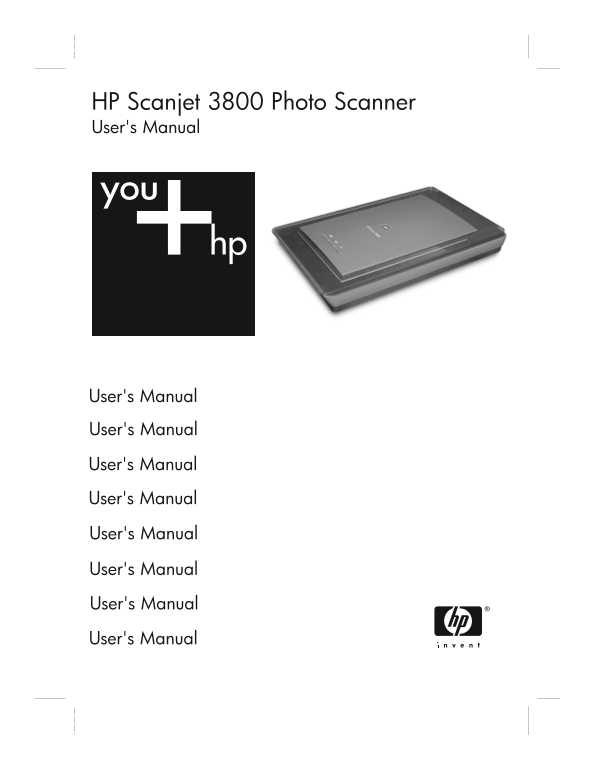
HP Scanjet 3800 Photo Scanner User's Manual User's Manual User's Manual User's Manual User's Manual User's Manual User's Manual User's Manual User's Manual
Page 3
HP Scanjet 3800 User's Manual HP All-in-One Information Engineering
Page 4
Copyright and license © 2005 Copyright Hewlett-Packard Development Company, L.P. Reproduction, adaptation or translation without prior written permission is prohibited, except as allowed under the cop...
Page 5
Contents How to use the scanner.......................................................................................2 Scanner setup and initialization ..................................................
Page 6
How to use the scanner This manual describes how to use the HP Scanjet 3800 Photo Scanner and its accessories, resolve installation problems, and reach customer support. Scanner setup and initializati...
Page 7
Front panel and accessories overview This section presents an overview of the scanner front panel and the transparent materials adapter (TMA). Front panel buttons Icon Feature name Description Scan bu...
Page 8
Chapter 1 2. If you have installed more than one HP device, click the tab for the scanner. The HP Solution Center shows only the functions, settings, and support options that are appropriate for the s...
Page 9
3. Click Scan. 4. When the scan is finished, place an item on the scanner glass and then click Scan to scan another item, or click Done. The software saves the scan to a subfolder in the My Scans fold...
Page 10
Chapter 1 5. When you are finished with that page, place the next page on the glass and click Scan to scan another document or page. 6. When you are finished with all pages, click Done. After you clic...
Page 11
1. Open the scanner lid. 2. Remove the negative strip holder, if present, from the slide holder. 3. Place the slides into the slide holder. Insert the slides with the top of the slides pointing up and...
Page 12
Chapter 1 1. Open the scanner lid and remove the negative strip holder from the slide holder. 2. Slide a negative strip into the negative strip holder as indicated by the icons on the holder. Note Neg...
Page 13
software to set the scaling to the final size that you select. The scanner will scan the item to the size that you select and adjust the scan resolution as appropriate. To scan positives, such as 35 m...
Page 14
Chapter 1 Note If Show Preview was selected, you must click the Accept button in the preview screen to initiate the scan. When prompted, click Yes to scan additional pictures, or click No to send the ...
Page 15
Care and maintenance Occasional cleaning of your scanner helps ensure higher-quality scans. The amount of care necessary depends upon several factors, including the amount of use, and the environment....
Page 16
Troubleshooting This section contains solutions for common problems with the scanner and the transparent materials adapter (TMA). Scanner installation or setup problems This section contains solutions...
Page 17
(continued) Cable type Action USB cable The USB cable is connected between the scanner and the computer. Use the cable that was included with the scanner. Another USB cable might not be compatible wit...
Page 18
Chapter 3 The carriage on the scanner will move forward and backward approximately 25 mm (1 inch), and the lamp will turn on. If the carriage does not move and the scanner lamp does not turn on, a pro...
Page 19
Product support Accessibility Web site Customers with disabilities can get help by visiting www.hp.com/hpinfo/community/ accessibility/prodserv/. HP Scanjet Web site Visit www.hp.com for a variety of ...
Page 20
Chapter 4 while you are in front of your computer and scanner. For faster service, please be prepared to provide the following information: The scanner model number (located on the scanner) The scanne...
Page 21
Regulatory information and product specifications This section contains regulatory information and product specifications for the HP Scanjet 3800 Photo Scanner and accessories. Scanner specifications ...
Page 22
Chapter 5 Environmental specifications Disposal of Waste Equipment by Users in Private Household in the European Union This symbol on the product or on its packaging indicates that this product must n...
Page 24
Printed on at least 50% total recycled fiber © 2005 Hewlett-Packard Development Company, L.P. with at least 10% post-consumer paper www.hp.com Printed in Printed on at least 50% total recycled fiber w...