HP Scanjet 3800 Photo Scanner Setup Poster
Summary
Digitize your treasured memories and important documents with the HP Scanjet 3800 Photo Scanner. This comprehensive guide provides clear instructions for setting up your device, installing necessary software, and operating multiple scanning functions, including photos, papers, slides, and negatives. Ideal for home users or small offices needing reliable digital archiving, the scanner allows you to easily scan, copy, and share items directly from the unit.
Page 1 Text Content
4_language_minime_poster 3/29/05 10:48 AM Page 1
HP Scanjet 3800 Photo Scanner Setup HP Scanjet 3800 Lorum Ipsum Ullam
English Suocirca
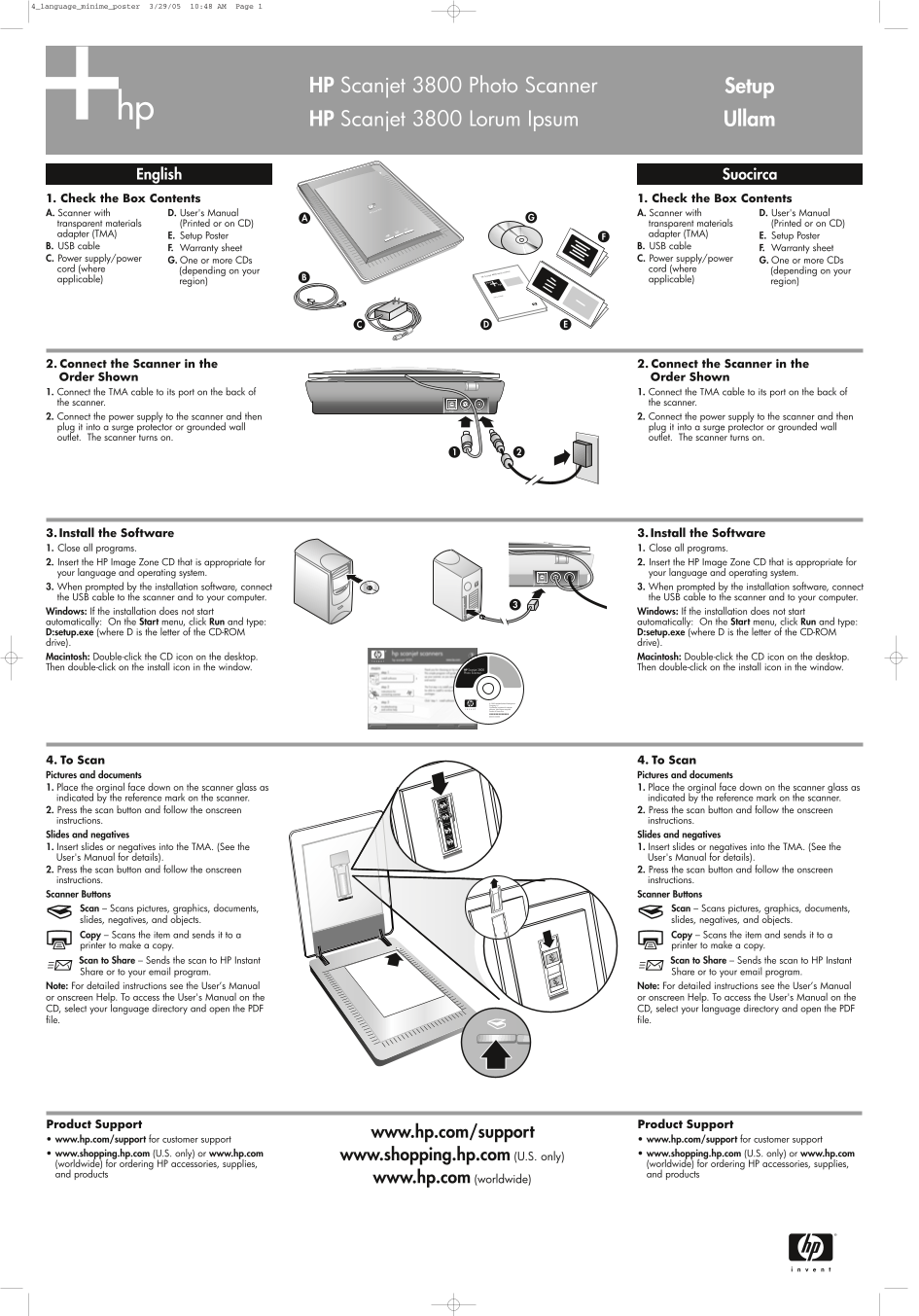
1. Check the Box Contents 1. Check the Box Contents A. Scanner with D. User's Manual A. Scanner with D. User's Manual transparent materials (Printed or on CD) transparent materials (Printed or on CD) adapter (TMA) E. Setup Poster adapter (TMA) E. Setup Poster B. USB cable F. Warranty sheet B. USB cable F. Warranty sheet C. Power supply/power G. One or more CDs C. Power supply/power G. One or more CDs cord (where (depending on your cord (where (depending on your applicable) region) applicable) region)
2. Connect the Scanner in the 2. Connect the Scanner in the Order Shown Order Shown 1. Connect the TMA cable to its port on the back of 1. Connect the TMA cable to its port on the back of the scanner. the scanner. 2. Connect the power supply to the scanner and then 2. Connect the power supply to the scanner and then plug it into a surge protector or grounded wall plug it into a surge protector or grounded wall outlet. The scanner turns on. outlet. The scanner turns on.
3. Install the Software 3. Install the Software 1. Close all programs. 1. Close all programs. 2. Insert the HP Image Zone CD that is appropriate for 2. Insert the HP Image Zone CD that is appropriate for your language and operating system. your language and operating system. 3. When prompted by the installation software, connect 3. When prompted by the installation software, connect the USB cable to the scanner and to your computer. the USB cable to the scanner and to your computer. Windows: If the installation does not start Windows: If the installation does not start automatically: On the Start menu, click Run and type: automatically: On the Start menu, click Run and type: D:setup.exe (where D is the letter of the CD-ROM D:setup.exe (where D is the letter of the CD-ROM drive). drive). Macintosh: Double-click the CD icon on the desktop. Macintosh: Double-click the CD icon on the desktop. Then double-click on the install icon in the window. HP Scanjet 3800 Then double-click on the install icon in the window.
Photo Scanner
© 2005 Hewlett-Packard Development
Company, L.P.
Confidential commercial computer
software. Valid license required.
Product of Puerto Rico
4. To Scan 4. To Scan Pictures and documents Pictures and documents 1. Place the orginal face down on the scanner glass as 1. Place the orginal face down on the scanner glass as indicated by the reference mark on the scanner. indicated by the reference mark on the scanner. 2. Press the scan button and follow the onscreen 2. Press the scan button and follow the onscreen instructions. instructions. Slides and negatives Slides and negatives 1. Insert slides or negatives into the TMA. (See the 1. Insert slides or negatives into the TMA. (See the User's Manual for details). User's Manual for details). 2. Press the scan button and follow the onscreen 2. Press the scan button and follow the onscreen instructions. instructions. Scanner Buttons Scanner Buttons Scan – Scans pictures, graphics, documents, Scan – Scans pictures, graphics, documents, slides, negatives, and objects. slides, negatives, and objects. Copy – Scans the item and sends it to a Copy – Scans the item and sends it to a printer to make a copy. printer to make a copy. Scan to Share – Sends the scan to HP Instant Scan to Share – Sends the scan to HP Instant Share or to your email program. Share or to your email program. Note: For detailed instructions see the User’s Manual Note: For detailed instructions see the User’s Manual or onscreen Help. To access the User's Manual on the or onscreen Help. To access the User's Manual on the CD, select your language directory and open the PDF CD, select your language directory and open the PDF file. file.
Product Support Product Support
www.hp.com/support
• www.hp.com/support for customer support • www.hp.com/support for customer support • www.shopping.hp.com (U.S. only) or www.hp.com www.shopping.hp.com (U.S. only) • www.shopping.hp.com (U.S. only) or www.hp.com (worldwide) for ordering HP accessories, supplies, (worldwide) for ordering HP accessories, supplies, and products and products
www.hp.com (worldwide)
Page Summary Contents For HP Scanjet 3800 Photo Scanner Setup Poster
Manual Details
| Brand | HP |
|---|---|
| Pages | 2 |
| File Size | 377.75 KB |
| Published | May 29, 2026 |
Enter the captcha to get the download link:

Frequently Asked Questions
What is the correct order for setting up the scanner?
First, connect the TMA cable. Then plug the power supply into a surge protector or grounded wall outlet. Finally, install the software.
Beyond photos and documents, what materials can this scanner process?
The Scan button allows scanning of slides, negatives, graphics, objects, in addition to pictures and documents.
How does the 'Scan to Share' button function?
It sends the scan either through HP Instant Share or directly to your personal email program.