Page 1
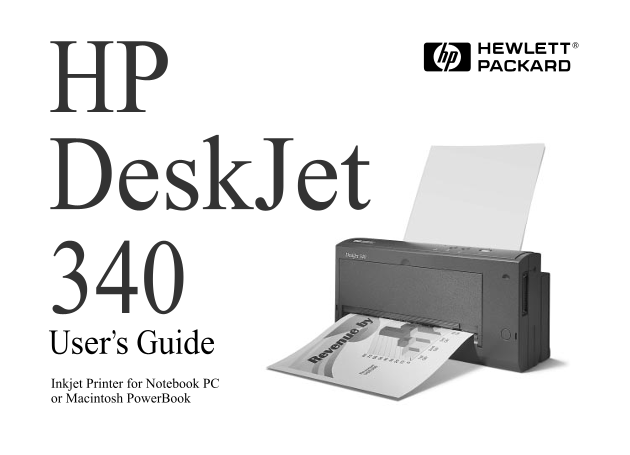
HP Desk Jet User’s Guide Inkjet Printer for Notebook PC or Macintosh Power Book US front cover 8/23/96, 4:59 PM1
Page 2
Acknowledgements Contents Apple, Mac, and Macintosh are registered trademarks of Apple The HP Desk Jet 340 Printer Items in the Box Computer, Inc. Printer Buttons and Lights Travel Tips Microsoft is a...
Page 3
1The HP Desk Jet 340 Printer The HP Desk Jet 340 Printer Printer Buttons and Lights The HP Desk Jet 340 is a high-quality inkjet printer, giving you 600 x 300 dots per inch text and graphics printing ...
Page 4
Getting Started Connecting the Printer to Your Computer Connecting the Power Adapter You can use the HP Desk Jet 340 printer with a PC or a Macintosh The multivoltage power adapter can be used through...
Page 5
Getting Started Place the print cartridge into the cradle, Useful Tips For Your Print Cartridge with the green arrow on the cartridge Keep the print cartridge in its sealed package until you are top p...
Page 6
Getting Started Installing the Portable Sheet Feeder Push the paper release lever down to the open position. To install the portable sheet feeder: Slide the left paper width Insert the two catches nea...
Page 7
Getting Started Feeding Paper Manually Printing Transparencies, Labels and Special You may find that the paper you have loaded into the portable sheet Paper feeder is not feeding well into the printer...
Page 8
Getting Started Installing the Printer Software Instructions for DOS Users The HP Desk Jet 340 printer can be used with both Microsoft If you are using the printer with Microsoft DOS, use the followin...
Page 9
Getting Started You can print a directory listing to verify that your printer and Notes computer are communicating. Unless you have a built-in Ethernet connector in your Macintosh At the DOS prompt, t...
Page 10
Using Battery Power Supply Installing the Battery Pack Charging the Battery Pack In order to install a battery pack, you must first remove the Install the new battery pack in the printer. portable she...
Page 11
4Supplies and Accessories Supplies and Accessories Supply/Accessory HP Reorder Number To order printer supplies or accessories, call your authorized HP dealer/distributor. Power cable Japan 8120-6316 ...
Page 12
Printer Specifications5 Printer Specifications Color Print Speed* Paper Weight Full-color graphics: 4-7 minutes per page 16 to 24 lb. (60 to 90 g/m2) Hardware and Software * Approximate figures. Exact...
Page 13
Printer Specifications I/O Interface Dimensions (printer only) Top Margin black and color printing Centronics port with parallel, serial and 12.2 in. W x 2.6 in. H x 5.8 in. D (310 mm x 0.08 inch (U.S...
Page 14
Customer Support6 Customer Support For customers in Europe: U.K. 0800 96 02 71 If your printer fails during the warranty period, For service in English outside U.K. (31) 20 681 5792 consult HP FIRST f...
Page 15
Customer Support Telephone Support During Warranty Asia Pacific To speak with someone for technical assistance within the HP Customer Support Center hardware warranty of your printer, call: Australia ...
Page 16
Customer Support Electronic Information Services Additional Telephone Support For 24-hour access to information over your modem: Compu Serve For help with printer service (failures only): Printer driv...
Page 17
7Regulatory Notices Regulatory Notices Power adapter statement Power Adapter The power adapter and cable cannot be repaired. If it Important information Potential for radio/television interference is ...
Page 18
DECLARATION OF CONFORMITY according to ISO / IEC Guide 22 and EN 45104 Manufacturer’s name: Hewlett-Packard Singapore (Pte) Ltd Manufacturer’s address: 20 Gul Way Singapore 2262 declares, that the pro...
Page 19
Hewlett-Packard Limited Warranty Statement If HP is unable to repair or replace, as applicable, a defective product which HP Product Warranty Duration of Limited is covered by HP’s warranty, HP shall,...
Page 20
Printed on recycled paper © Copyright 1995 Hewlett-Packard Company Printed in U.S.A. 04/96 Manual Part No. C2655-90075 8/23/96, 4:59 PM2