# A B C D E F G H I J K L M N O P Q R S T U V W X Y Z

HP DesignJet Z2600 PostScript Printer - Assembly Instructions

Summary

Streamline your workflow with comprehensive setup for the large-format HP DesignJet Z2600. This detailed manual guides you through every step, encompassing physical hardware assembly, power setup, printhead installation, and essential software configuration for both Windows and Mac OS. Designed for professionals who need reliable printing anywhere, it ensures you can easily produce high-quality, oversized documents from your laptop, touchscreen device, iPhone, or iPad, offering ultimate portability and efficiency.
📄 Preview PAGE OF 28

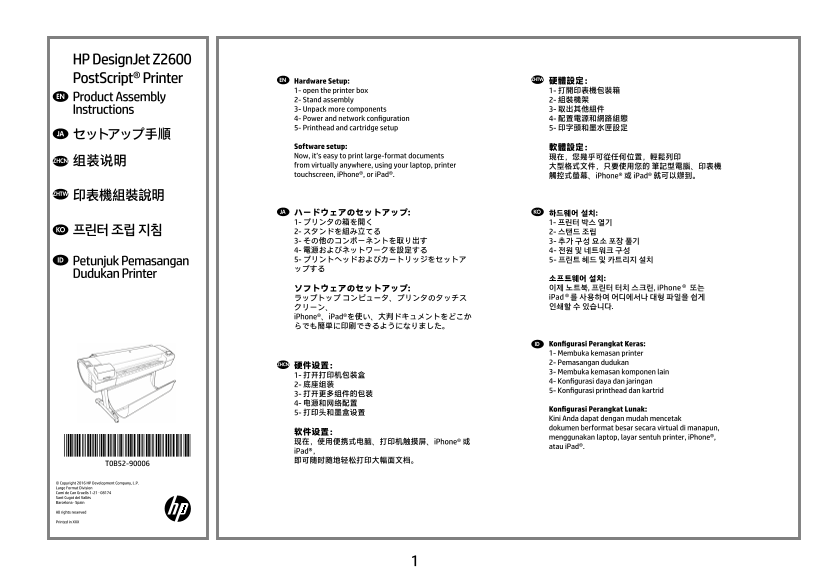
Page 1 Text Content

HP Design Jet Z2600

Post Script® Printer EN ZHTW

Hardware Setup: 硬體設定: 1- open the printer box 1- 打開印表機包裝箱

EN Product Assembly

2- Stand assembly 2- 組裝機架 Instructions 3- Unpack more components 3- 取出其他組件 4- Power and network configuration 4- 配置電源和網路組態 5- Printhead and cartridge setup 5- 印字頭和墨水匣設定

JA セットアップ手順

Software setup: 軟體設定: Now, it’s easy to print large-format documents 現在,您幾乎可從任何位置,輕鬆列印

ZHCN 组装说明

from virtually anywhere, using your laptop, printer 大型格式文件,只要使用您的 筆記型電腦、印表機 touchscreen, i Phone®, or i Pad®. 觸控式螢幕、i Phone® 或 i Pad® 就可以辦到。

ZHTW 印表機組裝說明

JA ハードウェアのセットアップ: KO 하드웨어 설치: 1- プリンタの箱を開く 1- 프린터 박스 열기

KO 프린터 조립 지침 2- スタンドを組み立てる

3- その他のコンポーネントを取り出す 3- 추가 구성 요소 포장 풀기 4- 電源およびネットワークを設定する 4- 전원 및 네트워크 구성 ID Petunjuk Pemasangan 5- プリントヘッドおよびカートリッジをセットア 5- 프린트 헤드 및 카트리지 설치 ップする

Dudukan Printer

소프트웨어 설치: ソフトウェアのセットアップ: 이제 노트북, 프린터 터치 스크린, i Phone® 또는 ラップトップ コンピュータ、プリンタのタッチス i Pad®를 사용하여 어디에서나 대형 파일을 쉽게 クリーン、 인쇄할 수 있습니다.

i Phone®、i Pad®を使い、大判ドキュメントをどこか らでも簡単に印刷できるようになりました。

ID Konfigurasi Perangkat Keras: 1- Membuka kemasan printer ZHCN 2- Pemasangan dudukan

3- Membuka kemasan komponen lain

4- Konfigurasi daya dan jaringan

5- Konfigurasi printhead dan kartrid

Konfigurasi Perangkat Lunak:

Kini Anda dapat dengan mudah mencetak dokumen berformat besar secara virtual di manapun,

menggunakan laptop, layar sentuh printer, i Phone®,

现在,使用便携式电脑、打印机触摸屏、i Phone® 或

*T0B52-90006* atau i Pad®.

i Pad®, 即可随时随地轻松打印大幅面文档。

© Copyright 2016 HP Development Company, L.P. Large Format Division Camí de Can Graells 1-21 · 08174 Sant Cugat del Vallès Barcelona · Spain

All rights reserved

Printed in XXX

Page Summary Contents For HP DesignJet Z2600 PostScript Printer - Assembly Instructions

Page 1 HP Design Jet Z2600 Post Script® Printer EN ZHTW Hardware Setup: 硬體設定: 1- open the printer box 1- 打開印表機包裝箱 EN Product Assembly 2- Stand assembly 2- 組裝機架 Instructions 3- Unpack more components 3- 取出其他組...
Page 2 EN Read these instructions carefully...What you will need for this procedure Product working area • Because the product is heavy, you may need three people to unpack it. When more than one person is n...
Page 3 EN Open the box HP Design Jet Z2600 Post Script® Printer JA 箱を開く Start Up ZHCN 打开包装盒 ZHTW 打開外盒 KO 상자 열기 ID Membuka kemasan © Copyright 2016 HP Development Company, L.P. EN Remove the accessories from ...
Page 4 EN Remove the pieces of cardboard. Lift up the sides and top of the printer box, and remove them Dismantle the bottom of the printer box by disengaging each Cut and remove the straps around the stand ...
Page 5 EN Stand assembly (printer with stand only) JA スタンドの組み立て(スタンド 付きのプリンタの場合) ZHCN 支架装配件(仅限带支架的打印机) ZHTW 機架組件(僅限含機架的印表機) KO 스탠드 조립( 스탠드가 있는 프린 터의 경우에만) ID Perakitan dudukan (khusus printer dengan dudukan)...
Page 6 EN Support one end of the cross-brace on the stand box Make sure you have used 4 screws in each leg. Attach a foot to each leg, using four screws in each foot. IMPORTANT: Make sure there is nothing on...
Page 7 EN Remove the small flaps from each of the foam end pieces. Remove the tape from the transparent covering that Open the transparent covering and remove the desiccant Lift the stand, keeping it upside ...
Page 8 EN There is a round yellow button protruding from the top of Place the stand on the product slowly and carefully, so that When the legs are correctly located on the product, attach Check that the whee...
Page 9 101.2kg EN Make sure there is nothing on top of the printer. Hold the product by the foam end pieces and by the center Remove the foam end pieces. Remove the transparent covering from the product. Rot...
Page 10 EN Lay out the components of the basket. Fit the basket supports to the stand legs, one to each leg. Fit the two short tubes to the product’s feet, one on the Attach the basket’s front tube to the two...
Page 11 EN Unpack more components JA その他のコンポーネントを取り 出す ZHCN 打开更多组件的包装 ZHTW 取出其他組件 KO 추가 구성 요소 포장 풀기 ID Membuka kemasan komponen lain EN Rest the basket’s rear tube on the supports that you have The basket is ...
Page 12 EN Open the Window. You will see a cardboard support attached to the product Turn the cardboard support 90° to the right. Carefully lift the cardboard support up and out of the prod- with tape. Remove...
Page 13 EN Power and network configuration JA 電源およびネットワークを設定する ZHCN 电源和网络配置 ZHTW 配置電源和網路組態 KO 전원 및 네트워크 구성 ID Konfigurasi daya dan jaringan EN Inside the right-hand side of the product, you will see a Remove ...
Page 14 EN If you find a USB flash drive in a plastic bag inside the box, it Connect the power cable to the product’s power socket. Switch on power to the product using the switch just Connect the network cab...
Page 15 EN Printhead and cartridge setup JA プリントヘッドおよびカートリッ ジをセットアップする ZHCN 打印头和墨盒设置 ZHTW 印字頭和墨水匣設定 KO 프린트 헤드 및 카트리지 설치 ID Konfigurasi printhead dan kartrid EN On the front panel, the HP logo appears. Please ...
Page 16 EN Check that the ink cover is properly placed. Open the cover on the left-hand side of the product. Insert the ink cartridges one by one. Each cartridge is The cartridges must be inserted the right w...
Page 17 EN When you have inserted all of the ink cartridges correctly, the Open the window and grasp the blue handle of the print- Pull the blue handle towards you as far as it will go. Lift the handle up to ...
Page 18 EN The setup printheads exist only to prevent the escape of Remove and discard all orange setup printheads. You may Press the OK key on the front panel when you have Unwrap each printhead and remove a...
Page 19 EN Insert the printheads one by one. Each printhead is marked Push each printhead into the slot until it clicks into place. Pull the blue handle towards you as far as it will go, picking Push the hand...
Page 20 HP Design Jet Z2600 Post Script® Printer Start Up © Copyright 2016 HP Development Company, L.P. EN While the product is preparing the printheads, you could spend the time installing the product softwa...
Page 21 EN If the blue removable stop is on the spindle, remove it. Put Push the removable stop towards the roll as far as it will From the front of the product, place the spindle into the Feed the leading ed...
Page 22 EN HP e Print: Enable email printing 1 - Make sure that your printer is correctly connected to the Internet. 2 - Enable Web Services during initial setup of the printer, or later following the instruc...
Page 23 EN A screen appears explaining what steps you will Your network configuration connectivity will now be Your information will be verified, when complete, Congratulations! HP e Print is enabled on your ...
Page 24 HP Design Jet Z2600 Post Script® Printer Start Up hp.com/go/Design Jetclick © Copyright 2016 HP Development Company, L.P. EN Install the product software from the DVD that came with your printer onto ...
Page 25 EN You can now, or at some later time, color-calibrate the paper type that you intend to use in the product. Color calibration is 1. Return to home screen recommended for accurate color printing. It c...
Page 26 EN JA ZHCN ZHTW Note for MAC & Windows USB Mac および Windows の USB 接続 MAC 和 Windows USB 连接注意事 請注意,當 MAC 與 Windows USB connection: に関する注記: 项: 連線時: Do not connect the computer to the product yet. この時点...
Page 27 MAC 및 Windows USB 연결을 위한 Catatan tentang sambungan USB 안내 untuk MAC & Windows: Jangan sambungkan dulu komputer ke printer. Anda harus terlebih dulu menginstal perangkat lunak driver printer di kom...
Page 28 EN © Copyright 2016 HP Development Company, L.P. ZHTW © Copyright 2016 HP Development Company, L.P. The information contained herein is subject to change without 本文件包含的資訊可能有所變更,恕不另行通知。 notice. The onl...

Manual Details

Brand HP
Pages 28
File Size 8.28 MB
Published June 02, 2026
91 views

Enter the captcha to get the download link:

captcha

Frequently Asked Questions

What is the minimum floor space required for setting up the printer?

You need at least 3 x 2 m (120 x 80 in) of empty floor space for assembly.

How do I perform large-format printing from my mobile devices?

You can print using your laptop, printer touchscreen, iPhone®, or iPad® from almost any location.

What materials are needed besides a LAN connection during setup?

You need a roll of 24 in (minimum) paper for aligning the printheads and enough clear space around the box.

How many people are required to safely unpack this printer?

Because the product is heavy, you may need three people merely to unpack it.