HP Designjet T1708 Printer Series - HP Designjet T1708 Series Printer - Assembly Instructions
Summary
The comprehensive manual for this large format printer guides users through complete setup, ensuring professional operation from day one. It details step-by-step assembly of the stand and printer body, covering hardware installation and required room clearances. The guide also provides essential software instructions for connecting via Wi-Fi, AirPrint, Android, or HP Smart App, making it ideal for designers, artists, and businesses needing reliable, high-quality large-scale printing solutions from multiple devices.
Page 1 Text Content
EN Please read these instructions carefully. These assembly instructions explain how to assemble the printer.
Hardware Setup:
HP Design Jet T1708 • Because the product is heavy, you may need three people to unpack it. When more than one person is needed,
1- Assemble the stand
this symbol is displayed *.
2- Attach the printer body to the stand assembly
• You need a roll of 15in (381mm) minimum paper to align the printheads.
Printer 3- Set up the printer
• You need a LAN connection to connect the printer to the internet.
4- Printhead and cartridge setup
Note: Roll and LAN cables are not included.
5- Connectivity & Mobile Printing
Assembly instructions • To download the printer drivers go to www.hp.com/go/T1708/drivers.
Software setup:
ZHCN 组装说明 请仔细阅读这些说明。 这些组装说明对如何组装打印机进行了介 绍。
Now, it’s easy to print large-format documents from virtually
anywhere, using your laptop, printer touchscreen, i Phone®, or
i Pad®.
• 附近必须有 LAN 连接,以便将打印机连接到 Internet。 注意: 不附带卷筒和 LAN 电缆。
Install the product software from:
• 要下载打印机驱动程序,请访问 www.hp.com/go/T1708/drivers
www.hp.com/go/T1708/drivers
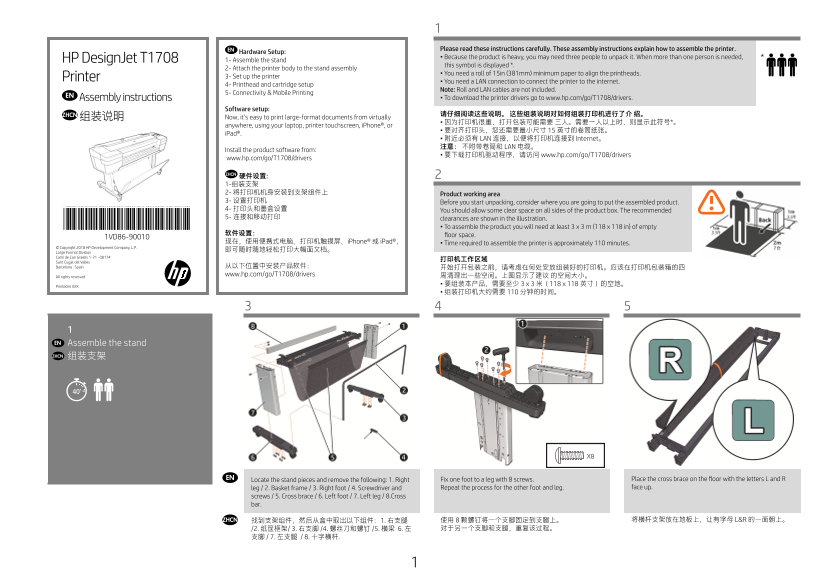
ZHCN 硬件设置: 1-组装支架 2- 将打印机机身安装到支架组件上 Product working area 3- 设置打印机 Before you start unpacking, consider where you are going to put the assembled product. 4- 打印头和墨盒设置 You should allow some clear space on all sides of the product box. The recommended 5- 连接和移动打印 clearances are shown in the illustration.
*1VD86-90010*
• To assemble the product you will need at least 3 x 3 m (118 x 118 in) of empty
软件设置: floor space.
1VD86-90010
现在,使用便携式电脑、打印机触摸屏、i Phone® 或 i Pad®, • Time required to assemble the printer is approximately 110 minutes.
© Copyright 2018 HP Development Company, L.P.
Large Format Division Camí de Can Graells 1-21 · 08174
Sant Cugat del Vallès
Barcelona · Spain 从以下位置中安装产品软件: 开始打开包装之前,请考虑在何处安放组装好的打印机。应该在打印机包装箱的四 All rights reserved www.hp.com/go/T1708/drivers 周清理出一些空间。上图显示了建议 的空间大小。
Printed in XXX • 要组装本产品,需要至少 3 x 3 米(118 x 118 英寸)的空地。 • 组装打印机大约需要 110 分钟的时间。
EN Assemble the stand ZHCN 组装支架
EN Fix one foot to a leg with 8 screws. Place the cross brace on the floor with the letters L and R Locate the stand pieces and remove the following: 1. Right
leg / 2. Basket frame / 3. Right foot / 4. Screwdriver and Repeat the process for the other foot and leg. face up.
screws / 5. Cross brace / 6. Left foot / 7. Left leg / 8.Cross bar.
ZHCN 找到支架组件,然后从盒中取出以下组件:1. 右支腿 使用 8 颗螺钉将一个支脚固定到支腿上。 将横杆支架放在地板上,让有字母 L&R 的一面朝上。
Enfocus Software - Customer Support
Page Summary Contents For HP Designjet T1708 Printer Series - HP Designjet T1708 Series Printer - Assembly Instructions
Manual Details
| Brand | HP |
|---|---|
| Pages | 12 |
| File Size | 10.03 MB |
| Published | June 18, 2026 |
Enter the captcha to get the download link:

Frequently Asked Questions
How much clear floor space must I dedicate for setup?
You need at least 3 x 3 m (118 x 118 in) of empty floor space around the product.
Where can I download the necessary printer drivers?
The drivers are available for download from www.hp.com/go/T1708/drivers.
What kind of paper is needed to align the printheads?
You need a roll of 15in (381mm) minimum paper for alignment.
How can I print large formats from mobile devices?
iOS users can use Airprint, and Android users should install the HP Print Service Plugin.