Page 1
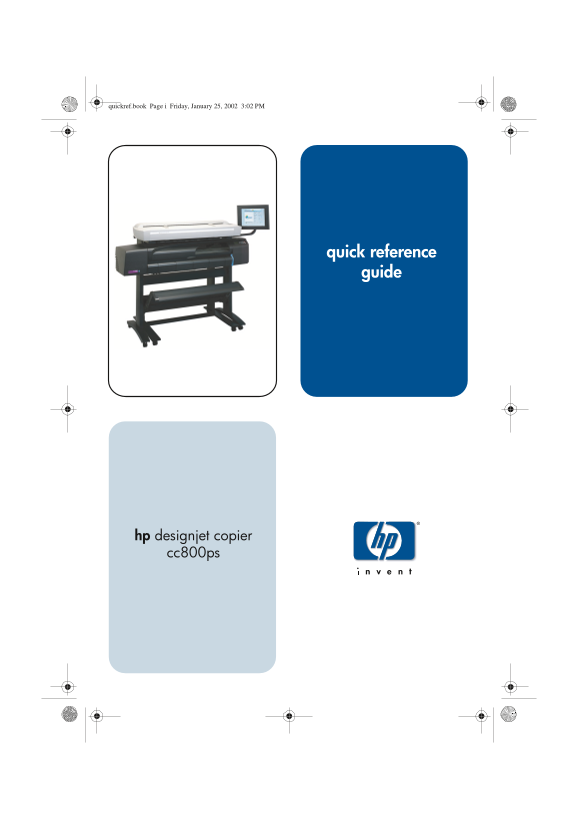
quickref.book Page Friday, January 25, 3:02 PM quick reference guide hp designjet copier cc800ps
Page 2
frontref.fm Page ii Monday, February 25, 2002 4:11 PM Your hp designjet copier cc800ps The HP Designjet Copier system delivers large-format color copies and is as sim- ple to use as a conventional off...
Page 3
frontref.fm Page iii Monday, February 25, 2002 4:11 PM Contents Using your copier software ....................................1 Making Copies (overview) ......................................3 Copyin...
Page 4
frontref.fm Page iv Monday, February 25, 2002 4:11 PM iv hp designjet copier cc800ps
Page 5
quickref.fm Page 1 Monday, February 25, 2002 4:09 PM Using your copier software Using your copier software The user interface can be divided into two main sections: The Viewing Section on the left. Th...
Page 6
quickref.fm Page 2 Monday, February 25, 2002 4:09 PM Using your copier software Output - Secondary copy settings that mainly have to do with the printer, the printing media, layout and account- ing. L...
Page 7
quickref.fm Page 3 Monday, February 25, 2002 4:09 PM Making Copies (overview) Making Copies (overview) With your system up and ready, wide format color copying is easy and most copy tasks will require...
Page 8
quickref.fm Page 4 Monday, February 25, 2002 4:09 PM Making Copies (overview) e - Set the intended Output size of your copy. For making one-to-one copies, this will be the size of your original. You c...
Page 9
quickref.fm Page 5 Monday, February 25, 2002 4:09 PM Copying (step-by-step) Copying (step-by-step) 1. Inserting your Document You can load your original into the scanner from the scan- ner’s center or...
Page 10
quickref.fm Page 6 Monday, February 25, 2002 4:09 PM Copying (step-by-step) b - In the Type of Original (template) Setup dialog, press the Type of original button to see the list of templates availabl...
Page 11
quickref.fm Page 7 Monday, February 25, 2002 4:09 PM Copying (step-by-step) b - In the dialog box, press the Input size button to display the list of sizes predefined in your system. c - Select from t...
Page 12
quickref.fm Page 8 Monday, February 25, 2002 4:09 PM Copying (step-by-step) 5. Selecting the Output size a - Press the Output size button in the Copy tab. b - In the Output size Setup dialog, press th...
Page 13
quickref.fm Page 9 Monday, February 25, 2002 4:09 PM Copying (step-by-step) 6. Set the Number of Copies a - Press the Copies option if you want to make more than one copy of the loaded original. b - E...
Page 14
quickref.fm Page 10 Monday, February 25, 2002 4:09 PM Scan to file Scan to file Scan to file stores your copies as files. You can send them to the printer using the print from file function. a - Make ...
Page 15
quickref.fm Page 11 Monday, February 25, 2002 4:09 PM Scan to file c - To change folder: use the arrows to find the desired folder. use folder up button (marked "..") to move you up a direc-...
Page 16
quickref.fm Page 12 Monday, February 25, 2002 4:09 PM Printing from files Printing from files Printing your files is setup and controlled through a convenient Print List. You can set the number of cop...
Page 17
quickref.fm Page 13 Monday, February 25, 2002 4:09 PM Printing from files Printer and Media Profile will apply to the whole print job. c - Press the Print button to send the listed files to the printe...
Page 18
quickref.fm Page 14 Monday, February 25, 2002 4:09 PM Collated copies - copy sets Collated copies - copy sets You can group your copies into sets that are stored before going to the printer, and then ...
Page 19
quickref.fm Page 15 Monday, February 25, 2002 4:09 PM Scanning thick media Scanning thick media NOTE To scan thick media you may need to change the inser- tion slot height and this can affect the copi...
Page 20
quickref.fm Page 16 Monday, February 25, 2002 4:09 PM Scanning thick media c - Close the copier cover. d - Load the thick original you wish to scan. Center load- ing is recommended with thick original...
Page 21
quickref.fm Page 17 Monday, February 25, 2002 4:09 PM Scanning thick media h - Check the box labeled Adjust for extended media thickness. i - Change the value for each of the scanner’s cameras. Normal...
Page 22
quickref.fm Page 18 Monday, February 25, 2002 4:09 PM Previewing copies Previewing copies The previewing feature allows you to visually control your docu- ment size and margins on the final output and...
Page 23
quickref.fm Page 19 Monday, February 25, 2002 4:09 PM Previewing copies When activated, the Resize Paper Frame Tool partitions the areas around the Paper Frame into sections. When a section is touched...
Page 24
quickref.fm Page 20 Monday, February 25, 2002 4:09 PM Previewing copies and rapidly reposition the frame on important areas that you want tested. Dragging the edges will resize the paper frame and is ...
Page 25
quickref.fm Page 21 Monday, February 25, 2002 4:09 PM System Recovery System Recovery You need the ’System Recovery’ CD that came with your copier system. If your copy system software does not start u...
Page 26
quickref.fm Page 22 Monday, February 25, 2002 4:09 PM hp designjet copier cc800ps
Page 27
quickref.book Page Friday, January 25, 3:02 PM
Page 28
quickref.book Page Friday, January 25, 3:02 PM Copyright Hewlett-Packard Company 2002 Manual Part Number: Q1262-90031 First Edition Printed in Europe