Page 1
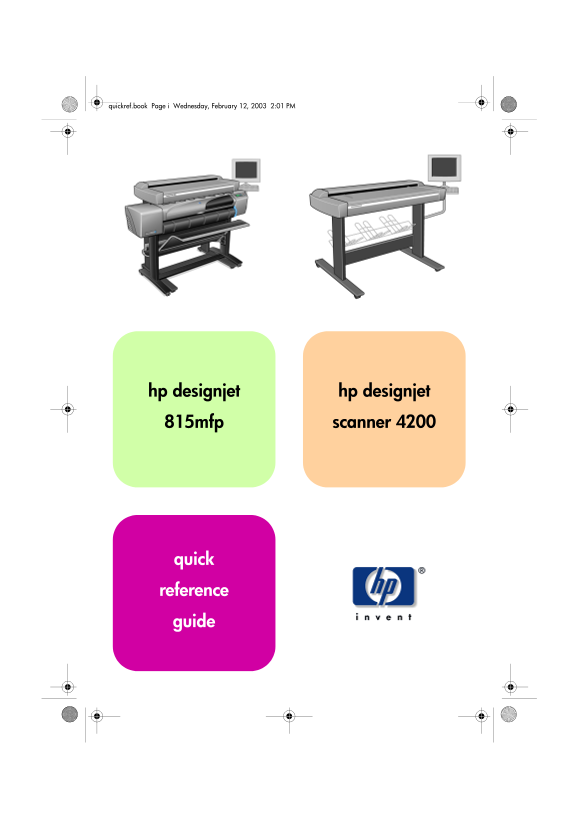
quickref.book Page i Wednesday, February 12, 2003 2:01 PM hp designjet hp designjet 815mfp scanner 4200 quick reference guide
Page 2
quickref.book Page ii Wednesday, February 12, 2003 2:01 PM your hp designjet 815mfp The HP Designjet 815mfp delivers large-format color copies and is as simple to use as a conventional office copy mac...
Page 3
quickref.book Page iii Wednesday, February 12, 2003 2:01 PM contents introduction using your scanner software basic operations copying (overview) copying (step-by-step) scanning to a file printing fil...
Page 4
quickref.book Page iv Wednesday, February 12, 2003 2:01 PM iv hp designjet 815mfp & scanner 4200
Page 5
quickref.book Page 1 Wednesday, February 12, 2003 2:01 PM using your scanner software using your scanner software The user interface can be divided into two main sections: the viewing section on the l...
Page 6
quickref.book Page 2 Wednesday, February 12, 2003 2:01 PM using your scanner software The control section consists of the following control tabs: Copy: primary copy settings. The options available in ...
Page 7
quickref.book Page 3 Wednesday, February 12, 2003 2:01 PM copying (overview) copying (overview) With your system up and ready, wide-format color copying is easy, and most copy tasks will require only ...
Page 8
quickref.book Page 4 Wednesday, February 12, 2003 2:01 PM copying (overview) To preview the image before printing, press the Preview button to load a preview of your copy. You can use the Stop button ...
Page 9
quickref.book Page 5 Wednesday, February 12, 2003 2:01 PM copying (step-by-step) copying (step-by-step) insert your document You can load your original into the scanner from the scanner’s center or si...
Page 10
quickref.book Page 6 Wednesday, February 12, 2003 2:01 PM copying (step-by-step) b - In the Type of Original (template) Setup dialog, press the Type of original button to see the list of templates ava...
Page 11
quickref.book Page 7 Wednesday, February 12, 2003 2:01 PM copying (step-by-step) b - In the dialog box, press the Input size button to display the list of sizes predefined in your system. c - Select f...
Page 12
quickref.book Page 8 Wednesday, February 12, 2003 2:01 PM copying (step-by-step) b - In the Output size Setup dialog, press the Output size button. Auto detection of width and length can be also selec...
Page 13
quickref.book Page 9 Wednesday, February 12, 2003 2:01 PM scanning to a file scanning to a file Scan to file stores your images as files. You can send them to your printer using the print from file fu...
Page 14
quickref.book Page 10 Wednesday, February 12, 2003 2:01 PM scanning to a file You can change the destination folder by pressing the File folder button. b - To change folder: use the arrows to find the...
Page 15
quickref.book Page 11 Wednesday, February 12, 2003 2:01 PM printing files printing files Printing your files is set up and controlled through a convenient print list. You can set the number of copies ...
Page 16
quickref.book Page 12 Wednesday, February 12, 2003 2:01 PM collated copies and copy sets collated copies and copy sets You can group your images into sets that are stored before going to the printer, ...
Page 17
quickref.book Page 13 Wednesday, February 12, 2003 2:01 PM scanning thick media scanning thick media Your scanner is capable of scanning heavyweight coated paper or cardboard. Other kinds of thick med...
Page 18
quickref.book Page 14 Wednesday, February 12, 2003 2:01 PM scanning thick media c - Close the scanner cover. d - Load the thick original you wish to scan. Center loading is recommended with thick orig...
Page 19
quickref.book Page 15 Wednesday, February 12, 2003 2:01 PM scanning thick media g - In the Scan Options dialog, select the Scanner Setup button. h - Select the Extended Thickness tab, and check the bo...
Page 20
quickref.book Page 16 Wednesday, February 12, 2003 2:01 PM scanning thick media l - Repeat steps (d) to (h) until you are satisfied with the results. To return the insertion slot height to its Normal ...
Page 21
quickref.book Page 17 Wednesday, February 12, 2003 2:01 PM previewing copies previewing copies The previewing feature allows you to control your document size and margins visually and readjust or relo...
Page 22
quickref.book Page 18 Wednesday, February 12, 2003 2:01 PM previewing copies touched, the closest frame side or corner is resized to the new position. move tool Move the image to get any part of it ce...
Page 23
quickref.book Page 19 Wednesday, February 12, 2003 2:01 PM previewing copies align left and align right The original appears crooked in the Preview Window. You do not need to reload the original. Pres...
Page 24
quickref.book Page 20 Wednesday, February 12, 2003 2:01 PM adding a new printer adding a new printer To add a new HP Designjet printer to the printer list in your scanner software, follow these steps:...
Page 25
quickref.book Page 21 Wednesday, February 12, 2003 2:01 PM creating a new media profile creating a new media profile Before starting the following procedure, make sure you have color-calibrated the sc...
Page 26
quickref.book Page 22 Wednesday, February 12, 2003 2:01 PM scanning and copying files to CD scanning and copying files to CD Your HP Designjet is capable of writing to compact discs in the same easy w...
Page 27
quickref.book Page 23 Wednesday, February 12, 2003 2:01 PM touch screen error messages touch screen error messages The following table lists error messages, error codes, and the recommended course of ...
Page 28
quickref.book Page 24 Wednesday, February 12, 2003 2:01 PM touch screen error messages message code recommendation No media profile selected for -2 OK and run operation without current printer media p...
Page 29
quickref.book Page 25 Wednesday, February 12, 2003 2:01 PM touch screen error messages message code recommendation Wrong insert position? Reinsert the sheet and ensure it is aligned correctly and in t...
Page 30
quickref.book Page 26 Wednesday, February 12, 2003 2:01 PM scanning problems scanning problems If you notice problems with your scanned images, such as dirt spots, scratches, or inconsistent coloring,...
Page 31
quickref.book Page 27 Wednesday, February 12, 2003 2:01 PM flashing lights on the operator panel flashing lights on the operator panel If you notice a flashing light on your scanner’s operator panel, ...
Page 32
quickref.book Page 28 Wednesday, February 12, 2003 2:01 PM printing problems printing problems the image is cropped If your image is cropped and no error message was displayed, make sure that you have...
Page 33
quickref.book Page 29 Wednesday, February 12, 2003 2:01 PM scanner software in the wrong language scanner software in the wrong language If your scanner software is in the wrong language for any reaso...
Page 34
quickref.book Page 30 Wednesday, February 12, 2003 2:01 PM scanner software does not start scanner software does not start If your scanner system software does not start up when you turn on the touch ...
Page 35
quickref.book Page 31 Wednesday, February 12, 2003 2:01 PM scanner software does not start hp designjet 815mfp & scanner 4200
Page 36
quickref.book Page 32 Wednesday, February 12, 2003 2:01 PM printed on recycled paper © 2003 Hewlett-Packard Company part number: Q1279-90011 first edition printed in Hewlett-Packard Española S.L. Aven...