Epson Perfection 3170 Scanner User Guide and Manual
Summary
Master your digital preservation workflow with detailed guidance for the Epson Perfection 3170 Scanner. This comprehensive guide helps users determine optimal scanning resolutions and settings for diverse materials, including print photos, art, film strips, slides, and transparencies. It covers proper loading techniques and provides essential troubleshooting tips to eliminate common issues like uneven cropping or color discrepancies, ensuring consistently high-quality results every time.
Page 1 Text Content
EPSON SCANNING TIPS AND TROUBLESHOOTING GUIDE
Epson Perfection 3170 Scanner
SELECT A SUITABLE RESOLUTION
The best scanning resolution depends on the purpose of the scan.
When you specify a high resolution, the number of pixels increases and the scanned image becomes finer in texture. However, increasing the resolution causes the file size to increase. For example, an 8.5 x 11-inch original scanned at 300 dpi can produce a 24MB file. The same original scanned at 72 dpi creates only a 1.3MB file. Large files take longer to process and print, so select the lowest possible resolution that produces acceptable quality.
Specify a suitable resolution according to your scanning purpose. Recommended resolutions for scanning print material:
PURPOSE RESOLUTION
Web pages 96 dpi Sending E-mail 96 to 150 dpi Printing 300 dpi Saving as a PDF file 300 dpi Sending Fax 200 dpi OCR (Optical Character Recognition) 300 dpi
Use Target Size to specify the output size of the scanned image.
If you are enlarging your image, you must increase the resolution (dpi) proportionally to maintain the resolution of your original. Try scanning slides at 1200 dpi or higher.
If you reduce the size of the image on a page, it does not decrease its file size.
SCAN SETTINGS
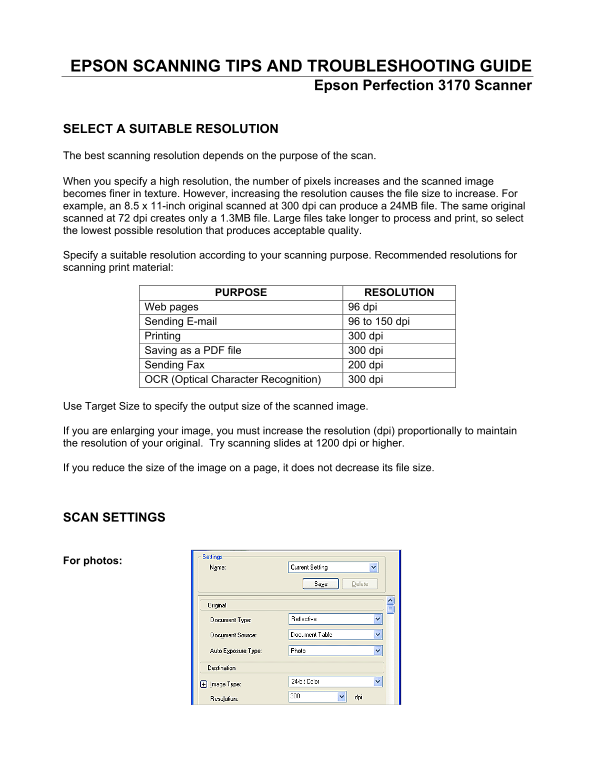
For photos:
Page Summary Contents For Epson Perfection 3170 Scanner User Guide and Manual
Manual Details
| Brand | Epson |
|---|---|
| Pages | 11 |
| File Size | 571.37 KB |
| Published | May 20, 2026 |
Enter the captcha to get the download link:

Frequently Asked Questions
What resolution should I use for different scanning tasks?
For web pages, use 96 dpi; for printing or saving as PDF, use 300 dpi.
How do I scan film slides and negatives correctly?
Place the film holder on the document table by aligning its triangle mark with the guide, ensuring the base side faces down when scanning film strips.
Why does a 'Newton ring' appear in my scanned image?
It may happen when scanning transparent materials or if the film is curled. Flip the film to face up and use the Mirroring button.
Can I increase the size of my scanned photo, and what should I do with the resolution?
Yes, but you must proportionally increase the DPI (resolution) relative to your original image's settings.