Dell XPS 720 Black Configuration Guide & User Manual
Summary
Dell desktop computer setup guide from 2007 (JW856). Visual step-by-step instructions covering stand installation, monitor connection via DVI or VGA cable, keyboard and mouse attachment, network and modem connections, and power cable setup. Includes system features overview with connectors for microphone, headphone, USB 2.0, IEEE 1394, and speakers.
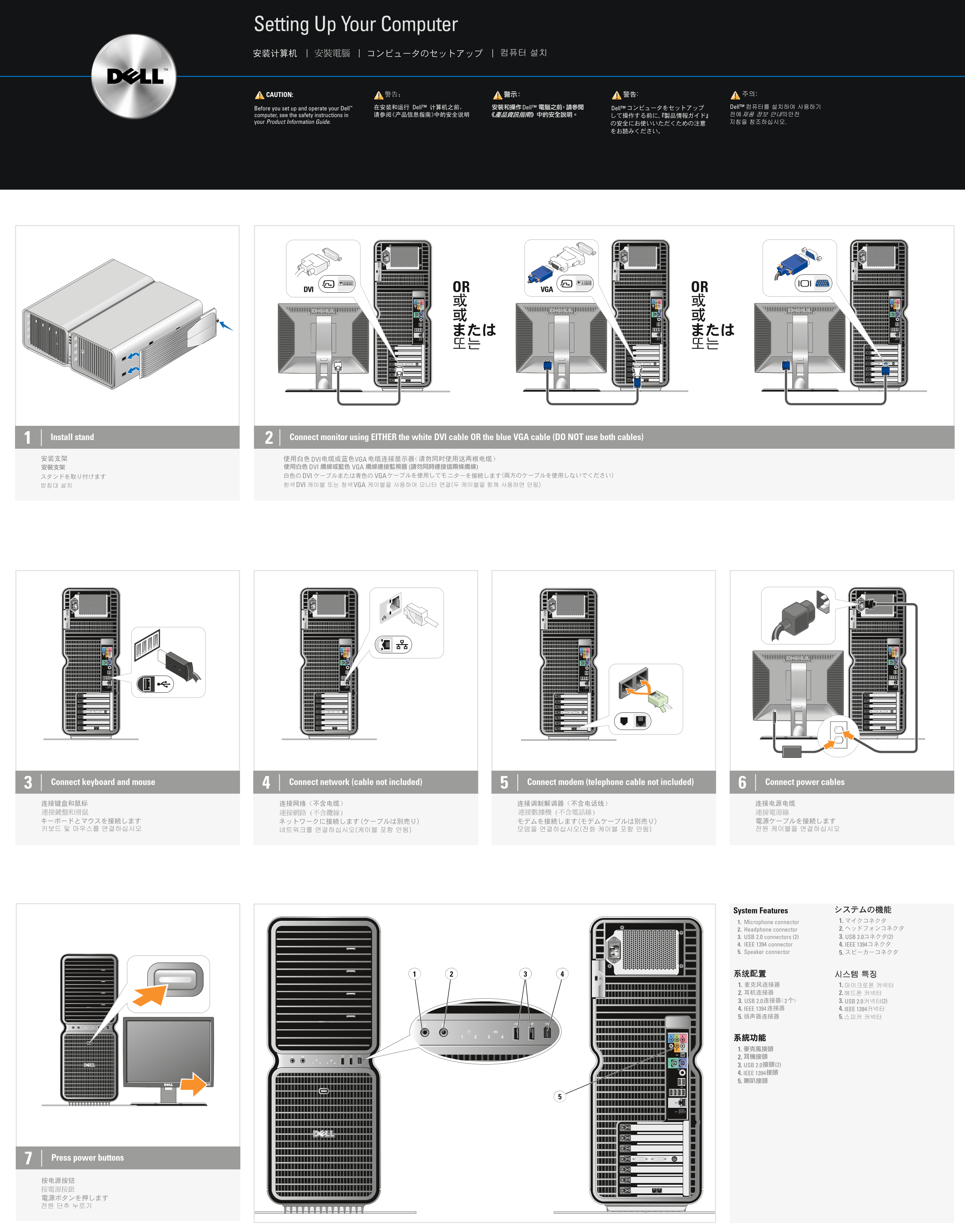
Page 1 Text Content
JW856ap0.qxd 10/04/2007 13:49 Page 1 ld
Setting Up Your Computer
CAUTION:
Before you set up and operate your Dell™ Dell™
computer, see the safety instructions in your Product Information Guide.
DVI OR VGA OR
Install stand Connect monitor using EITHER the white DVI cable OR the blue VGA cable (DO NOT use both cables)2
DVI VGA
DVI VGA
DVI VGA
DVI VGA
Connect keyboard and mouse Connect network (cable not included) Connect modem (telephone cable not included) Connect power cables
System Features
1. Microphone connector 1. 2. Headphone connector 2.
3. USB 2.0 connectors (2) 3. USB 2.0 (2)
4. IEEE 1394 connector 4. IEEE 1394 5. Speaker connector 5.
1. 1. 2. 2. 3. USB 2.0 3. USB 2.0 (2) 4. IEEE 1394 4. IEEE 1394 5. 5.
3. USB 2.0 (2)
4. IEEE 1394 5.
Press power buttons
Page Summary Contents For Dell XPS 720 Black Configuration Guide & User Manual
Manual Details
| Brand | Dell |
|---|---|
| Pages | 2 |
| File Size | 4.06 MB |
| Published | July 02, 2026 |
Enter the captcha to get the download link:

Frequently Asked Questions
What should I do before setting up and operating the PC?
Before setup, you must read the safety instructions provided in your Product Information Guide.
Can I use both DVI and VGA cables to connect the monitor?
No; you must use EITHER the white DVI cable OR the blue VGA cable, but not both.
Where are the various connection ports located on the computer?
Ports include microphone, headphone, USB 2.0 (front/back), IEEE 1394, and a speaker connector.