Dell XPS 12 9Q33 Quick User Guide
Summary
Quick start guide for a Dell Inspiron 2-in-1 convertible laptop. Provides step-by-step initial setup instructions including connecting the power adapter, completing Windows setup, connecting to a network, enabling security updates, and registering the computer. Documents keyboard shortcut keys for media playback, volume control, brightness adjustment, wireless toggle, display switching, and tablet mode conversion. Describes physical features including the 360-degree hinge for tablet mode, keyboard backlight toggle, and multi-functional touch controls. Intended for end-users performing initial setup of their Dell Inspiron convertible laptop.
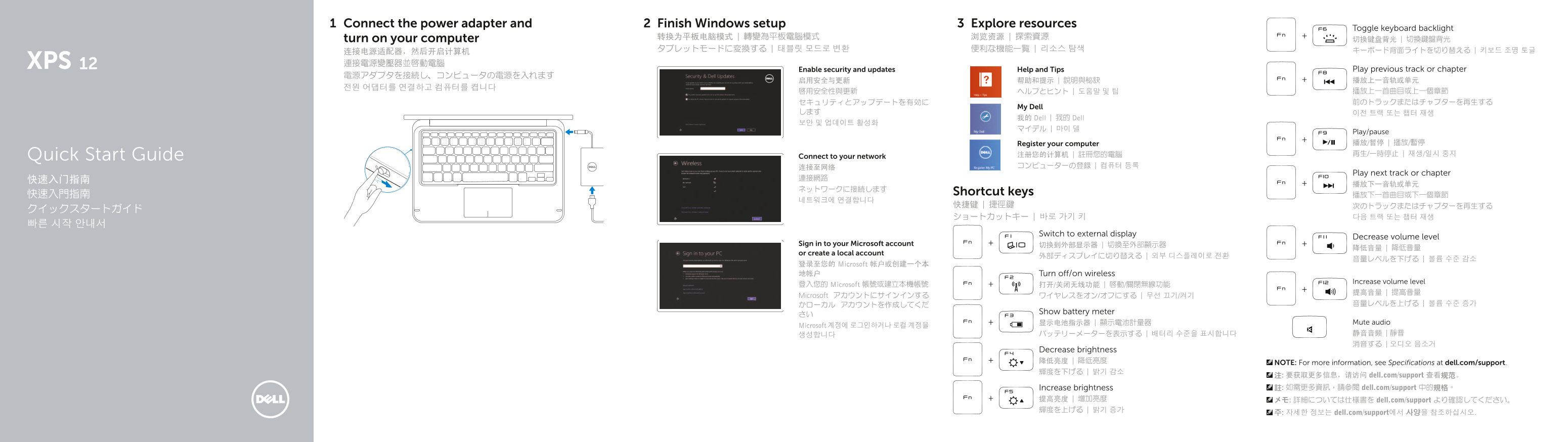
Page 1 Text Content
Connect the power adapter and Finish Windows setup Explore resources
Toggle keyboard backlight
turn on your computer 转换为平板电脑模式 | 轉變為平板電腦模式 浏览资源 | 探索資源
Enable security and updates Help and Tips Play previous track or chapter
My Dell
我的 Dell | 我的 Dell
Play/pause Register your computer 播放/暂停 | 播放/暫停 Quick Start Guide 注册您的计算机 | 註冊您的電腦 再生/一時停止 | 재생/일시 중지
Connect to your network
Play next track or chapter
快速入門指南 Shortcut keys
Switch to external display
Decrease volume level
Sign in to your Microsoft account 切换到外部显示器 | 切換至外部顯示器
or create a local account
登录至您的 Microsoft 帐户或创建一个本 地帐户 Turn off/on wireless
Increase volume level
登入您的 Microsoft 帳號或建立本機帳號 打开/关闭无线功能 | 啟動/關閉無線功能
Microsoft アカウントにサインインする ワイヤレスをオン/オフにする | 무선 끄기/켜기
Show battery meter
显示电池指示器 | 顯示電池計量器 Mute audio
Microsoft 계정에 로그인하거나 로컬 계정을
Decrease brightness 降低亮度 | 降低亮度 NOTE: For more information, see Specifications at dell.com/support. 輝度を下げる | 밝기 감소
注: 要获取更多信息,请访问 dell.com/support 查看规范。 Increase brightness 註: 如需更多資訊,請參閱 dell.com/support 中的規格。
提高亮度 | 增加亮度 メモ: 詳細については仕様書を dell.com/support より確認してください。 輝度を上げる | 밝기 증가
주: 자세한 정보는 dell.com/support에서 사양을 참조하십시오.
Page Summary Contents For Dell XPS 12 9Q33 Quick User Guide
Manual Details
| Brand | Dell |
|---|---|
| Pages | 2 |
| File Size | 433.05 KB |
| Published | June 25, 2026 |
Enter the captcha to get the download link:

Frequently Asked Questions
How do I turn on my computer?
Connect the power adapter and then turn on your computer.
How can I change the keyboard backlight?
Use the shortcut keys to toggle the keyboard backlight.
Where is the power adapter port located?
It is located on the right side of the device.
How do I switch to a tablet mode?
Use the shortcut keys to transform to tablet mode.