Dell Vostro 5560 Setup and Features Information
Summary
This Setup and Features Information guide for the Dell Vostro 5560 laptop provides front and back view diagrams with labeled components including camera, microphone, display, keyboard, touchpad, USB 3.0 PowerShare connectors, optical drive, HDMI and VGA ports, network connector, SD card reader, and audio connectors. It includes quick setup instructions for connecting power, turning on the computer, and configuring Windows. The guide also covers safety warnings about air vents and AC adapter usage. It is intended for small business users setting up their Dell Vostro 5560 notebook for everyday productivity tasks.
Page 1 Text Content
Dell Vostro 5560 Setup And Features Information About Warnings WARNING: A WARNING indicates a potential for property damage, personal injury, or death.
Front And Back View
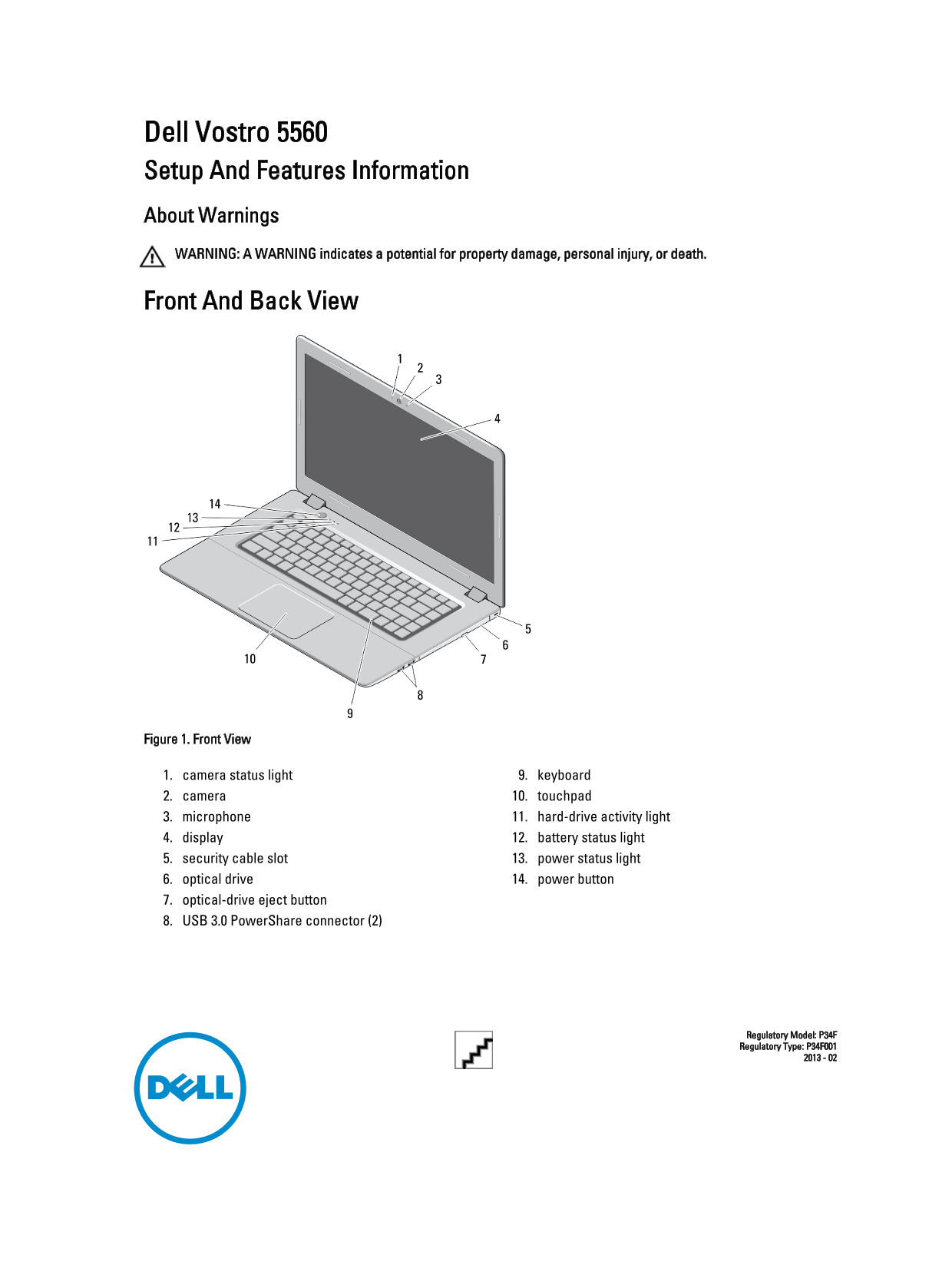
Figure 1. Front View
1. camera status light 9. keyboard 2. camera 10. touchpad 3. microphone 11. hard-drive activity light 4. display 12. battery status light 5. security cable slot 13. power status light 6. optical drive 14. power button 7. optical-drive eject button 8. USB 3.0 Power Share connector (2)
Regulatory Model: P34F Regulatory Type: P34F001
Page Summary Contents For Dell Vostro 5560 Setup and Features Information
Manual Details
| Brand | Dell |
|---|---|
| Pages | 5 |
| File Size | 477.51 KB |
| Published | June 27, 2026 |
Enter the captcha to get the download link:

Frequently Asked Questions
What should I do if I want to prevent system damage from airflow restrictions?
Do not block or allow dust accumulation in the air vents. Never store it in low-airflow environments like closed briefcases while running.
How is connecting the AC adapter cable doing safely?
Grasp the connector, not the cable itself, and pull firmly but gently when disconnecting. Ensure you follow the angle of the connector when wrapping the cable.
What are the video ports available on this model?
It includes an HDMI connector, a VGA connector, and is equipped with USB 3.0 connectors.
Does my operating system need specific updates for high-end graphics?
For systems with 2 GB or greater graphics memory, a 64-bit operating system is required. A 64-bit discrete graphics driver may be downloaded from dell.com/support.