# A B C D E F G H I J K L M N O P Q R S T U V W X Y Z

Dell Vostro 3560 Setup and Features Information Owner's Manual

Summary

The Dell Vostro 3460/3560 Setup and Features Information guide provides an overview of laptop features, front and back views with labeled components, and quick setup instructions. It covers ports (USB 3.0, HDMI, VGA), optical drive, fingerprint reader, memory card reader, status lights, and wireless connectivity. Target users are end-users and small business owners setting up their Vostro laptops.
📄 Preview 📖 Table of Contents Contents PAGE OF 8

Page 1 Text Content

Dell Vostro 3460/3560 Setup And Features Information About Warnings WARNING: A WARNING indicates a potential for property damage, personal injury, or death.

Vostro 3460 - Front And Back View

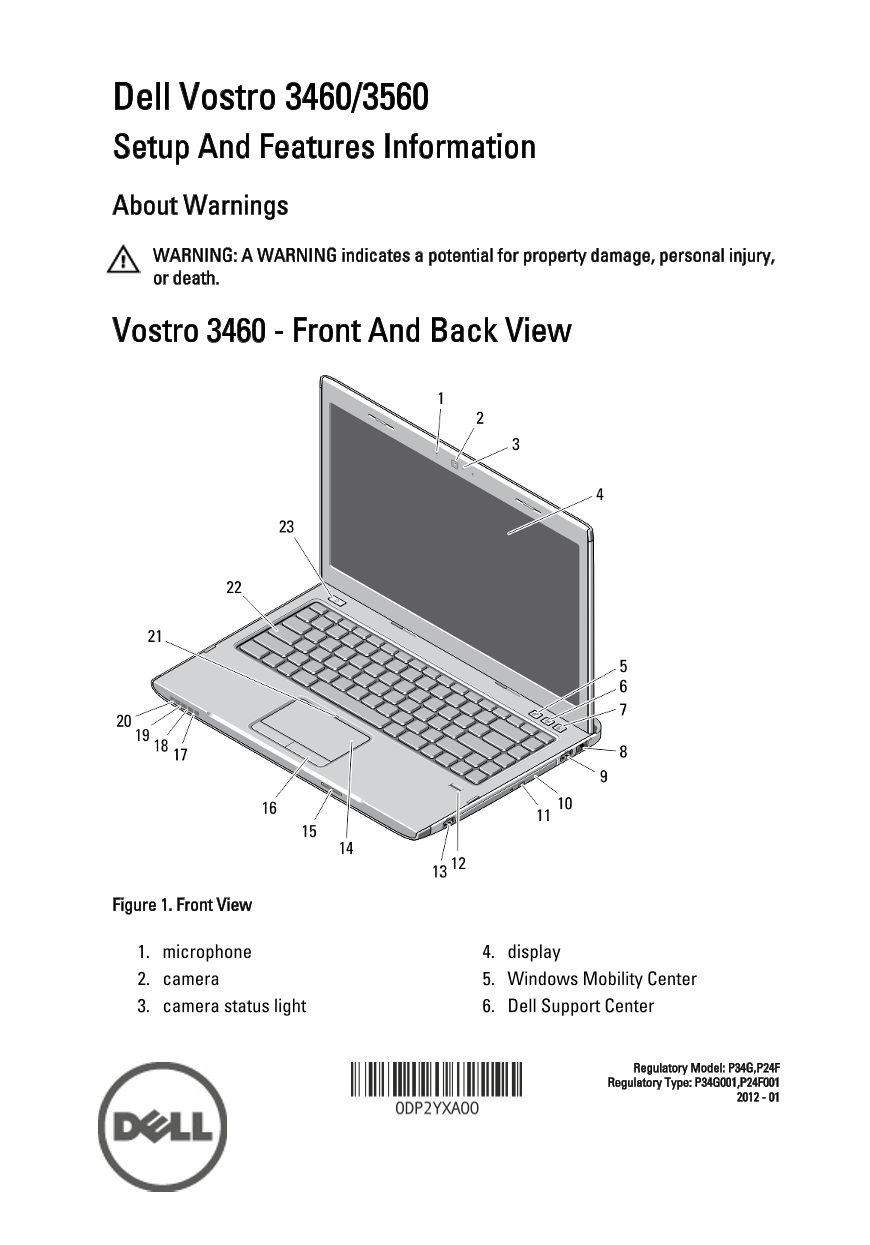
Figure 1. Front View

1. microphone 4. display 2. camera 5. Windows Mobility Center 3. camera status light 6. Dell Support Center

Regulatory Model: P34G,P24F Regulatory Type: P34G001,P24F001

Page Summary Contents For Dell Vostro 3560 Setup and Features Information Owner's Manual

Page 1 Dell Vostro 3460/3560 Setup And Features Information About Warnings WARNING: A WARNING indicates a potential for property damage, personal injury, or death. Vostro 3460 - Front And Back View Figure 1....
Page 2 7. Dell Instant Launch Manager 16. touchpad buttons (2) 8. network connector 17. wireless status light 9. USB 3.0 connector 18. battery status light 10. optical drive 19. hard disk status light 11. op...
Page 3 Vostro 3560 - Front And Back View Figure 3. Front View 1. microphone 14. touchpad 2. camera 15. Secure Digital (SD) memory-card reader 3. camera status light 16. touchpad buttons (2) 4. display 17. wi...
Page 4 Figure 4. Back View 1. security cable slot 6. powered USB 3.0 connector 2. power connector 7. USB 3.0 connector 3. VGA connector 8. microphone connector 4. cooling vents 9. headphone connector 5. HDMI...
Page 5 NOTE: Some devices may not be included if you did not order them. 1. Connect the AC adapter to the AC adapter connector on the computer and to the electrical outlet. Figure 5. AC Adapter 2. Connect th...
Page 6 NOTE: It is recommended that you turn on and shut down your computer at least once before you install any cards or connect the computer to a docking device or other external device, such as a printer....
Page 7 Environmental Operating Temperature: 0 °C to 35 °C (32 °F to 95 °F) Information para NOM (únicamente para México) Voltaje de alimentación 100 V CA – 240 V CA Frecuencia 50 Hz – 60 Hz Consumo eléctrico...
Page 8 ATI Radeon™, and ATI Fire Pro™ are trademarks of Advanced Micro Devices, Inc. Microsoft®, Windows®, MS-DOS®, Windows Vista®, the Windows Vista start button, and Office Outlook® are either trademarks o...

Manual Details

Brand Dell
Pages 8
File Size 882.11 KB
Published June 25, 2026
8 views

Enter the captcha to get the download link:

captcha

Frequently Asked Questions

How should I unplug the AC adapter safely?

Grasp the connector, not the cable itself, and pull firmly but gently to avoid damage.

What power adapters are available for this model?

The available power adapters are 65 W and 90 W.

What is essential safety information about connecting power?

Using an incompatible cable or improperly connecting the cable can cause fire or equipment damage.

Beyond USB, what major video ports are available on the rear panel?

The back includes VGA, HDMI connectors, a headphone connector, and a microphone connector.