Dell Venue 8 7000 Venue Keyboard Folio Quick User Guide
Summary
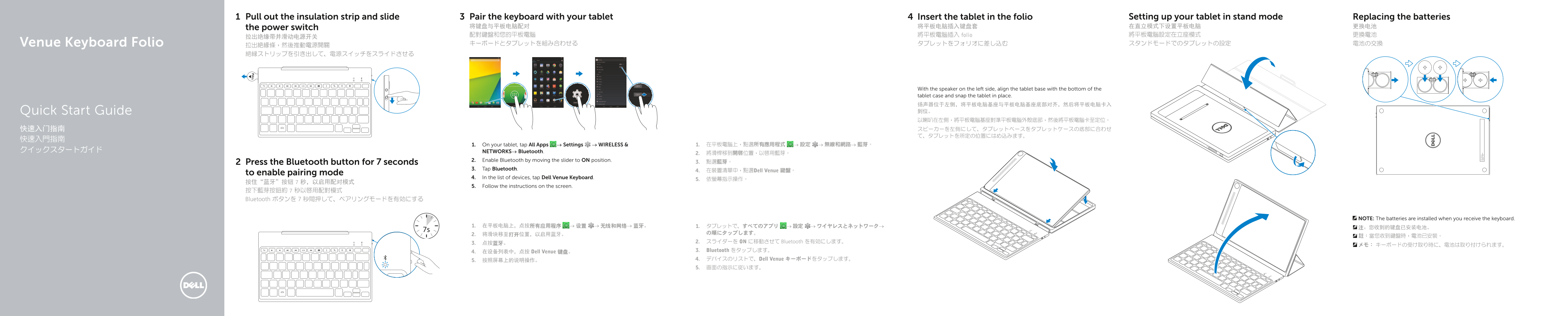
Dell Venue Keyboard Folio Quick Start Guide covering Bluetooth pairing mode activation (7-second button press), tablet-to-keyboard pairing via Android Settings Bluetooth menu, tablet insertion in folio with speaker-left alignment, stand mode setup, and battery replacement procedures, plus shortcut keys for media playback control.
Page 1 Text Content
Pull out the insulation strip and slide Pair the keyboard with your tablet Insert the tablet in the folio Setting up your tablet in stand mode Replacing the batteries the power switch 将键盘与平板电脑配对 将平板电脑插入键盘套 在直立模式下设置平板电脑 更换电池 配對鍵盤和您的平板電腦 將平板電腦插入 folio 將平板電腦設定在立座模式 更換電池
Venue Keyboard Folio キーボードとタブレットを組み合わせる タブレットをフォリオに差し込む スタンドモードでのタブレットの設定 電池の交換
With the speaker on the left side, align the tablet base with the bottom of the tablet case and snap the tablet in place. 扬声器位于左侧,将平板电脑基座与平板电脑基座底部对齐,然后将平板电脑卡入 Quick Start Guide 到位。 以喇叭在左側,將平板電腦基座對準平板電腦外殼底部,然後將平板電腦卡至定位。 快速入门指南 スピーカーを左側にして、タブレットベースをタブレットケースの底部に合わせ て、タブレットを所定の位置にはめ込みます。
1. On your tablet, tap All Apps → Settings → WIRELESS & 1. 在平板電腦上,點選所有應用程式 → 設定 → 無線和網路→ 藍芽。
クイックスタートガイド NETWORKS→ Bluetooth.
2. Enable Bluetooth by moving the slider to ON position.
Press the Bluetooth button for 7 seconds 3. 點選藍芽。
3. Tap Bluetooth.
4. 在裝置清單中,點選Dell Venue 鍵盤。
to enable pairing mode
4. In the list of devices, tap Dell Venue Keyboard.
5. Follow the instructions on the screen.
按下藍芽按鈕約 7 秒以啟用配對模式 Bluetooth ボタンを 7 秒間押して、ペアリングモードを有効にする
NOTE: The batteries are installed when you receive the keyboard.
3. 点按蓝牙。 2. スライダーを ON に移動させて Bluetooth を有効にします。
4. 在设备列表中,点按 Dell Venue 键盘。 3. Bluetooth をタップします。 5. 按照屏幕上的说明操作。 4. デバイスのリストで、Dell Venue キーボードをタップします。 5. 画面の指示に従います。
Page Summary Contents For Dell Venue 8 7000 Venue Keyboard Folio Quick User Guide
Manual Details
| Brand | Dell |
|---|---|
| Pages | 2 |
| File Size | 571.18 KB |
| Published | July 03, 2026 |
Enter the captcha to get the download link:

Frequently Asked Questions
How do I pair the keyboard with my tablet?
Enable Bluetooth on your tablet, then press and hold the Bluetooth button on the keyboard for 7 seconds to enter pairing mode. Follow the onscreen instructions.
Where can I find support and manuals for this product?
You can visit dell.com/support or dell.com/support/manuals for product support and manuals.
How do I physically attach the tablet using the keyboard case?
Align the tablet base with the bottom of the tablet case, remembering that the speaker is on the left side, and then snap the tablet into place.
Do I need to worry about battery installation when setting it up?
No, batteries are pre-installed in the keyboard unit when you receive it.