# A B C D E F G H I J K L M N O P Q R S T U V W X Y Z

Toshiba IK-DF01A User's Manual

Summary

The IK-DF01A is a professional CCD Color Camera designed for high-definition capture and reliable video output. This comprehensive manual is an essential resource for users and technicians, covering everything from initial setup to advanced operation. It provides detailed guides on component functions, step-by-step installation techniques, precise operational parameters (including auto iris and white balance), and crucial safety warnings. Use this guide to ensure the safe, effective integration and troubleshooting of your camera system.
📄 Preview PAGE OF 16

Page 1 Text Content

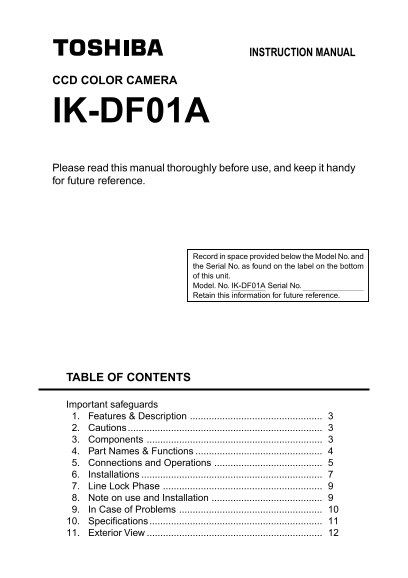
INSTRUCTION MANUAL

CCD COLOR CAMERA

IK-DF01A Please read this manual thoroughly before use, and keep it handy for future reference.

Record in space provided below the Model No. and the Serial No. as found on the label on the bottom of this unit. Model. No. IK-DF01A Serial No. Retain this information for future reference.

TABLE OF CONTENTS

Important safeguards 1. Features & Description 2. Cautions 3. Components 4. Part Names & Functions 5. Connections and Operations 6. Installations 7. Line Lock Phase 8. Note on use and Installation 9. In Case of Problems 10. Specifications 11. Exterior View

Page Summary Contents For Toshiba IK-DF01A User's Manual

Page 1 INSTRUCTION MANUAL CCD COLOR CAMERA IK-DF01A Please read this manual thoroughly before use, and keep it handy for future reference. Record in space provided below the Model No. and the Serial No. as f...
Page 2 IMPORTANT SAFEGUARDS 1. Read Instructions 12.Lightning All the safety and operating instructions should For added protection for this video product during be read before the product is operated. a lig...
Page 3 The CAUTION label, shown on the left, is attached on the camera. CAUTION TO REDUCE THE RISK OF ELECTRIC SHOCK. DO NOT REMOVE COVER (OR BACK). NO USER SERVICEABLE PARTS INSIDE. REFER SERVICING TO QUALI...
Page 4 1. FEATURES & DESCRIPTION : IK-DF01A has following function. (1) Quick install Design- you can manually set the camera direction. (2) Built in vari-focal lens with auto-iris Focal length 2.8~5.8mm...
Page 5 4. PART NAMES & FUNCTIONS : Knockout Power Input Cable Cut with a knife or scissors Connect the power and insert the cables through cable to AC24V or the knockout so the cables will DC12V. (RED:+1...
Page 6 5. CONNECTIONS AND OPERATIONS : Notes on connecting Power plugs connected equipment must be disconnected before installations. A 75-ohm coaxial cable (3C-2V or 5C-2V) is required for standard connecti...
Page 7 5-2 Line-Lock Control Matching the vertical synchronization with the power frequency is called the Line- Lock. This function is activated when the SYNC menu is selected to LL. When two or more cameras...
Page 8 6. Installations : (1) Turn the cover left to unfasten it. (2) Connect the cable of the camera and the cable from the designated power supply with respective BNC connectors. (3) Fix the camera base to...
Page 9 6-2 Installing to Wall The camera head at shipping is set for installing the camera to the ceiling. The camera head angle should be changed when installing to a wall. Camera Head "Bottom" Ma...
Page 10 7. LINE LOCK PHASE When a video switcher switches two or more cameras, the picture may fluctuate on the video monitor due to the different AC line phase of each camera. In this case, adjust the V PHAS...
Page 11 9. IN CASE OF PROBLEMS Condition Check Points No image Are the camera and connected equipment turned on? Is the mode setting switch DC/AES set to OFF? Be sure to set to ON. Are cables connected correc...
Page 12 10.SPECIFICATIONS 1. Image System Image Device 1/4” IT CCD Pixel Elements 768 (H) x 494 (V) 2. Electrical TV System 2:1 Interlace, 15.734KHz Horizontal, 59.94Hz Vertical Horizontal Resolution 480 TV l...
Page 13 11.EXTERIOR VIEW (Unit : mm)
Page 14 2-hold φ3.2 (1/8") driver, depth about 40mm. 2-TP4 X 37

Manual Details

Brand Toshiba
Pages 16
File Size 1.21 MB
Published May 28, 2026
70 views

Enter the captcha to get the download link:

captcha

Frequently Asked Questions

What steps should I take when troubleshooting a 'No image' error?

Confirm both camera and equipment are powered on, verify the mode setting switch is ON, and ensure all cables are connected correctly.

How should I protect the unit from electrical hazards?

Do not overload power cords or extension cords, and unplug the unit during lightning storms or when it is left unattended for long periods.

What are the physical specifications of this video device?

It measures 110mm (φ) x 96mm (H), weighs 290g, and accepts DC12V or AC24V power input.

Who is authorized to service this product if damage occurs?

Only qualified service personnel should be allowed to service the video product. Never attempt internal repairs yourself.