Page 1
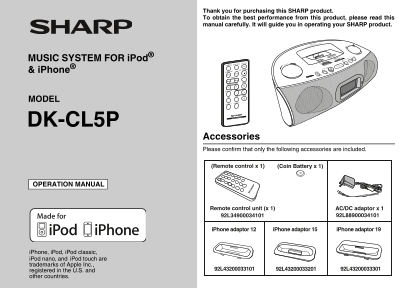
Thank you for purchasing this SHARP product. To obtain the best performance from this product, please read this manual carefully. It will guide you in operating your SHARP product. DK-CL5P & do Pi...
Page 2
DK-CL5P SPECIAL NOTES Im rt an In st ru ct io NOTE This equipment has been tested and found to comply with the limits for a Class B digital device, pursuant to Part 15 of the FCC Rules. These limits a...
Page 3
DK-CL5P IMPORTANT SAFETY INSTRUCTIONS Electricity is used to perform many useful functions, but it can 12) Use only with the cart, stand, tripod, bracket, also cause personal injuries and property dam...
Page 4
DK-CL5P IMPORTANT SAFETY INSTRUCTIONS (continued) Im rt an In st ru ct io 18) Damage Requiring Service - Unplug this product from the 22) Power Lines - An outside antenna system should not be wall out...
Page 5
DK-CL5P SPECIAL NOTES Contents ® Program Information General Information ENERGY STAR Precautions . . . . . . . . . . . . . . . . . . . . . . . . . . . . . . . 6 Controls and indicators . . . . . . . ....
Page 6
DK-CL5P Precautions en er al In fo rm at io General Hold the AC/DC adaptor by the Please ensure that the equipment is head when removing it from the positioned in a well-ventilated area 4" (10 cm...
Page 7
DK-CL5P Controls and indicators Top panel Reference page 1. USB Slot . . . . . . . . . . . . . . . . . . . . . . . . . . . . . . . . . . . DK-CL5P 2. i Pod and i Phone Dock . . . . . . . . . . . . . ....
Page 8
DK-CL5P Controls and indicators (continued) en er al In fo rm at io The i Pod rating label (*) The spec label (*) The spec label illustration may be different from the actual label used. (*) Label is ...
Page 9
DK-CL5P Remote control Reference page 1. Remote Control Transmitter . . . . . . . . . . . . . . . . . . . . . . . . . . . . . . . . 2. ON/STAND-BY/Alarm Reset Button . . . . . . . . . . . . . . . . . ...
Page 10
DK-CL5P System connections re ar at io se AC/DC adaptor connection Make sure to unplug the AC/DC adaptor before making any connections. Connecting i Pod or i Phone to TV Plug the AC/DC adaptor cable i...
Page 11
DK-CL5P PU SH PE Install/Replace batteries Notes: The battery system is use to provide continuous alarm Use 6 “C” size batteries (UM-2/R14 or similar). operation and clock setting in event of a power ...
Page 12
DK-CL5P Remote control re ar at io se Battery installation Precautions for battery use: This product contains a CR Coin Lithium Battery which contains Remove the battery if the unit will not be used f...
Page 13
DK-CL5P General control Test of the remote control MUSIC SYSTEM FOR i Pod & i Phone DK-CL5P Check the remote control after checking all the connections (see pages 10 - 11). Point the remote contro...
Page 14
DK-CL5P General control (continued) as ic er at io Display brightness control (DIMMER) Equalizer Press the SNOOZE/DIMMER button to adjust the brightness of Press the EQUALIZER button repeatedly until ...
Page 15
DK-CL5P Setting the time and date 2 Press the or button to adjust the hour and then MUSIC SYSTEM FOR i Pod & i Phone press the CLOCK/MEMORY button. TUNINGVOLUME PM FUNCTION ALARM DIMMER PRESET TRA...
Page 16
DK-CL5P Listening to the i Pod or i Phone i Pod and i Phone operations i Pod and i Phone adaptor connection Made for: Note: i Phone 4 You can use an audio cable to connect your i Pod or i Phone to i P...
Page 17
DK-CL5P Listening to the i Pod or i Phone (continued) To insert i Pod or i Phone adaptor i Pod and i Phone 1. Insert the i Pod or i Phone adaptor into unit and connect your i Pod or i Phone playback i...
Page 18
DK-CL5P Listening to the i Pod or i Phone (continued) Various i Pod or i Phone functions Function Main unit Remote control Operation Function Main unit Remote control Operation Menu ____ Press to view...
Page 19
DK-CL5P Listening to USB mass storage device/SD Card MUSIC SYSTEM FOR i Pod & i Phone DK-CL5P Note: This product is not compatible with MTP and AAC file systems from USB mass storage device or MP3...
Page 20
DK-CL5P Listening to USB mass storage Listening to the radio device/SD Card (continued) em ry la yb ac k/ ad io MUSIC SYSTEM FOR i Pod & i Phone DK-CL5P To remove SD card Press the FUNCTION button...
Page 21
DK-CL5P Listening to the radio (continued) Perform steps 1 - 3 in “Tuning” on pages 20 - 21. Tune to the desired station. Main Unit Press the CLOCK/MEMORY button for more than 2 Manual tuning: seconds...
Page 22
DK-CL5P Listening to the radio (continued) Alarm and sleep operation ad io /A va ce ea tu re Alarm Note: The unit turns on and play desired source (i Pod, i Phone or The batteries system protects the ...
Page 23
DK-CL5P Note: 3 Press the ( or ) button to adjust the minutes and If wake up source is set to i Pod, and i Pod is not present, the then press the ALARM 1 button. alarm source will change to default Bu...
Page 24
DK-CL5P Alarm and sleep operation (continued) va ce ea tu re Sleep operation To use alarm and sleep operation together The unit can be turned off automatically. Sleep and alarm: For example, you the c...
Page 25
DK-CL5P Enhancing your system NAP The auxiliary cable is not included. Purchase a separate The main unit will temporarily enters stand-by mode when pressing auxiliary cable as shown below. NAP button....
Page 26
DK-CL5P Enhancing your system Troubleshooting chart (continued) va ce ea tu re s/ ef er en ce Many potential problems can be resolved by the owner without calling a service technician. If something is...
Page 27
DK-CL5P USB/SD i Pod and i Phone Symptom Possible cause Symptom Possible cause Device cannot be Is there any MP3 file No sound is produced. The i Pod or i Phone unit detected. available? No image appe...
Page 28
DK-CL5P Troubleshooting chart (continued) ef er en ce Condensation Before transporting the unit Sudden temperature changes, storage or operation in an Undock the i Pod or i Phone and remove the USB/SD...
Page 29
DK-CL5P Specifications As part of our policy of continuous improvement, SHARP Dimensions Width: 11-1/8" (282 mm) reserves the right to make design and specification changes for Height: 4-7/16&quo...
Page 32
CONSUMER LIMITED WARRANTY SHARP ELECTRONICS CORPORATION warrants to the first consumer purchaser that this Sharp brand product (the “Product”), when ship in its original container, will be free from d...