SANYO PLC550M Projector User Manual
Summary
Discover your SA4NYO portable LCD data-grade color projector with this comprehensive user manual. Designed for new owners, this guide ensures you maximize enjoyment and understand every feature of your powerful projector. It details operating procedures, crucial safety precautions to prevent misuse or damage, and troubleshooting solutions for worry-free operation in any setting. Read this manual to operate your unit safely and correctly while ensuring optimal performance.
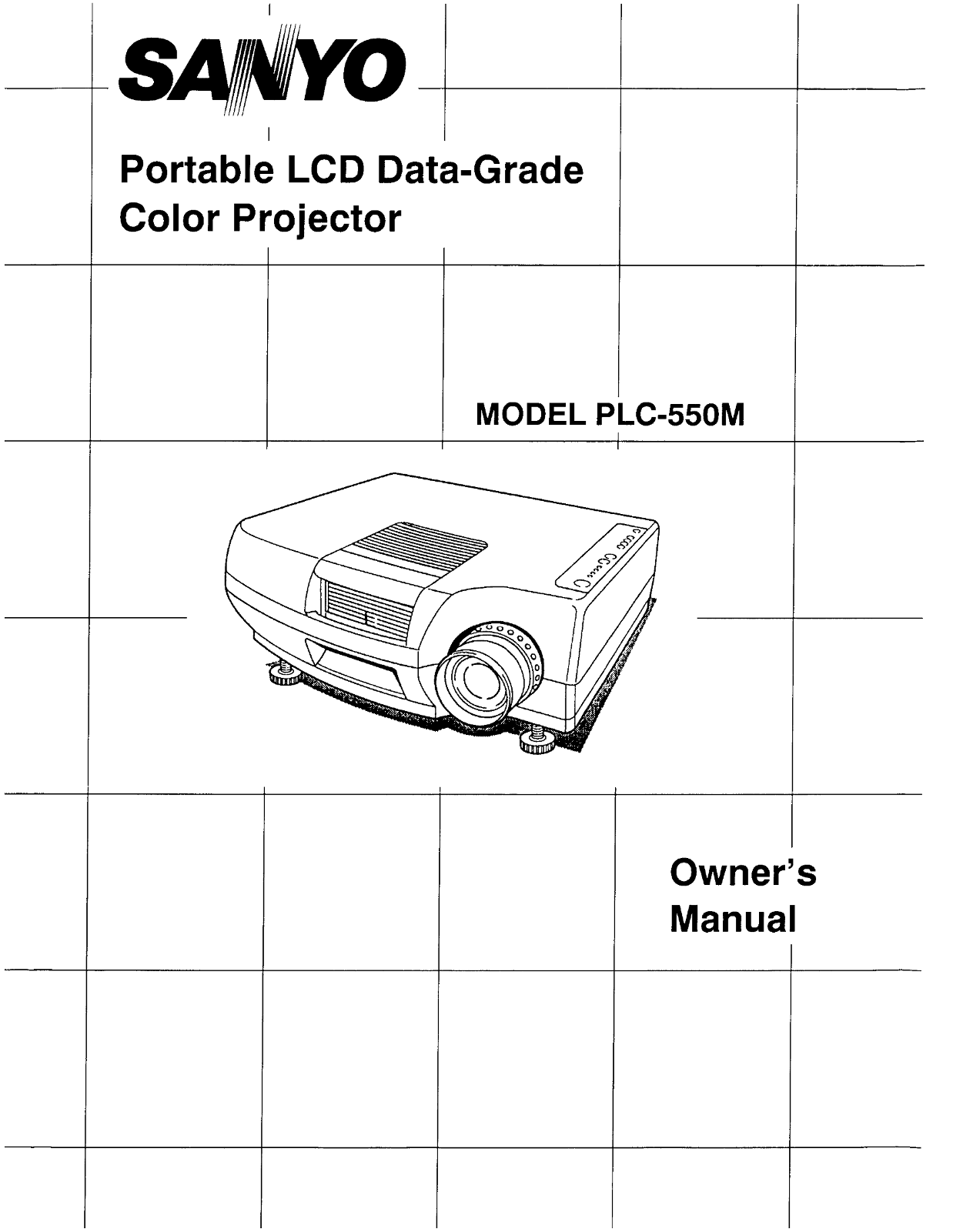
Page 1 Text Content
SA4NYO Color Projector
MODEL PLC-550M
Owner s Manual
Page Summary Contents For SANYO PLC550M Projector User Manual
Page 1
SA4NYO Color Projector MODEL PLC-550M Owner s Manual
Page 2
INFORMATION TO THE USER NOTE: This equipment has beentested and found to comply with the limits for a Class A digital device, pursuant to Part 15 of the FCC Rules. These limits are designed to provide...
Page 3
All the safety and operating instructions should be read Unplug this projector from wall outlet and refer Servicing to before the product is operated. qualified service personnel ungder the following ...
Page 4
( TABLE OF CONTENTS ) DESCRIPT| 和 @ 有 Ne 5 CONNECTING THE PROJECT 和 RN 6-9 SETTING-UP THE PROJECT 和 RN 10 OPERATION OF CONTROLS 11-12 REMOTE CONTROL UNIT OPERATION RN 13-14 USING THE PROJECTOR 15-17 P...
Page 5
DESCRIPTION 了 [ERo NT| SPEAKER AIR INTAKE CONTROLS CARRY HANDLE PROJECTION LENS LEVELING/ELEVATING 7 上 FEET INFRARED \UA 人 人、 ur REMOTE REMOVABLE LENS COVERRECEIVER [REAR] weowor SWITCH EXHAUST VENT G...
Page 6
人 CONNECTING THE PROJECTOR ) Your projector is equipped with various audiowideo inputs and outputs including Computer HDB15-pin terminals, Monitor HDB15-pin terminals, and S-VHS videa . COMPUTER MODE ...
Page 7
CONNECTING THE PROJECTOR TO A COMPUTER Projector Personal Computer PERSONAL COMPUTER Note Type AUDIO SERIAL PORT OUTPUT INPUT COMPUTER [ | MONITOR INPUT IE OUTPUT m L 站 一 一 SERIAL PORT | f OUTPUT 口 CO...
Page 8
AV MODE CONNECTING TO THE AV INPUT JACKS Connect to the video and audio outputs of a VCB,,video disc player,video camera, satellte TV tuner or other AV equipment. e Connect video/audio outputs frorm e...
Page 9
HOW TO CONNECT EXTERNAL AV EQUIPMENT Frojector Satellte TV Tuner 3 四 站 Eee 、, | Video Dassette Recorder [oo 于 viueo ciec riaye Amp. Speaker Se [Audo IO 1 je 人 {L) 1 Video Cassette Recorder Video Disc ...
Page 10
人 SETTING-UP THE PROJECTOR ) POSITIONING: 。 This prolector is basically designed to project on a flat projection surface, e This projecter can be focuseq from 4.9 (1.5m) ~ 39.4' (12.0m). @ Usetheilust...
Page 11
人 OPERATION OF CONTROLS ) TOP CONTROLS 外 Pow ER (LAMP) ONOFF BUTTON TOP CONTROLS Used to turn projection lamp on or off. 加 POw ERINDICATORS Lights dim when the projector is on. Lights bright when the ...
Page 12
ECRDF THE PROJEEGTOE 鸭 co MPUTER INPUT TERMINAL Used to connect a computer to the Projector. MONITOR OUTPUT TERMINAL Used to connect a monitor to the projector. COMPUTER AUDIO INPUT JACKS Used to conn...
Page 13
人 REMOTE CONTROL OPERATION ) @Mop EBUTTON Used to select video source. (Computer Input or AV Inpub INFRAREDAWIRED REMOTE CONTROL 四 POWER (LAMP) ONOFF BUTTON Used to turn projection lamp on or off. AN ...
Page 14
1 Remove the battery 加 Slide the batteries intothe Replace the compart 1compartment idg, compartment. ment lid. Nete: For correct polarity (+ and - terminal), be sure the battery terminals are in cont...
Page 15
人 USING THE PROJECTOR ) TO TURN ON THE PROJECTOR Connect the projector to a video source (Computer VCR, Video Camera, Video Disc Player, etc.,) using the appropriate terminals on the rear of the proje...
Page 16
VIDEO MODE SELECT Press the MODE button (located on projector or rermote control unit to COMPUTER select Computer Input or AV Input, The "COMPUTER" or "AV display will appear on the scr...
Page 17
e AV MODE Press the SYSTEM button (located on projector or remote control unib to select AUTO,PAL, SECAM,NTSC4.43 or NTSC, Each time the SYSTEM button is pressed, the coior System changes as follows; ...
Page 18
PICTURE ADJUSTMENTS ) REMOTE CONTROL UNIT LEVEL CONTROL BUTTONS MENU -一 一 | BUTTON BUTTON LEVEL CONTROL BUTTONS NORMAL BUTTON NORMAL BUTTON | | 0 CONTRAST [HH POSITION 淮 BRIGHTNESS = 山口 -IID--2-- 加 V ...
Page 19
(B) AV MODE Picture adjustments have been preset at the factory to our quality standards, The picture adjustments can be made by the MENU and LEVEL buttons on the projector or on the remote control un...
Page 20
人 AIR FILTER CARE AND CLEANING ) The removable air fiter prevents dust from accumulating on the Surface of the projection lens and projection mirror Should the air filter become clogged with dust part...
Page 21
Problem: Try these Solutions: e Plug the projector into an AC outlet. No power es Turnthe MAINS ON/OFF button to ON. ep Press the POWER (LAMP) ONOFF switch to ON. ec Check the READY INDICATOR Ilight O...
Page 22
TECHNICAL SPECIFICATIONS )4 SPECIFICATIONS Projector Type Portable LCD Data-Grade Color Projector Dimensions (Hx Wx D) 6.2" (158 mm ) x 16.9" (430 mm) x 15.2" (385 mm) Net Weight 21.8 I...
Page 23
COMPATIBLE PERSONAL COMPUTER SPECIFICATIONS ER 二 pp] wo va FE FMT640 炎 400 FM-TOWNS (640 > 400) 640 > 400 24.37 440 -| -= PC-9801 (640 x 400) 640 400 24.83 440 -】 -= PC98.640 洲 400 PC-9821 (640 ...
Page 24
SANYO INDUSTRIAL VIDEO LCD PROJECTOR LIMITED WARRANTY OBLIGATIONS In order to obtain warranty service, the product must be delivered to and picked up from an Authorized Sanyo Service Center at the use...
Manual Details
| Brand | Sanyo |
|---|---|
| Pages | 24 |
| File Size | 7.25 MB |
| Published | June 05, 2026 |
58 views
Enter the captcha to get the download link:

Frequently Asked Questions
Where should I place the projector safely?
Only on a stable cart/stand or surface recommended by the manufacturer, and never on unstable objects like rugs or sofas.