Page 1
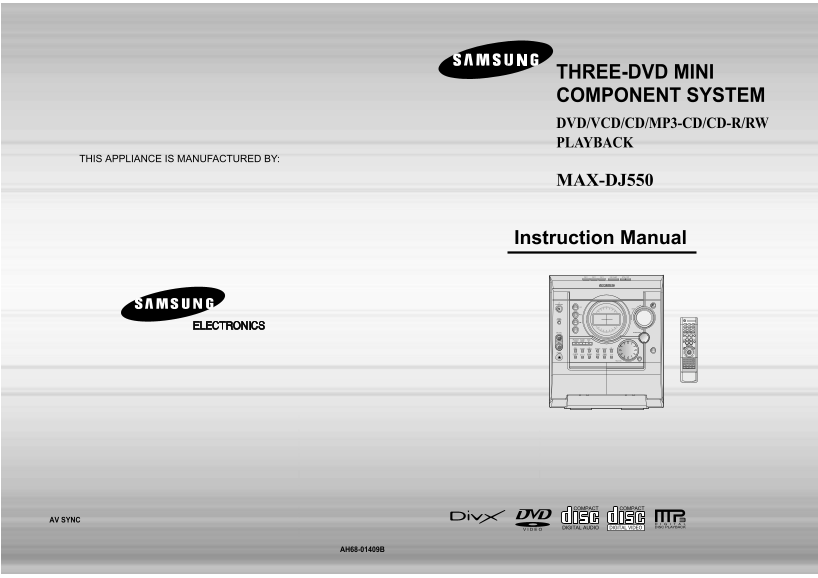
THREE-DVD MINI COMPONENT SYSTEM RETURN DVD/VCD/CD/MP3-CD/CD-R/RW PLAYBACK THIS APPLIANCE IS MANUFACTURED BY: MAX-DJ550 Instruction Manual OPEN/CLOSE SLEEP DIMMER DISC SKIP ZOOM SLOW REPEAT DECK 1/2 RE...
Page 2
PR EPA ATIO Safety Warnings Precautions Use of controls, adjustments or performance of procedures other CLASS 1 LASER PRODUCT than those specified herein may result in hazardous radiation KLASSE 1 LAS...
Page 3
PR EPA ATIO Features Contents PREPARATION Safety Warnings..................................................................................................................................................
Page 4
PR EPA ATIO Description —Front Panel— 1. STANDBY/ON —Rear Panel— 2. DEMO/DIMMER 3. SEARCH FUNCTION BUTTONS OR STOP OR TUNING MODE 1. Component Video Output Connectors 4. MIC LEVEL(option) Connect a TV...
Page 5
PR EPA ATIO Description —Remote Control— Insert Remote Batteries ZOOM button Remove the battery Insert two 1.5V AAA Replace the battery POWER STANDBY/ON button SLEEP button cover on the back of batter...
Page 6
EC TIO Connecting the Speakers Connecting to a TV Before moving or installing the product, be sure to turn off the power and disconnect the power cord. Please be sure to turn off the power and unplug ...
Page 7
Connecting to a TV(continue) P.SCAN(Progressive Scan) Function Please be sure to turn off the power and unplug the power cord before moving or installing this unit. Please choose one of two video conn...
Page 8
EC TIO Connecting External Components Connecting the FM, AM(MW/LW) and SW(option)Antennas If AM reception is poor, connect an Connecting an External Analog Component outdoor AM antenna(not supplied). ...
Page 9
EC TIO Setting the Clock Disc Playback For each step, you have a few seconds to set the required options. If you exceed this time, you must start again. Press OPEN/CLOSE Load discs. Switch the system ...
Page 10
Div X Playback Skip Forward/Back During playback, press the button. Go to the next file whenever you press button, if there are over 2 files in the disk. OPEN/CLOSE SLEEP DIMMER 5 Minute Skip function...
Page 11
Displaying Disc Information Fast/Slow Playback You can view playback information on the disc on the TV screen. Fast Playback DVD VCD CD MP3 Press and hold . Press INFO button. Each time the button is ...
Page 12
Skipping Scenes/Songs Angle Function This function allows you to view the same scene in different angles. DVD VCD MP3 Press Cursor Briefly press . Press INFO button. button to move to Each time the bu...
Page 13
Repeat Playback Repeat playback allows you to repeatedly play a chapter, title, track (song), or directory (MP3 file). DVD VCD CD To Select a Repeat Playback Mode DVD VCD CD MP3 JPEG in the Disc Infor...
Page 14
A↔ B Repeat Playback Zoom Function This function allows you to enlarge a particular area of the displayed image. Zoom (Screen Enlarge) Function DVD VCD DVD VCD CD Press Cursor , , Press ZOOM Press ENT...
Page 15
Selecting Audio/Subtitle Language Moving Directly to a Scene/Song DVD VCD CD DVD Moving to a Title/Track Moving to a Chapter Audio Language Selection Function Press Cursor , buttons Press Cursor , Pre...
Page 16
JPEG File Playback JPEG Images captured with a digital camera or camcorder, or JPEG files on a PC can be stored on a CD and then played back with this DVD player. Slide Mode Digest Function You can vi...
Page 17
Using Disc Menu Using the Title Menu You can use the menus for the audio language, subtitle language, profile, etc. For DVDs containing multiple titles, you can view the title of each movie. DVD menu ...
Page 18
Setting the Language OSD language is set to English by default. Press Cursor , Press Cursor , Press Cursor SLEEP DIMMER Press MENU Press ENTER button to move to button to select the button to select t...
Page 19
Setting TV Screen type Adjusting the TV Aspect Ratio (Screen Size) Press Cursor button to move to Press MENU button. The horizontal to vertical screen size ratio of conventional TVs is 4:3, while that...
Page 20
Setting Parental Controls (Rating Level) Setting the Password Use this to restrict playback of adult or violent DVDs you do not want children to view. You can set the password for the Parental (rating...
Page 21
Setting the Wallpaper DVDJPEG VCD While watching a DVD or JPEG CD, you can set the image you like as a wallpaper. Setting the Wallpaper To Change the Wallpaper SLEEP DIMMER During playback, press DISC...
Page 22
Setting the DRC (Dynamic Range Compression) UTE AV SYNC Setup You can use this function to enjoy Dolby Digital sound when watching movies at Video may look slower than the audio if it is connected wit...
Page 23
RADIO OPERATION Listening to Radio Presetting Stations You can store up to: You can listen to the chosen band (FM, MW, (LW),(SW1,2) broadcast stations) 15 FM stations 15 FM stations by using either th...
Page 24
Listening to a Cassette Always treat your cassettes with care; refer, if necessary, to the section entitled “Precautions When Using Audio Cassettes” on page 55. Selecting the Cassette Playback Mode Yo...
Page 25
ISCELLANEOUS Recording a Compact Disc You can record a compact disc on a cassette in two different ways: Copying a cassette (DUBBING) You can copy a cassette from Deck 1 to Deck 2. Normal speed dubbin...
Page 26
ISCELLANEOUS Recording a Radio Program You can record a radio program of your choice. You do not need to adjust the volume, as it has no effect on the recording. Direct recording The direct recording ...
Page 27
ISCELLANEOUS Timer Function Canceling the Timer The timer enables you to switch the system on or off at specific times. After having set the timer, it will start automatically as shown by the TIMER in...
Page 28
ISCELLANEOUS S.BASS/P.SOUND/SOUND MODE Function Sleep Timer Function / Mute Function Sleep Timer Function You can set the timer that the DVD player will shut itself off. DVD /CD SLEEP DIMMER Press SLE...
Page 29
Connecting Headphones/Microphone(option) DEMO Function / DIMMER Function You can connect a set of headphones to your mini component system so that you can listen to music or radio programmers without ...
Page 30
ISCELLANEOUS Cautions on Handling and Storing Discs Notes on Discs Small scratches on the disc may reduce sound and picture quality or cause breaks in playback. Be especially careful not to scratch di...
Page 31
ISCELLANEOUS Before Calling for Service Refer to the chart below when this unit does not function properly. If the problem you are experiencing is not listed below or if the instruction below does not...
Page 32
ISCELLANEOUS Notes on Terminology Specifications RADIO Recorded onto some DVD discs are scenes which have been simultaneously shot LW(option) ANGLE from a number of different angles (the same scene is...