Page 1
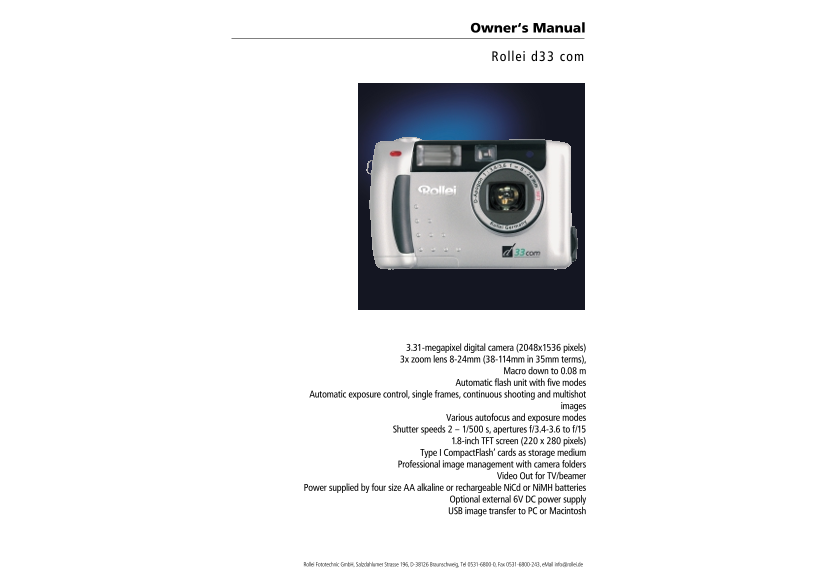
Owner‘s Manual Rol le d33 com 3.31-megapixel digital camera (2048x1536 pixels) 3x zoom lens 8-24mm (38-114mm in 35mm terms), Macro down to 0.08 m Automatic flash unit with five modes Automatic exposur...
Page 2
Warnings Before you start… Caution ! Everything complete? Be sure to read all hints and warnings carefully. Improper use may cause batteries to heat up or explode. Check the packing to see whether eve...
Page 3
Contents Contents Proper and safe use ----------------------------------------------------------------------------------------------- Digital zoom -----------------------------------------------------...
Page 4
Contents Image management Saving and managing images in folders -------------------------------------------------------- Deleting folders from the memory card -----------------------------------------...
Page 5
Names of parts and controls Names of parts and controls Camera front Camera back Flash-ready indicator Focus indicator (green) Power switch Shutter release Mode dial on/off Viewfinder* Strap lug LCD m...
Page 6
Names of parts and controls Names of parts and controls Camera terminals / bottom plate LCD monitor Image size Flash mode Video Out Power-supply terminal USB terminal Battery status Battery cover Fram...
Page 7
Names of parts and controls Names of parts and controls Viewfinder Focus/Flash-ready indicators Focus indicator (green) Parallax marks Focus indicator (green) Lights Subject in focus. Blinks rapidly F...
Page 8
Brief instructions Brief instructions This is how it works: This is how it looks: This is how it works: This is how it looks: Load batteries Frame your subject in the viewfinder or on the TFT screen I...
Page 9
Brief instructions Brief instructions This is how it works: This is how it looks: This is how it works: This is how it looks: Playing back images Deleting images Turn mode dial to Playback Turn the mo...
Page 10
Power supply Power supply This is how it works: This is how it looks: This is what it‘s for: This is how it works: This is how it looks: This is what it‘s for: Loading alkaline or The camera should pr...
Page 11
Power supply Memory card This is how it works: This is how it looks: This is what it‘s for: This is how it works: This is how it looks: This is what it‘s for: Using the optional Using the Compact Flas...
Page 12
Basic functions Basic functions Screen settings The TFT screen in Camera mode Each depression of the Display button will change the screen display as follows. TFT screen turned off White balance (see ...
Page 13
Taking pictures Mode dial set to Camera icon Mode dial set to Camera icon Taking pictures This is how it works: This is how it looks: This is what it‘s for: This is how it works: This is how it looks:...
Page 14
Taking pictures Mode dial set to Camera icon This is how it works: This is how it looks: This is what it‘s for: Digital zoom The camera has a digital The digital zoom should not zoom which allows zoom...
Page 15
Taking pictures Mode dial set to Camera icon Mode dial set to Camera icon Taking pictures This is how it works: This is how it looks: This is what it‘s for: This is how it works: This is how it looks:...
Page 16
Taking pictures Mode dial set to Camera icon Mode dial set to Camera icon Taking pictures This is how it works: This is how it looks: This is what it‘s for: This is how it works: This is how it looks:...
Page 17
Taking pictures Mode dial set to Camera icon Mode dial set to Camera icon Taking pictures This is how it works: This is how it looks: This is what it‘s for: This is how it works: This is how it looks:...
Page 18
Taking pictures Mode dial set to Camera icon Mode dial set to Camera icon Taking pictures This is how it works: This is how it looks: This is what it‘s for: This is how it works: This is how it looks:...
Page 19
Taking pictures Mode dial set to Camera icon Mode dial set to Camera icon Taking pictures This is how it works: This is how it looks: This is what it‘s for: This is how it works: This is how it looks:...
Page 20
Taking pictures Mode dial set to Camera icon Mode dial set to Camera icon Taking pictures This is how it works: This is how it looks: This is what it‘s for: This is how it works: This is how it looks:...
Page 21
Taking pictures Mode dial set to Camera icon Mode dial set to Camera icon Taking pictures This is how it works: This is how it looks: This is what it‘s for: This is how it works: This is how it looks:...
Page 22
Taking pictures Mode dial set to Camera icon Mode dial set to Camera icon Taking pictures This is how it works: This is how it looks: This is what it‘s for: This is how it works: This is how it looks:...
Page 23
Taking pictures Mode dial set to Camera icon Mode dial set to Camera icon Taking pictures This is how it works: This is how it looks: This is what it‘s for: This is how it works: This is how it looks:...
Page 24
Taking pictures Mode dial set to Camera icon This is how it works: This is how it looks: This is what it‘s for: Selecting screen bright- ness The brightness of the TFT Screen dark – Camera screen on t...
Page 25
Image playback Mode dial set to Playback icon Mode dial set to Playback icon Image playback This is how it works: This is how it looks: This is what it‘s for: This is how it works: This is how it look...
Page 26
Image playback Mode dial set to Playback icon Mode dial set to Playback icon Image playback This is how it works: This is how it looks: This is what it‘s for: This is how it works: This is how it look...
Page 27
Image playback Mode dial set to Playback icon This is how it works: This is what it‘s for: You may view the Playback via TV set or pictures captured with video beamer your camera on a TV screen. The c...
Page 28
Deleting images Mode dial set to Playback icon Mode dial set to Playback icon Deleting images This is how it works: This is how it looks: This is what it‘s for: This is how it works: This is how it lo...
Page 29
Image printout Mode dial set to Playback icon This is how it works: This is how it looks: This is what it‘s for: Preparing images for The DPOF‘ function lets you direct printout in DPOF‘ select – righ...
Page 30
Image management Mode dial set to Playback icon Mode dial set to Playback icon Image management This is how it works: This is how it looks: This is what it‘s for: This is how it works: This is how it ...
Page 31
Image management Mode dial set to Playback icon Mode dial set to Playback icon Image management This is how it works: This is how it works: This is how it looks: This is what it‘s for: DCF standard fo...
Page 32
Basic settings Mode dial set to set icon Mode dial set to set icon Basic settings This is how it works: This is how it looks: This is what it‘s for: This is how it works: This is what it‘s for: Basic ...
Page 33
Basic settings Mode dial set to set icon This is how it works: This is how it looks: This is what it‘s for: Default settings for Playback, Set and Transfer modes In the Set menu, the following default...
Page 34
PC linkup Mode dial set to transfer icon Mode dial set to transfer icon PC linkup This is how it works: This is how it looks: This is how it works: This is how it looks: Connecting the camera to [Yes]...
Page 35
PC linkup Mode dial set to transfer icon Tips and Tricks Bilder aufnehmen This is how it works: This is how it works: Connecting the camera to How to handle batteries Ambient temperature and PC/Macint...
Page 36
Tips and Tricks Tips and Tricks Notes on the use of Care of TFT screen Taking care of your Cleaning your digital Questions and service Compact Flash™ cards digital camera camera In the following cases...
Page 37
Troubleshooting Troubleshooting Problem Ursache Lösung Hilfe bei Störungen If you have any trouble with your camera, try to solve the problem with the aid of the Problem Cause Remedy Page following ta...
Page 38
Troubleshooting Troubleshooting Problem Cause Remedy Page Problem Cause Remedy Page Shutter does not Is there a CF card in the If NO CARD appears on the Zoom playback does not Was the picture taken wi...
Page 39
Specifications System requirements Camera System requirements for Windows CCD: 1/1.8-inch CCD (4:3) with 3.15 megapixels (1536x2048), ISO 100/21° Lens: 3x zoom lens 8-24mm f/3.4-3.6 (38-114mm in 35mm ...