PHILIPS CID3291 Quick User Guide
Summary
This comprehensive guide provides thorough instructions for installing and operating your modern car audio system. Learn how to connect, pair, and utilize all advanced features, including hands-free Bluetooth calling, built-in GPS navigation, and multi-format media playback from CDs, DVDs, USB drives, and flash cards. Ideal for vehicle owners seeking a seamless upgrade, this manual covers everything from initial wiring setup to setting the clock, tuning AM/FM radio bands, and enjoying crystal-clear audio on the go.
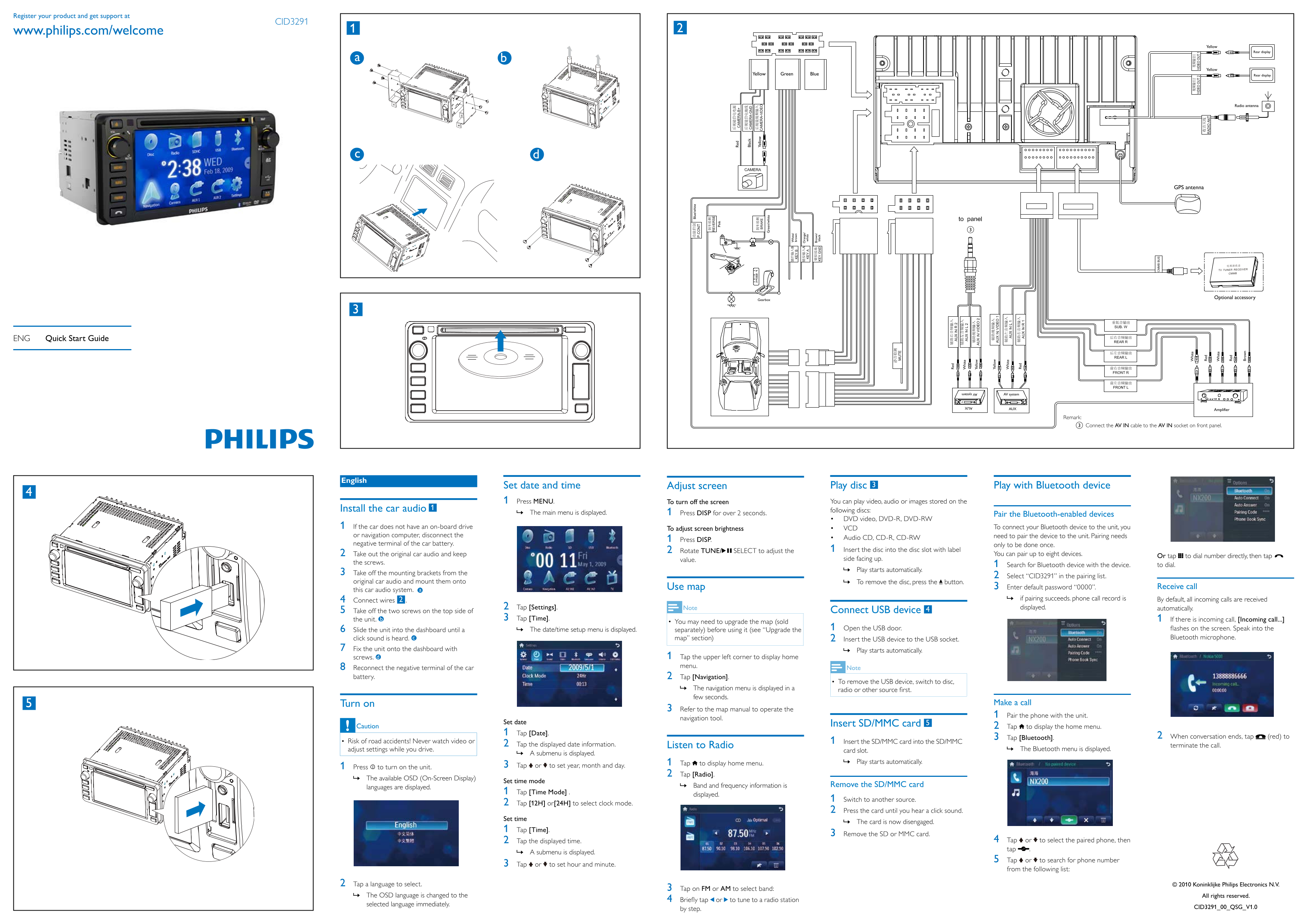
Page 1 Text Content
Register your product and get support at
CID3291
www.philips.com/welcome
Yellow
Rear display
Yellow
Yellow Green Blue Rear display
Radio antenna
GPS antenna
Optional accessory
Gearbox
ENG Quick Start Guide
AV system
AUX Amplifier
Remark:
Connect the AV IN cable to the AV IN socket on front panel.
English
Set date and time Adjust screen Play disc 3 Play with Bluetooth device Press MENU. To turn off the screen You can play video, audio or images stored on the
Install the car audio following discs:
The main menu is displayed.» Press DISP for over 2 seconds. Pair the Bluetooth-enabled devices
DVD video, DVD-R, DVD-RW
If the car does not have an on-board drive VCD To connect your Bluetooth device to the unit, you
To adjust screen brightness
or navigation computer, disconnect the need to pair the device to the unit. Pairing needs
Audio CD, CD-R, CD-RW
Press DISP.
negative terminal of the car battery. only to be done once.
Rotate TUNE/ SELECT to adjust the Insert the disc into the disc slot with label
Take out the original car audio and keep You can pair up to eight devices.
Or tap to dial number directly, then tap
value. side facing up.
the screws.
Search for Bluetooth device with the device. to dial.
Play starts automatically. »
Take off the mounting brackets from the
Select “CID3291” in the pairing list.
original car audio and mount them onto To remove the disc, press the » button.
Use map Enter default password “0000”. Receive call
this car audio system. a
if pairing succeeds. phone call record is » By default, all incoming calls are received
Connect wires
Tap [Settings]. Note displayed. automatically.
Take off the two screws on the top side of Connect USB device
the unit. b Tap [Time]. If there is incoming call, [Incoming call...]
You may need to upgrade the map (sold
Slide the unit into the dashboard until a The date/time setup menu is displayed.» separately) before using it (see “Upgrade the Open the USB door.
click sound is heard. c map” section) Bluetooth microphone.
Insert the USB device to the USB socket.
Fix the unit onto the dashboard with Play starts automatically.
screws. Tap the upper left corner to display home menu.
Reconnect the negative terminal of the car Note
battery. Tap [Navigation].
To remove the USB device, switch to disc,
The navigation menu is displayed in a » Bl ue /w hi te few seconds.
Turn on Make a call
Refer to the map manual to operate the
Pair the phone with the unit.
navigation tool. Pi nk
Set date Insert SD/MMC card
Caution Tap to display the home menu.
Tap [Date].
Re Tap [Bluetooth]. When conversation ends, tap (red) to
Risk of road accidents! Never watch video or Insert the SD/MMC card into the SD/MMC
Tap the displayed date information. Listen to Radio terminate the call.
adjust settings while you drive. Bl ac The Bluetooth menu is displayed.»
card slot.
A submenu is displayed.
Ye llo
Tap to display home menu. Play starts automatically.»
Press to turn on the unit. Tap or to set year, month and day.
re en /w hi te
Tap [Radio].
The available OSD (On-Screen Display) »
Set time mode
Band and frequency information is » Remove the SD/MMC card
languages are displayed.
Tap [Time Mode] . hi te br ow displayed.
Switch to another source.
Tap [12H] or[24H] to select clock mode. ra ng e/ hi te
Press the card until you hear a click sound.
Br ow n/ Set time bl ac
The card is now disengaged.»
Tap [Time].
Remove the SD or MMC card.
Tap the displayed time. Tap or to select the paired phone, then tap .
A submenu is displayed.»
Tap or to search for phone number
Tap or to set hour and minute.
from the following list:
Tap a language to select. Koninklijke Philips Electronics N.V.
Tap on FM or AM to select band:
The OSD language is changed to the » All rights reserved.
or to tune to a radio station
selected language immediately.
CID3291_00_QSG_V1.0
by step.
hi te
Ye llo
Ye llo
hi te
hi te
hi te
Br ow
Page Summary Contents For PHILIPS CID3291 Quick User Guide
Manual Details
| Brand | Philips |
|---|---|
| Pages | 2 |
| File Size | 3.37 MB |
| Published | July 12, 2026 |
Enter the captcha to get the download link:

Frequently Asked Questions
How do I physically install this car audio unit?
Remove the original unit, mount the new brackets on the dashboard, connect the wiring, and fix the unit with screws.
What is the pairing process for a Bluetooth device?
Press [Bluetooth], select “CID3291” from the list, and enter the default password of “0000”.
How do I manually set the date and time on the system?
Tap [Time] to enter setup mode. Adjust year/month/day using the Date menu, then adjust hour/minute using the Time menu.
What is needed to remove an SD/MMC card safely?
Wait until you hear a distinct click sound when sliding the card out of the slot.