Page 1
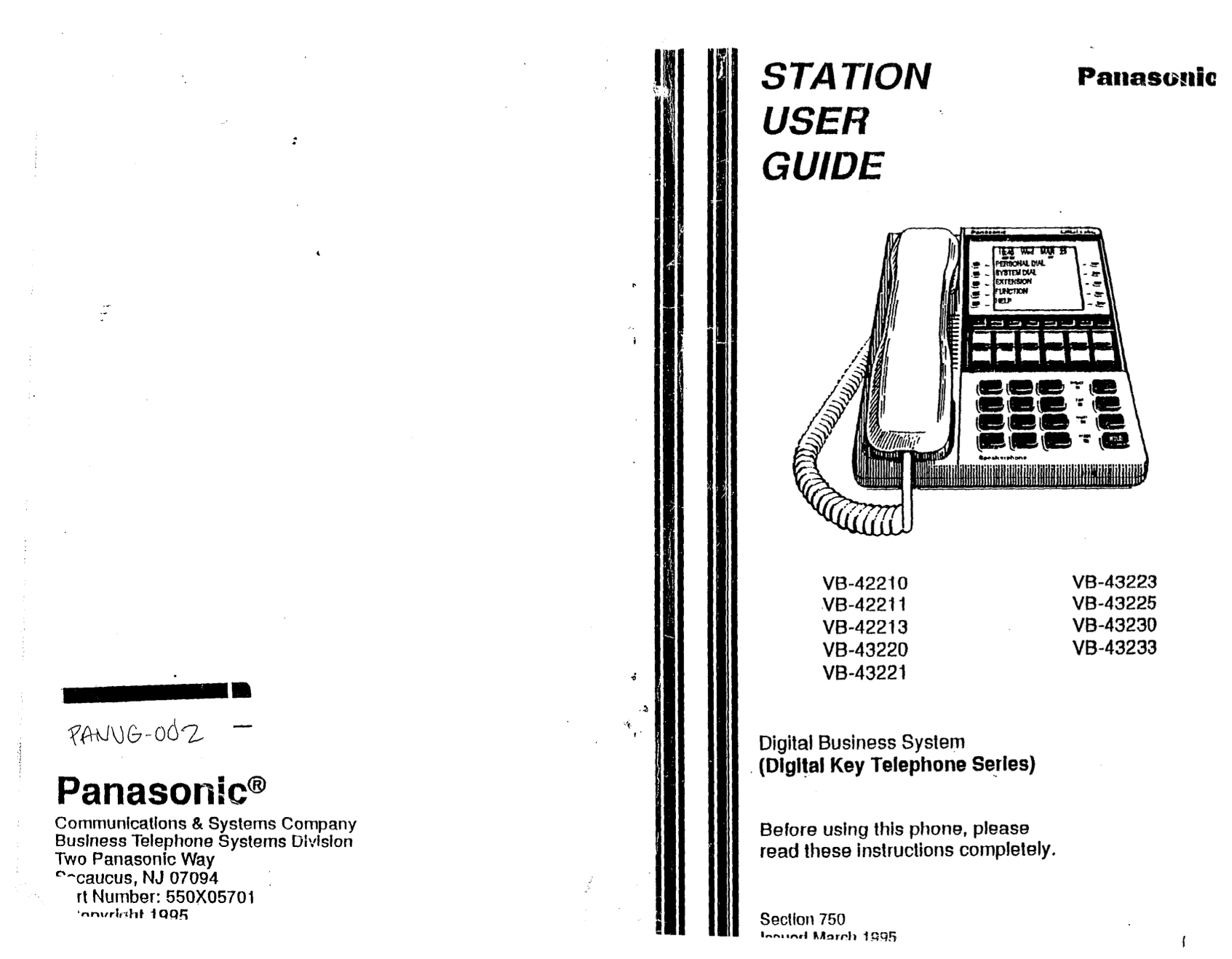
STATION Panasmic USER GUIDE VB-42210 VB-43223 \/B-4221 1 VB-43225 VB-42213 VB-43230 VB-43220 VB-43233 VB-43221 %NG-od2 - Digital Business System (Digltal Key Telephone Series) Panasonic@ Communication...
Page 2
The contents of this manual are subject to change without notice and do not conslitule a commitment on the part of Panasonic Communications & Systems Company (PCSC). Every effort has been made to ...
Page 3
4; P % =t I. 2 : vg g i3) i!r 5 tn ; B 3 T 5 cp ; g i 4 c i Y : : : e iz : : : : : : : k? : E ; fg : : : : : : : i : : : : : : : : : : : : : : : : : : : : : : : : : ; : : : . : : : : : : . : : . : : :...
Page 4
Notes Contents 5. Communicating Within Your Office . . . . . . . . 35 Calling Other Exlensions ................................................................. 36 Paging ................................
Page 5
Index Lisls of Fiaures and Table! sek also “Personal speed dialing” 16 Using your calling privileges from an- see also “System speed dialing” 16 olhet phone 50 List of Figures SSD 20 Station lockout V...
Page 6
using 16 using client account code in PS Off-hook transfer code 27 screened 33 Pickiug up calls 30 unscreened 34 Ptogrammiug an account’ code into Off-hook voice announcement PSD code 26 answering 44 ...
Page 7
index making 14 outside, placing 13 Preface Emergency calls 15 parking 32 picking up 30 The Sfafiart User Glide is for anyone who uses a Panasonic to attendant 36 FF key digital telephone in conjuncti...
Page 8
Preface Not at ion Used Index This manual uses the following convenlions: Numerics waiting 40 l References to chapters and sections are enclosed in message waiting request 42 911 calls 15 quotation ma...
Page 9
i- Dial Code FF Function Save Dial Access AU-IV + * Yes 1. Understanding Your Phone Save Dial Registration AU’I’O + AUI’O + * Yes Becoming familiar with your Panasonic digital phone will Tone/Voice S ...
Page 10
Appendix. Dial Code Llst Small-Display Phones Function I)ial Code FF Small-display phones, such as the model illustrated below, have a smaller disnlav than some other models. The annotated Key illustr...
Page 11
Appendix. Dial Code List Small-Display Phone Table 1. Small-display phone features Function Dial Code FF Feature Description Attendarlt Call Yes Display Displays information about phone’s cur Backgrou...
Page 12
Large-Display Phones Appendix. Dial C&he List Use to hold calls, lo retrieve held calls, This appendix contaitls a summary of the most commonly used and to corhplete FF key programming. dial codes...
Page 13
USing Caller ID Dlsplay lnformatic Table 2. Large-display plroue features # Feature Descriptiotl 1 Large display Displays menus, information about phone’s current status. Also provided access to perso...
Page 14
Dfsr Aav fnformatfon Uslrig Caller I Figure 5. Alarm time Figure 16. Call Log formatfor tie large-display phone-detailed call information 10:40 Wed MAR 17 404-555-0001 + Number of last entry viewed th...
Page 15
Using Caller ID Log Format for the Large-Display Phone. ’ 2. Setting Up Your Phone If you have a Large-display phone, you can view all four levels of the Call Log on one screen. Use the procedures in ...
Page 16
Ustnn Caller IC Volume and Display Settings 2. To display the next level of information, press Ule CONF key. Adjusting Sound Volumes ’ Figure 12. Calf log format for the small-display phone-time and d...
Page 17
Usina Caller ID FF Kevs l Callirlg number Adjusting the Display Contrast l Calling name (if provided) 1. When the phone is not in use, press #. l Time and date 2. Press the VOL keys to adjust the cont...
Page 18
FF Keys Using Caller IO 4. Do one of the following: Using Caller ID If . . . Then... When Ihe Caller ID (CID) feature is activated, your display lou want to assign a dial code that Enter one of the di...
Page 19
Controlling Background Music ‘. FF Key! Checking FF Key Setup Controlling Background Music 1. Pick up the handset or press ON/OFF. If your system is set up with a music source, you can play music over...
Page 20
FF Keys Using a Headsel Dropping Out of a Conference Call To drop out of a confereuce call, press FLASII or ON/OFF. Using a Headset When headset mode is turned on, you cau use a headset attached to yo...
Page 21
Switching Between Pulse and Tone Calling Switching Between Pulse and Tone 3. Placing Outside C& Callitig Your digital phone, in conjunction with the DBS, provides When you dial your phone, Rulse c...
Page 22
Another Phone Making Calls To Assign a Walking COS Code Using an Outside Line Access Group 1. Pick up the handset or press ON/OFF. You can dial 9,81, 82, 83, 84, 85, or 86 to access an outside 2. Dial...
Page 23
Making Call Locking Your Extension 3. Dial the PBX access code (see you system administrator or Use this feature to restrict unauthorized access to your phone. dealer for the code). When your phone is...
Page 24
Using Speed Dialing Using Speed Dialing 6. Using Additional Features Using Personal Speed Dialing (PSD) The DBS provides a variety of features you can use in your You can assign PSD (personal spsed di...
Page 25
Using Speed Dialin! 4. Press CONE - 5. Press AUTO twice. 6. Enter the voice mail extension number and any special To insert a.. . Press . . . numbers that are required by the voice mail. Pause REDIAL ...
Page 26
Using Speed Dialing Using One-Touch Voice Mail Transfer Assigning Names fo PSD Numbers 5. Press AUTO. PSD names are displayed when you dial the PSD number. 6. Enter the voice mail extension number and...
Page 27
Breaking lntd an Outside Call Using Speed Dialing Table 3. Speed dial alphabet entry Breaking Into an Outside Call This This Note: This feature requires system programming or a specific Press this man...
Page 28
Using Speed Dialing Announcing to Busy Extension Using System Speed Dialing (SSD) Nutes: . Your original conversation is not interrupted by sending Up to 90 SSD (system speed dial) numbers cau be assi...
Page 29
Announcing to Busy Extensions F&dialing Outside Numbers 2. If necessary, access an outside line. Announcing to Busy Extensions 3. Do one of the following: Note: This feature requires system progra...
Page 30
Redialina Outside Numbers Using Absence Messages Auto-Repeat Dialing Using Absence Messages With some systems, if the outside number dialed is busy, Assigning the Absence Message pressing the HEDIAL k...
Page 31
Using Do-Not-Disturb ‘. Waiting for an Outsida Line Responding to Message Waiting Requests Waiting for an Outside Line The MSGE indicator flashes when you have a message If all outside lhles are busy,...
Page 32
Using Message Waiting Using Account Codes lbble 4. DBS accoun: code usage Using Camp-on Account Description Uses Note: This feature requires system programming or a specific Code Type DBS configuratio...
Page 33
Using Call Waiting Using Account Codes Answering Call Waiting using Voluntary Unverified Account Codes 1. Do one of the following: You can enter an unverified account code before making a call or duri...
Page 34
Using Account Codes Using Call Waitin Using Forced Verified Account Codes Using Call Waiting If your system is set up to use Forced Verified Account Codes, Call waiting allows you to send a tone and a...
Page 35
Using Call Forwarding : Usina Account Codes Using a PSD Number to Dial an Account Code To forward . . . Dial . . . Then.. . All calls . 720 Dial the extension number 1. Pick up the handset or press ON...
Page 36
Using Account Codes Usim Call Forwardha 4. Do one of the followhlg: If... Then . . You want to end the page Replace the handset. ^ - You want to get a response Do not hang up; wait for the from someon...
Page 37
Calling Other Extensions Making Internal Calls 4. Answering Calls 1. Pick up the handset or press ON/OFF. Calls can reach your digital phone from several different sources, and can be handled in a var...
Page 38
Picking Up Calls- To answer various types of calls, use the following procedures. 5. Communicating Within Your 1. Pick up the handset or press ON/OFF. Office 2. Do one of the following: The DBS provid...
Page 39
Transferring Calls Holdinn Calls Unscreened Transfers Holding Calls Note: This feature requires system programming or a specific Putting a Call on Hold DBS configuration, and may not be available. For...
Page 40
&~-ICI Call Park Transferring Call! Using Call Park’ Picking Ui Calls Parked by an Extension 1. Pick up the handset or press ON/OFF. Use Call Park to.send a call to someone you cannot locate. You ...