Page 1
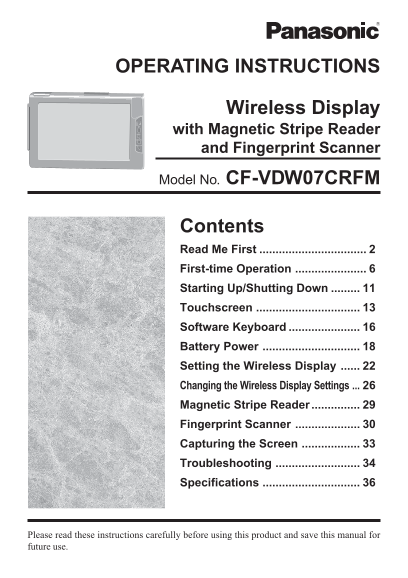
OPERATING INSTRUCTIONS Wireless Display with Magnetic Stripe Reader and Fingerprint Scanner Model No. CF-VDW07CRFM Contents Read Me First First-time Operation Starting Up/Shutting Down Touchscreen Sof...
Page 2
Read Me First Information to the User This product and your Health This product, like other radio devices, emits radio frequency electromagnetic energy. The level of energy emitted by this product how...
Page 3
For U.S.A. Federal Communications Commission Rules. Operation is subject to the following Radio Frequency Inter ference two conditions: Statement (1) This device may not cause harmful interference, an...
Page 4
Read Me First Precautions (Battery Pack) Care should be exercised with regard to the Do not use this wireless display following in order to avoid the possibility with a battery pack other than the of ...
Page 5
NOTE The battery pack may become warm during recharging or normal use. This is com- pletely normal. Recharging will not commence outside of the allowable temperature range (0 °C to 45 °C {32°F to 113 ...
Page 6
First-time Operation This wireless display features a touchscreen function, which makes computer operation pos- sible by simply touching the surface of the wireless display. Operating Instructions 1Wi...
Page 7
<Back> Strap Fingerprint Scanner <Top> <Removing the stylus> DC-IN Jack DC-IN 16V Battery Pack Stylus NOTE <When using the CF-07 series computer> Select [Disabled] with the fol...
Page 8
First-time Operation Install Mei WDS Program/Software Keyboard CAUTION Prepare the CD-ROM, which is attached to the wireless display, and the CD/DVD drive. Install the software to the computer compati...
Page 9
Setup the Wireless Display Slide the latch to the right, and open the cover, then in- Latch sert the battery pack in the wireless display. After in- serting the battery pack, close the cover, then sli...
Page 10
First-time Operation The following screen should appear. <Wireless display screen> Change setting on host PC to the following value, reboot the host PC, then select "Connect" below. Wi...
Page 11
Starting Up/Shutting Down Starting Up CAUTION Do not maximize the MS-DOS screen. Once maximized, the connection with the wireless display is interrupted and the screen cannot be returned to its origin...
Page 12
Starting Up/Shutting Down Turn on your computer. ( Operating Instructions of the computer) <When using the CF-07 series computer> After confirming the “DISPLAY READY” indicator has lit, turn Pow...
Page 13
Touchscreen The wireless display is equipped with a touchscreen function allowing you to perform the same operations as the mouse by touching the surface of the display with the stylus. Moving the cur...
Page 14
Touchscreen Right-Clicking Press R-button.1 When “R” is displayed on RR-Button lower corner One tap NOTE If the R-button is pressed again when setting right-clicking function to enable, the right-clic...
Page 15
Calibration Run the calibration setup when the cursor and the stylus touches do not appear to agree. Press Menu button. Select [Option]. Select [Calibration]. Touch the five “×” marks on the calibrati...
Page 16
Software Keyboard When selecting [ Software Keyboard] on the taskbar or when the character input box of an application is selected, the software keyboard shown below automatically starts up, and chara...
Page 17
Changing the Settings You can change the keyboard size, switch the keyboard to the numeric keypad, or change other settings using the system menu. Select (on the top left corner of the software keyboa...
Page 18
Battery Power Battery Status Use the Battery Indicator to Check on the Battery Status Battery Indicator Battery Status Orange*1 Charging Green*1 Fully-charged Red Battery charge is low (the charge is ...
Page 19
Getting a detailed reading Press Menu button. Select [Battery]. ( page 23) Menu Button NOTE The actual remaining battery capacity and the displayed indication may differ. The battery indicator light r...
Page 20
Battery Power Replacing the Battery Pack When the charge provided by your battery pack is supplied for only a short period of time, even after fully charging according to the instructions, it may be t...
Page 21
Inserting a battery pack Firmly attach the battery pack to the connector. CAUTION Be sure to insert the battery pack as illus- Connector trated. Be sure to the battery pack is properly con- nected to ...
Page 22
Setting the Wireless Display You can establish the settings for the wireless display. Press Menu button. The setting menus are displayed. Menu Button General Menu By selecting [General], you can chang...
Page 23
Battery Menu By selecting [Battery], the battery status will be displayed. Run the refresh battery. General Wireless Battery Option Version When the confirmation message is Status Full Charge displaye...
Page 24
Setting the Wireless Display Option Menu By selecting [Option], you can establish the individual settings for the wireless display. Change the settings of the wireless connection in the following proc...
Page 25
Version Menu By selecting [Version], the version information will be displayed. General Wireless Battery Option Version Model No. CF-VDW07CRFM Firmware Vx.xx Lxx Wireless Controller xx. xx. xx. xx Ser...
Page 26
Changing the Wireless Display Settings Wireless Display Setup Utility You can set the wireless display properties as follows. Select [Wireless Display Setup Utility] in the following procedure. [start...
Page 27
At the confirmation screen, select [Next]. The message “These settings will be sent to your display” will be displayed. Select [OK]. <When adding the check mark for [Use this profile now] in step 3...
Page 28
Changing the Wireless Display Settings Mei WDS Setup Utility Select [Mei WDS Setup Utility] in the following proce- dure. [start] - [All Programs] - [Panasonic] Enter the Supervisor Password. In the d...
Page 29
Magnetic Stripe Reader How to Use Before swiping the card, place the card so its edge is com- pletely flat against the scanner bed and confirm that the card is vertically straight in the reader. If th...
Page 30
Fingerprint Scanner How to Use To avoid possible damage to the fingerprint scanner by static electric- ity or improper finger placement, read the following guidelines. Static Electricity Discharge: Be...
Page 31
How to Take Sharp Fingerprint Images The sensor used in the fingerprint scanner creates an image based on the way in which the sensor comes in contact with the finger. The image is affected by the con...
Page 32
Fingerprint Scanner How to Place the finger on the Sensor Place the finger properly on the sensor. Correct finger placement Align the center of the fingerprint with the center of the scanner, and plac...
Page 33
Capturing the Screen If you want to later playback the currently displayed screen, you can save the screen data onto the memory (up to 100 images)*1. *1 The number of the data that can be saved is dif...
Page 34
Troubleshooting When a problem occurs, refer to this page. If a problem appears to be related to a software application, read the software related manual. If you still cannot troubleshoot the problem,...
Page 35
“Illegal data received” or Confirm whether the network is working properly or “Initial image receiving not. timeout” is displayed Confirm the AES key length setting by the following procedure. <Com...
Page 36
Specifications Model No. CF-VDW07CRFM LCD Type 8.4 Type (TFT) Displayed Colors 256 colors (800 × 600 dots) Touchscreen Anti-Reflection, Stylus (included) touch capable Magnetic Card Standard ISO 7811 ...