NETGEAR TA612V Installation Guide
Summary
Set up your robust Voice Adapter for professional VoIP calling through a clear guide. This manual provides step-by-step instructions covering everything from initial product installation via direct modem connection to complex network setup involving routers and multiple devices. Users will learn how to configure PPPoE credentials, connect secondary handsets, and register their service account with SIPGATE successfully. Ideal for remote workers or businesses needing reliable, scalable voice connectivity supporting both wired and analog phone lines.
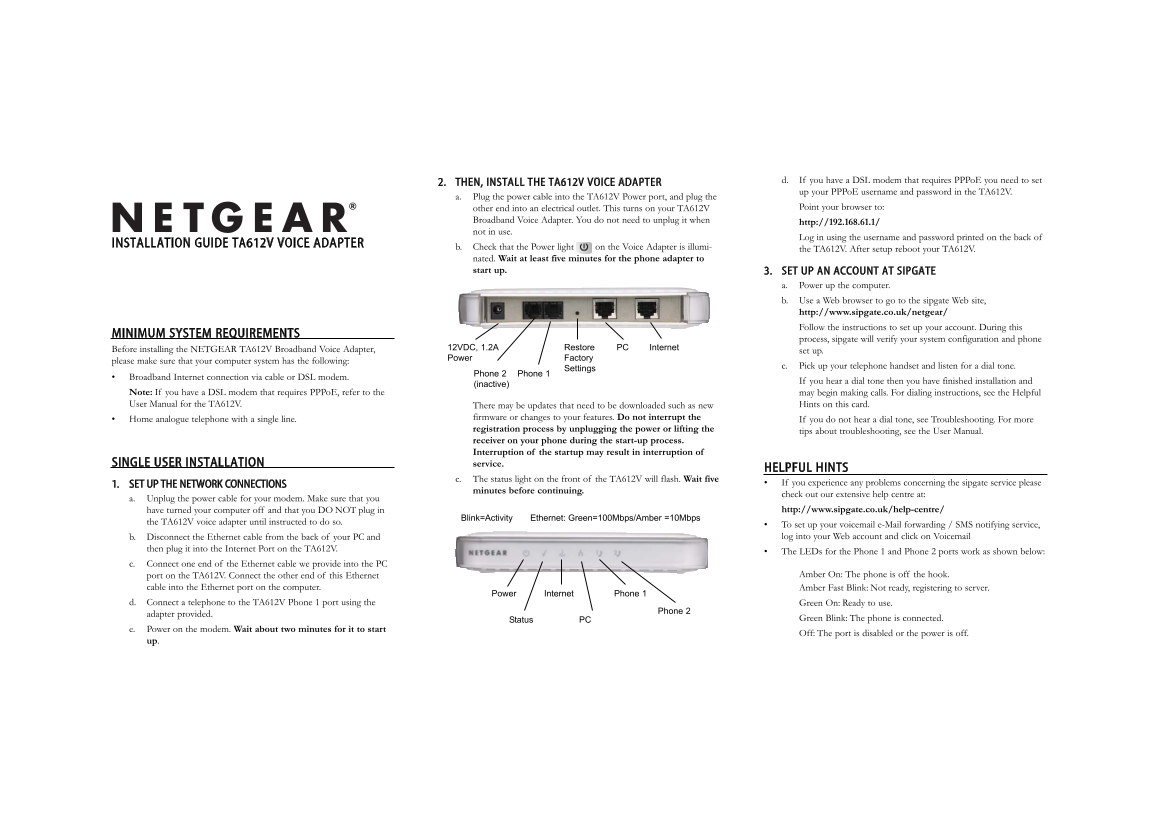
Page 1 Text Content
d. If you have a DSL modem that requires PPPo E you need to set
2. THEN, INSTALL THE TA612V VOICE ADAPTER
up your PPPo E username and password in the TA612V.
a. Plug the power cable into the TA612V Power port, and plug the
other end into an electrical outlet. This turns on your TA612V Point your browser to:
Broadband Voice Adapter. You do not need to unplug it when http://192.168.61.1/ not in use.
Log in using the username and password printed on the back of
INSTALLATION GUIDE TA612V VOICE ADAPTER
b. Check that the Power light on the Voice Adapter is illumi- the TA612V. After setup reboot your TA612V. nated. Wait at least five minutes for the phone adapter to start up. 3. SET UP AN ACCOUNT AT SIPGATE
a. Power up the computer. b. Use a Web browser to go to the sipgate Web site, http://www.sipgate.co.uk/netgear/ Follow the instructions to set up your account. During this
MINIMUM SYSTEM REQUIREMENTS
process, sipgate will verify your system configuration and phone
Before installing the NETGEAR TA612V Broadband Voice Adapter, 12VDC, 1.2A Restore PC Internet
set up.
Power Factory
please make sure that your computer system has the following:
c. Pick up your telephone handset and listen for a dial tone.
Settings
Phone 2 Phone 1
• Broadband Internet connection via cable or DSL modem.
If you hear a dial tone then you have finished installation and
(inactive)
Note: If you have a DSL modem that requires PPPo E, refer to the may begin making calls. For dialing instructions, see the Helpful User Manual for the TA612V. There may be updates that need to be downloaded such as new Hints on this card.
• Home analogue telephone with a single line. firmware or changes to your features. Do not interrupt the If you do not hear a dial tone, see Troubleshooting. For more registration process by unplugging the power or lifting the tips about troubleshooting, see the User Manual. receiver on your phone during the start-up process. Interruption of the startup may result in interruption of
SINGLE USER INSTALLATION service.
HELPFUL HINTS
c. The status light on the front of the TA612V will flash. Wait five
1. SET UP THE NETWORK CONNECTIONS • If you experience any problems concerning the sipgate service please
minutes before continuing.
check out our extensive help centre at:
a. Unplug the power cable for your modem. Make sure that you
have turned your computer off and that you DO NOT plug in http://www.sipgate.co.uk/help-centre/
Ethernet: Green=100Mbps/Amber =10Mbps Blink=Activity
the TA612V voice adapter until instructed to do so.
• To set up your voicemail e-Mail forwarding / SMS notifying service, b. Disconnect the Ethernet cable from the back of your PC and log into your Web account and click on Voicemail
then plug it into the Internet Port on the TA612V.
• The LEDs for the Phone 1 and Phone 2 ports work as shown below:
c. Connect one end of the Ethernet cable we provide into the PC
port on the TA612V. Connect the other end of this Ethernet Amber On: The phone is off the hook.
cable into the Ethernet port on the computer. Amber Fast Blink: Not ready, registering to server.
Power Internet Phone 1
d. Connect a telephone to the TA612V Phone 1 port using the Green On: Ready to use.
Phone 2
adapter provided.
Status PC Green Blink: The phone is connected.
e. Power on the modem. Wait about two minutes for it to start
Off: The port is disabled or the power is off.
Page Summary Contents For NETGEAR TA612V Installation Guide
Manual Details
| Brand | NETGEAR |
|---|---|
| Pages | 2 |
| File Size | 123.00 KB |
| Published | June 04, 2026 |
Enter the captcha to get the download link:
