Page 2
Graphical symbols and supplemental warning markings are located on the back and bottom of the terminal. WARNING TO REDUCE THE RISK OF FIRE OR SHOCK, DO NOT EXPOSE THIS APPLIANCE TO RAIN OR MOISTURE. T...
Page 3
• Protect the power cord from being walked on or pinched, particularly at plugs, convenience receptacles, and the point where they exit from the apparatus. • Only use attachments/accessories specified...
Page 4
Regulatory Information Federal Communications Commission Radio and Television Interface Statement for a Class ‘B’ Device This equipment has been tested and found to comply with the limits for a Class ...
Page 5
Software License IMPORTANT: PLEASE READ THIS SOFTWARE LICENSE (“LICENSE”) CAREFULLY BEFORE YOU USE ANY SOFTWARE, FIRMWARE, AND RELATED DOCUMENTATION (“SOFTWARE”) PROVIDED WITH MOTOROLA’S IP VIDEO RECE...
Page 6
Contact Us For questions about your TV service, call your service provider. To find out how to contact your service provider, refer to your Feature Guide. For Motorola consumer products, education, an...
Page 8
VIP1200 Series Installation Manual CONTENTS Introduction .............................................................................................1 Overview ..........................................
Page 9
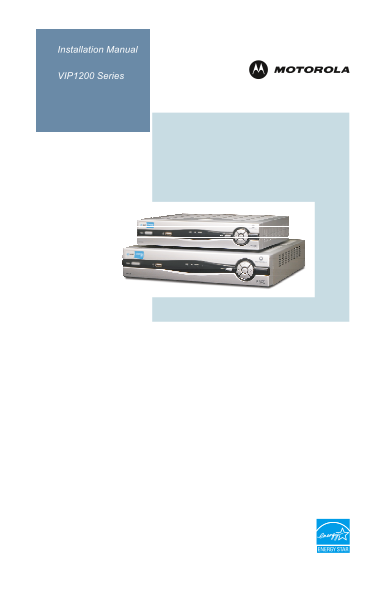
VIP1200 Series Installation Manual INTRODUCTION Congratulations on receiving an ENERGY STAR® qualified Motorola® VIP1200 Series High-Definition U-verse TV Receiver. The VIP1200 Series supports an extr...
Page 10
VIP1200 Series Installation Manual OVERVIEW Front Panel All VIP1200 series models have identical front-panel controls and lights. Only the enclosure size varies. The VIP1216 and VIP1225 have larger en...
Page 11
VIP1200 Series Installation Manual VIP1200, VIP1216, and VIP1225 Rear Panel The VIP1200, VIP1216, and VIP1225 have identical rear-panel connectors arranged in the same order. The VIP1216 and VIP1225 e...
Page 12
VIP1200 Series Installation Manual OPERATION Turning Power On and Off Press POWER on the front panel to turn the TV receiver on or off. Changing Channels You can change channels in two ways: • Press t...
Page 13
VIP1200 Series Installation Manual CONNECTING YOUR TV RECEIVER This section describes connecting the VIP1200 Series to your home entertainment system. Instructions and diagrams are included for connec...
Page 14
VIP1200 Series Installation Manual S-Video Video only If your standard TV has an S-Video input, use S-VIDEO, which is the highest quality standard-definition video output on the VIP1200. Composite Vid...
Page 15
VIP1200 Series Installation Manual CONNECTING TO AN HDTV – VIDEO ONLY • Connect an RF coaxial cable to the cable wall outlet and the TO WALL (VIDEO IN) connector on the TV receiver. • If your HDTV has...
Page 16
VIP1200 Series Installation Manual CONNECTING TO AN HDTV – AUDIO ONLY If your equipment supports it, use the OPTICAL S/PDIF output. Otherwise, use the AUDIO OUT L and R connectors. In most cases, S/PD...
Page 17
VIP1200 Series Installation Manual CONNECTING AUDIO TO A HOME THEATER RECEIVER If your home theater receiver supports it, use the OPTICAL S/PDIF output. Otherwise, use the AUDIO OUT L and R connectors...
Page 18
VIP1200 Series Installation Manual CONNECTING TO A STEREO TV This video connection method does not support HD video. For more information, see “Connecting an HDTV – Video Only.”
Page 19
VIP1200 Series Installation Manual CONNECTING TO A STEREO TV AND STEREO VCR This video connection method does not support HD video. For more information, see “Connecting to an HDTV – Video Only.”
Page 20
VIP1200 Series Installation Manual CONNECTING TO A HOME THEATER RECEIVER, TV, AND VCR This video connection method does not support HD video. For more information, see “Connecting to an HDTV – Video O...
Page 21
VIP1200 Series Installation Manual RECORDING YOUR CONNECTIONS Use this diagram to record the connections between your home entertainment components. You can use this diagram to reconnect your system i...
Page 22
VIP1200 Series Installation Manual TROUBLESHOOTING Before calling your service provider, review this troubleshooting guide. If the suggestions do not help you quickly solve a problem, contact your ser...
Page 23
VIP1200 Series Installation Manual Problem Possible Solutions There is no audio Verify that the Mute button on the remote control has not when viewing TV been pressed. Press Mute on the remote control...