Lexmark MX432 Quick Reference
Summary
This comprehensive guide empowers users to master advanced device functionalities, including high-volume copying, duplex settings, and professional e-mail integration. The manual provides step-by-step instructions for configuring complex SMTP settings across major providers (Gmail, Yahoo!, AOL) and details essential troubleshooting procedures for paper jams and unit maintenance. Perfect for both IT professionals and advanced home users seeking reliable connectivity and operation of their multifunction printer/scanner device.
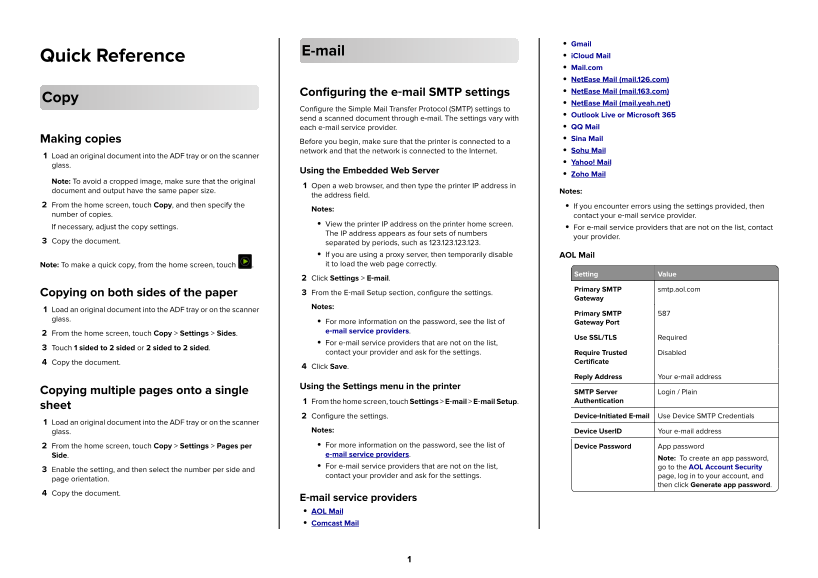
Page 1 Text Content
Gmail
Quick Reference i Cloud Mail Mail.com Net Ease Mail (mail.126.com) Configuring the e‑mail SMTP settings Net Ease Mail (mail.163.com)
Net Ease Mail (mail.yeah.net)
Configure the Simple Mail Transfer Protocol (SMTP) settings to
Outlook Live or Microsoft 365
send a scanned document through e-mail. The settings vary with
each e‑mail service provider. QQ Mail Making copies Sina Mail
Before you begin, make sure that the printer is connected to a
network and that the network is connected to the Internet. Sohu Mail
Load an original document into the ADF tray or on the scanner
Yahoo! Mail
glass.
Using the Embedded Web Server
Zoho Mail
Note: To avoid a cropped image, make sure that the original
Open a web browser, and then type the printer IP address in
document and output have the same paper size. Notes:
the address field.
From the home screen, touch Copy, and then specify the If you encounter errors using the settings provided, then
Notes:
number of copies. contact your e‑mail service provider.
View the printer IP address on the printer home screen.
If necessary, adjust the copy settings. For e‑mail service providers that are not on the list, contact
The IP address appears as four sets of numbers
your provider.
Copy the document. separated by periods, such as 123.123.123.123.
If you are using a proxy server, then temporarily disable AOL Mail Note: To make a quick copy, from the home screen, touch . it to load the web page correctly.
Setting Value
Click Settings > E‑mail.
Primary SMTP smtp.aol.com
Copying on both sides of the paper From the E‑mail Setup section, configure the settings.
Gateway
Notes:
Load an original document into the ADF tray or on the scanner
Primary SMTP
glass.
For more information on the password, see the list of Gateway Port e‑mail service providers.
From the home screen, touch Copy > Settings > Sides.
Use SSL/TLS Required
For e‑mail service providers that are not on the list,
Touch 1 sided to 2 sided or 2 sided to 2 sided.
contact your provider and ask for the settings. Require Trusted Disabled
Copy the document. Certificate
Click Save.
Reply Address Your e‑mail address
Using the Settings menu in the printer
Copying multiple pages onto a single SMTP Server Login / Plain
From the home screen, touch Settings > E‑mail > E‑mail Setup. Authentication
sheet
Configure the settings. Device‑Initiated E‑mail Use Device SMTP Credentials
Load an original document into the ADF tray or on the scanner
glass. Notes: Device User ID Your e‑mail address
From the home screen, touch Copy > Settings > Pages per For more information on the password, see the list of Device Password App password Side. e‑mail service providers.
Note: To create an app password,
For e‑mail service providers that are not on the list, go to the AOL Account Security
Enable the setting, and then select the number per side and
contact your provider and ask for the settings. page, log in to your account, and
page orientation.
then click Generate app password.
Copy the document.
E‑mail service providers AOL Mail Comcast Mail
Page Summary Contents For Lexmark MX432 Quick Reference
Manual Details
| Brand | Lexmark |
|---|---|
| Pages | 19 |
| File Size | 4.49 MB |
| Published | June 03, 2026 |
Enter the captcha to get the download link:

Frequently Asked Questions
How do I clear a paper jam at the rear door?
Open the front and rear doors, remove the imaging unit, clear the jammed paper ensuring all fragments are removed, then reassemble.
What should I do if my email provider is not listed in the manual?
Contact your e-mail service provider for assistance and to obtain the necessary SMTP settings.
Are there safety warnings when handling imaging or internal components?
Do not touch the photoconductor drum. Also, do not expose the imaging unit to direct light for more than 10 minutes.