Page 1
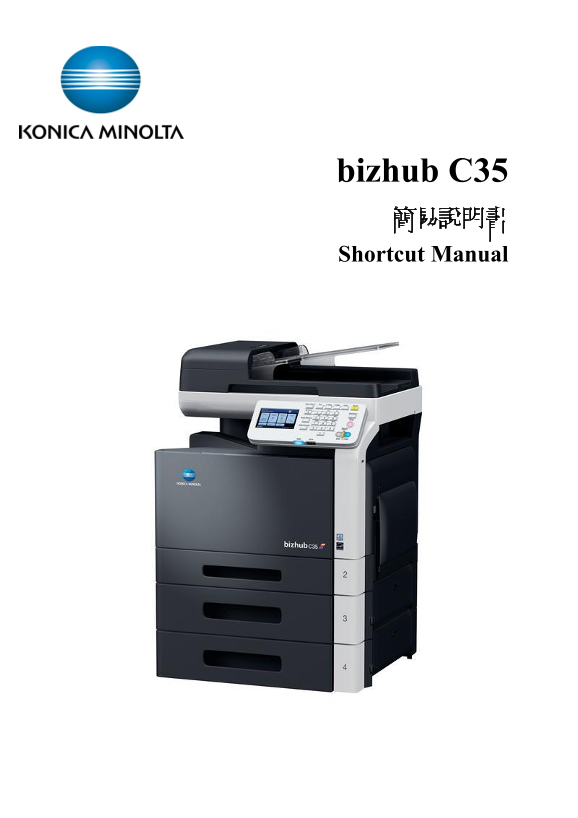
bizhub C35 簡易說明書 Shortcut Manual
Page 2
Control Panel 控制面版 1. Touch Panel 輕觸螢光幕 11. [Start] Indicator 開始指示燈 2. [Power Save] 省電開關 12. [Start (B&W)] 開始鍵(黑白) 3. [Fax] 傳真 13. Keypad 數字鍵 4. [Email] 掃描到電郵 14. [C] Clear Key 清除 5. [Folder] 掃描到資...
Page 3
Copy Function 影印功能 Touch [Copy] on touch screen or Press [Copy] on panel 於螢光幕內點 [影印] 或 控制版面上按[Copy] [Color Setting 彩色設定] Color Copy 彩色影印 1. Touch [Copy] 按[影印] 2. Touch [↓] 按 [↓] 3. Touch [Color Mode] ...
Page 4
Copy Function 影印功能 [Paper size and paper type setting 紙張尺寸和類型設定] 1. Load the paper face down in the tray 1 (bypass tray) 把影印頁面向下放在紙盤 1(手送紙盤)上 2. Touch [Paper] 按[紙張] 3. Touch [Tray 1] 按[紙盤 1] 4. Touch ...
Page 5
Copy Function 影印功能 [Zoom Setting 縮放設定] 1. Touch [Zoom] 按[縮放] 2. Touch [+]/[-] Specify the zoom ratio of the copy (25.0% to400.0%) 按[+]/[-]設定縮放尺寸(25.0 到 400.0%) 3. Select a preset zoom ratio 選擇預設的縮放倍率 ...
Page 6
Copy Function 影印功能 [Combine 多合一] 1. Touch [Duplex/Combine] 按[雙面/組合] 2. Touch [Combine] 按[組合] 3. Touch [2in1], [4in1 Horizontal] or [4in1 Vertical] 按[二合一], [單面 頁水平] 或 [單面 頁垂直] [Density 密度] 1. Touch [↓]...
Page 7
Copy Function 影印功能 [Finishing 完成] 1. Touch [↓] to page 2 按[↓] 到第二頁 2. Touch [Finishing] 按[完成] 3. Touch [Sort], [Group] or [Auto] 按[分頁], [群組] 或 [自動] [Proof copy 校正副本] Before printing a large number of ...
Page 8
Copy Function 影印功能 [Separate Scan 單獨掃描] The document can be divided into batches, which are scanned separately. After all document pages are scanned, the copies can be printed together. 文件可分為多個批次進行掃描。...
Page 9
Copy Function影印功能 [Page Margin 紙張留邊] Print the copies with a binding margin 預留裝訂邊在副本上 1. Touch [↓] 2 times to page 3 按[↓]兩次到第三頁 2. Touch [Page Margin] 按[紙張留邊] 3. Touch [+]/[-] or number key pad to spe...
Page 10
Scan to Folder/Email 掃描至電子郵件/掃描至資料夾 1. Touch [Scan to E-mail] or Press the [E-mail] key 按[掃描至電子郵件] 或 按[Email]鍵 Touch [Scan to Folder] or Press the [Folder] key 按[掃描至資料夾] 或 [Folder]鍵 2. Select register...
Page 11
Scan Setting 掃描設定 Touch [Settings] to specify scan settings 按 [設定] 轉變掃描設定 A. Simplex/Duplex 單面/雙面 Touch [Simplex/Duplex] to select [1-sided], [2-sided] or [cover + 2 sided] 按[單面/雙面] 選擇 [單面], [雙面] 或 [封...
Page 12
F. File Type 檔案類型 Touch [↓] to page 2.[File Settings][File Type] Select [PDF], [Compact PDF], [TIFF], [JPEG] or [XPS] 按[↓]到第二頁 [檔案設定][檔案類型] 選 [PDF], [壓縮 PDF], [TIFF], [JPEG] 或 [XPS] G. Single Page...
Page 13
Fax Function傳真功能 Touch [Fax] or press the [Fax] key 按[傳真] 或 按[Fax]鍵 A. Select from the [Favorites] 在[我的最愛]選擇 B. Select with an index search 在索引搜尋 Touch C. Direct Input Fax number 直接輸入傳真號碼 1. Touch [Di...
Page 14
Fax Setting 傳真設定 Touch [Settings] to specify Fax settings 按 [設定] 轉變掃描設定 A. Simplex/Duplex 單面/雙面 Touch [Original Setting][Simplex/Duplex] to select [1-sided], [2-sided] or [cover + 2 sided] 按[原稿設定][單...
Page 15
Add Scan to Email, Folder or Fax 增加掃描到電郵,資料夾或傳真 1. Press [Utility/Counter] 按[Utility/Counter] 2. Touch [Address Registration] 按[位址註冊] 3. Select [E-mail], [Fax] or [SMB] 選[電子郵件],[傳真] 或 [SMB] A. [E-mail...
Page 16
Check Job Log 檢查工作記錄 A. Check print job log 檢查列印工作記錄 1. Touch [Job] 按[工作] 2. Touch [Print] 按[列印] 3. Touch [Log] to display history jobs 按[記錄]顯示過去的工作記錄 4. Touch [Active] to display current job 按[活動]顯示進...
Page 17
Remove Jammed Paper 清除塞紙
Page 18
Change Toner Cartridge 更換碳粉 * When the toner is empty, the message [Replace Toner (x)] appears in the touch panel 如果碳粉用盡,則在控制面板中會出現 [更換碳粉 (x)] 訊息 - Toner Cartridge (Y) = Yellow Toner 黃色碳粉 - Toner Cart...
Page 19
Check and Print meter list 報讀和打印總咪錶數 If Digital Doctor not installed, please fax the meter report to 2565 2128 monthly 如沒有安裝數碼醫生,請每月把咪錶報告傳真至 2565 2128 4. Press [Utility/Counter] 按[Utility/Counter] 5. ...
Page 20
Secure print 機密列印 Printer Driver Setting 電腦打印程式設定 1. Open the file,Click printer driver 在電腦開啓文件後,選擇本印表機 2. Click [Preferences] 點選 [內容] 3. Select [Secure Job] in [Job retention] 於[Job retention]選[機密工...
Page 21
Print Envelope or custom size paper 列印信封或特別尺寸紙張 6 Take paper away in Bypass tray, to keep it empty. 先把影印機手送盤上的紙拿走 電腦打印程式設定 Printer Driver Setting 6 Open the file,Click printer driver 在電腦開啓文件後,選擇本印表機 ...
Page 22
External Memory 外部記憶體 Support PDF, XPS, JPEG and TIFF files 支援 PDF, XPS, JPEG and TIFF 檔案 Printing from a connected USB memory device 列印USB記憶體內的文件 1. Plug the USB memory device into the USB HOST port....
Page 23
柯尼卡美能達商業系統(香港)有限公司 Konica Minolta Business Solutions (HK) Limited
Page 24
部門熱線 Particulars 新號碼 New Contract No. 市務科 Marketing Division 銷售熱線 Sales Hotlines 電話 Tel : 2565 2111 查詢產品及銷售詳情 電郵 Email: [email protected] New Product and Sales Enquires 服務科 Technical...