Page 1
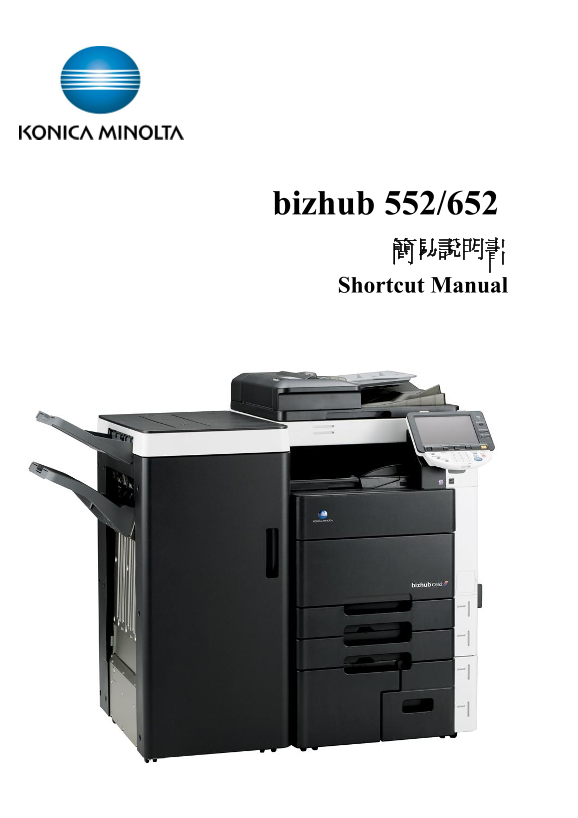
bizhub 552/652 簡易說明書 Shortcut Manual
Page 2
Control Panel 控制面版 1. Touch Pen 輕觸筆 2. Touch Panel 輕觸螢光幕 3. Main Power indicator 電源指示燈 4. Sub power switch 副電源開關 5. Function key 公能鍵 6. Data indicator 資料指示燈 7. Keypad 數字鍵 8. Brightness Adjustment Dial...
Page 3
Account Login 部門登入 ** If device with account track function, please follow the below steps **如已選用部門管理認證功能,請跟以下步驟登入使用版面 ** If device with user authentication function, please refer to page 4 Input acco...
Page 4
User Authentication Login 使用者認證登入 ** If device with user authentication function, please follow the below steps **如已選用使用者認證功能,請跟以下步驟登入使用版面 ** If device with account track function, please refer to pag...
Page 5
Copy Function 影印功能 [Density/Background 濃淡度/底色] 1. Touch [Density] – the print image can be adjusted, [Lighter] or [Darker] is touched once, the density is lightened or darkened by one level. 按 [濃淡度] 調...
Page 6
Copy Function 影印功能 [Paper size and paper type setting 紙張尺寸和類型設定] 1. Touch [Basic], Touch [Paper] 按[基本設定] ,按 [紙張] 2. Select By-pass Tray 選擇手送紙盤 3. Touch [Change Tray Settings] 按 [紙盤變更設定] 4. Select Pape...
Page 7
Copy Function 影印功能 [Zoom 倍率] 1. Touch [Basic], Touch [Zoom] 按[基本設定] ,按 [紙張] 2. Select fixed zoom size e.g.︰A3 A4 default zoom ratio is 3. Touch- + to change zoom ratio 按 - + 加減號增加或減少變焦數 4. Touch [Ma...
Page 8
Copy Function 影印功能 [Sort/Group 分頁/分類] 1. Touch [Finishing] 按[分頁機] 2. Touch [Sort]or[Group] 可按[分頁]或[群組] Sort Group 3. Press [Start] to Copy 如沒有其他設定,按[Start] 影印鍵 [Offset 分頁/分類] 1. Touch [Finishing] 按[分頁...
Page 9
Copy Function 影印功能 * (Optional Function) (必需加裝配件才有以下功能) [Staple 訂裝] 1. Touch [Finishing] 按 [分頁機] 2. Select [Corner] or [2 position] in staple 在訂裝項目中按 [訂角] 或 [2 個位置] 3. Touch [Position Setting] to desi...
Page 10
Copy Function 影印功能 * (Optional Function) (必需加裝配件才有以下功能) [Fold/Bind 摺疊/書本訂裝] 1. Touch [Finishing] 按[分頁機] 2. Select [Yes] in [Fold/Bind] 在 [摺疊/裝訂] 項目中按[Yes]啟動功能 3. Touch [Half-Fold], [Center Staple &...
Page 11
Copy Function 影印功能 [Combine 組合] 1. Touch [Basic], Touch[Duplex/Combine] 按[基本設定], 按[雙面/組合] 2. Touch [2 in 1] or [4 in 1/ 8 in 1] to reduce the size from 2 / 4 / 8 sheets originals into 1 sheet of copy ...
Page 12
Copy Function 影印功能 [Original Type 原稿類型] 1. Touch [Original Type] 按[原稿類型] 2. Select [Text], [Text/Photo], [Photo],[Map], [Dot Matrix Original] or [Copied Pap] 選擇適當的原稿類型 3. Touch [Text Enhancement] – se...
Page 13
Copy Function 影印功能 [Originals Setting 原稿設定] 1. Touch [Mixed Original] to load originals of different sizes (A4 or A3) into the ADF and scan them at a time. 按[混合原稿]啓動探測功能,如放在自動送紙器的 原稿有不同大小的混合 2. Touch ...
Page 14
Copy Function 影印功能 [Application 應用功能] [Sheet/Cover/Chapter Insert] Insert another sheet of paper or add a cover page to the paper for copying 插頁/封面/插入章節 在副本列印時插入特定紙張或加入特殊紙張作封面 Page 15 – 16 [Edit Image...
Page 15
Copy Function影印功能 [OHP 投影片插頁] 1. Touch [Application] 按[應用功能] 2. Touch [Sheet /Cover /Chapter Insert] 按[插頁/封面/插入章節] 3. Touch [OHP Interleave OHP] 按[白紙插頁] 4. Select the Interleave Paper 選擇分隔紙的紙盤 5. Plac...
Page 16
Copy Function 影印功能 [Insert Sheet 插頁] 1. Touch [Application] 按 [應用功能] 2. Touch [Sheet /Cover /Chapter Insert] 按 [插頁/封面/插入章節] 3. Touch [Insert Sheet] 按[插頁] 4. Touch [Copy] or [Blank] to set up print ima...
Page 17
Copy Function 影印功能 [Edit Image 影像編輯] 1. Touch [Application] 按 [應用功能] 2. Touch[ Edit Image] 按[影像編輯] 3. Touch [ Neg. Pos. Reverse] 按 [黑白反像] 4. Press [Start] 按 [Start] [Mirror Image 鏡面畫像] 1. Touch [Appli...
Page 18
Copy Function 影印功能 [Book Copy 書本掃瞄] 1. Touch [Application] 按 [應用功能] 2. Touch [Book Copy / Repeat] 按[頁連寫/重覆] 3. Touch [Book Copy] 按[書本掃瞄] 4. Touch one of the below of options 選擇以下其中一個功能 [Book Spread]...
Page 19
Copy Function 影印功能 With Margin [Image Repeat 畫像重複] Original 1. Touch [Application] Without Margin 按[應用功能] 2. Touch [Book Copy / Repeat] 按[頁連寫/重覆] 3. Touch [Image Repeat] 按[畫像重複] 4. Touch [With Margin]...
Page 20
Copy Function 影印功能 [Page Margin 頁面空白邊] 1. Touch [Application] 按[應用功能] 2. Touch [Page Margin] 按 [頁邊的空白邊] 3. Select the margin position [Top],[Left] or[Right] 選擇要加裝釘線的位置 [頂端], [左側]或[右側] 4. Setup the wid...
Page 21
Copy Function 影印功能 [Booklet 小冊子] 1. Touch [Application] 按[應用功能] 2. Touch [Booklet] 按[小冊子] 3. Select [Left Bind] / [Right Bind] 可選擇[左邊]或[右邊] 4. Select[Center Staple & fold] or [Half-fold] 選擇 [中間裝訂對...
Page 22
Copy Function 影印功能 [Frame Erase 邊框消除] 1. Touch [Application] 按 [應用功能] 2. Touch [Erase] 按 [消除] 3. Touch [Frame Erase] 按 [邊框消除] 4. Select the edge and input the width 選擇要刪除影像的位置及寬度 5. Touch[OK] 按 [OK] 6...
Page 23
Copy Function 影印功能 [Stamp Composition- Date/Time 戳記構成 -日期/時間] 1. Touch [Application] 按 [應用功能] 2. Touch [Stamp/Composition] 選擇 [戳記/構成] 3. Touch [Date /Time] 按 [日期/時間] 4. Touch [Print Position] to set u...
Page 24
Copy Function 影印功能 [Stamp Composition- Stamp 戳記構成-戳記] 1. Touch [Application] 按 [應用功能] 2. Touch [Stamp/Composition] 選擇 [戳記/構成] 3. Touch [Stamp] 按 [戳記] 4. Select desired stamp 選擇所需的戳記 5. Touch [Print Po...
Page 25
Copy Function 影印功能 [Card Shot 卡片] 1. Touch [Application] 按 [應用功能] 2. Touch [Card Shot] 按[卡片] 3. Touch [X] and [Y] and enter the size of the card 按[X] 和 [Y]輸入卡片的尺寸按 [版面] 選擇排 版方式 4. Touch [Zoom] to sele...
Page 26
Delete the copy job in the waiting list 停止正在等候的工作 1. Touch [Job List] 按[作業顯示] 2. Touch [Job Details] 按[作業細節] 3. Select the job you want to delete 選擇要刪除的工作 4. Touch [Delete] 按 [刪除] 5. Touch [Yes] and t...
Page 27
Add Email or Fax 增加電郵或傳真 1. Press [Utility/Counter] 按[Utility/Counter] 2. Touch [1. One Touch/User Box Registration] 按[1. 目的地/信箱的登記] 3. Touch [1. Create One Touch Destination] 按[1. 掃瞄登錄/傳真目的地] 4. Touc...
Page 28
Fax / Scan Function 傳真 / 掃瞄功能 1. Press [Fax/Scan] 按 [Fax/Scan] 2. Find the destination by one-touch Index 選擇一按鍵的索引尋找傳真或掃瞄的目 的地 For fax function you can also press the number key pad directly to input ...
Page 29
掃瞄設定 Scan Setting 1. Press [Fax/Scan] 按 [Fax/Scan] 2. Scan Setting 掃描設定 A. Original Type - Select original type 原稿型態 – 選擇原稿類型 B. Simplex/Duplex - Select original single-sided or double-sided 單面/雙面 - 設...
Page 30
Display and print the job history list 檢查和打印傳送記錄 1. Touch [Job Details] 按 [作業細節] 2. Touch [Send] 按 [傳送] 3. Touch [Job History] 按 [作業日誌] 4. Touch [Comm. List] 按 [通信清單] 5. Select [Scan TX List] / [Fax T...
Page 31
Remove Jammed Paper 清除塞紙 * Remove misfeed at circle 版面顯示塞紙位 Pull up the upper right side door release lever, and then open the upper right side door 打開出紙位置之綠色鍵後, 拉出紙張 Open the door of the automati...
Page 32
Change Toner Cartridge 更換碳粉 *If a toner is near empty,the screen will show a toner empty message *當某碳粉接近不足時,版面會顯示以下的提示 Open the machine’s upper front door, pull the empty toner cartridge, then insert ...
Page 33
Check and Print meter list 報讀和打印總咪錶數 If Digital Doctor is not installed, please fax the meter report to 2565 2128 monthly 如沒有安裝數碼醫生,請每月把咪錶報告傳真至 2565 2128 1. Press [Utility / Counter] 按 [Utility / Coun...
Page 34
Secure print 機密列印 1. Click【File】【Print】【Select Printer】 按【檔案】【列印】【選手打印機】 2. Click【Preference】 按【內容】 3. Click【Output Method】and select【Secure Print】,input ID and Password 於【輸出方法】選【機密列印】輸入[機密列印 ID]和...
Page 35
Print Envelope or custom size paper 列印信封或特別尺寸紙張 1. Take paper away in the bypass tray and keep it empty. 先把影印機手送盤上的紙拿走 電腦打印程序設計 Printer Driver Setting 2. Open the file,click printer driver 在電腦開啓文件後,選...
Page 36
Banner Paper Printing 列印長紙張之簡易程序 Banner paper size: (Width) 210 - 296mm / (Length) 457.3 –1200mm 長紙尺寸: 寛 210 - 296mm / 高 457.3 –1200mm Prepare printing on Banner Paper 請在列印長紙前,先在印表機開啟此功能 1. Press [U...
Page 37
Banner Paper Printing 列印長紙張之簡易程序 Printing Banner Printing 當印表機接收到列印文件指令時 8. Specify the desired settings,then touch [OK] 本印表機會顯示接收文件之訊息,按 [確定] 9. Feed the banner paper to Bypass Tray 請將長紙張放於手送紙盤 10....
Page 38
Using External Memory 使用外置記憶體 USB Port Print from External Memory 從外置記憶體打印 Press [User Box][System user box] [External Memory][Use/file]Select file[Print][Start] 按[User Box][系統] [外接記憶體][使...
Page 39
柯尼卡美能達商業系統(香港)有限公司 Konica Minolta Business Solutions (HK) Limited
Page 40
部門熱線 Particulars 新號碼 New Contract No. 市務科 Marketing Division 銷售熱線 Sales Hotlines 電話 Tel : 2565 2111 查詢產品及銷售詳情 電郵 Email: [email protected] New Product and Sales Enquires 服務科 Technical...