HTC Merge Quick User Guide
Summary
This comprehensive guide for HTC phone users provides step-by-step instructions for maximizing your mobile experience. Learn how to effortlessly sync contacts and manage multiple email accounts (including Gmail, POP3, and IMAP). The manual covers advanced functions such as accessing voice-guided turn-by-turn navigation via Telenav or planning routes online. Perfect for new users, it also details web browsing, adding widgets, and utilizing camera features, ensuring you can stay connected wherever life takes you.
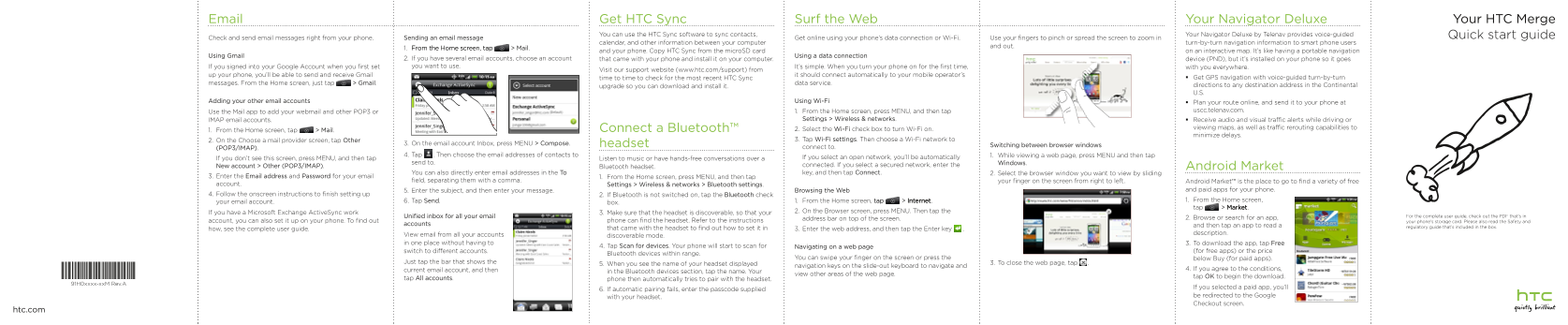
Page 1 Text Content
Email Get HTC Sync Surf the Web Your Navigator Deluxe Your HTC Merge
You can use the HTC Sync software to sync contacts, Your Navigator Deluxe by Telenav provides voice-guided Quick start guide
Check and send email messages right from your phone. Sending an email message Get online using your phone’s data connection or Wi-Fi. Use your fingers to pinch or spread the screen to zoom in
calendar, and other information between your computer turn-by-turn navigation information to smart phone users
and out.
1. From the Home screen, tap > Mail.
and your phone. Copy HTC Sync from the micro SD card on an interactive map. It’s like having a portable navigation
Using Gmail Using a data connection
2. If you have several email accounts, choose an account that came with your phone and install it on your computer. device (PND), but it’s installed on your phone so it goes If you signed into your Google Account when you first set you want to use. It’s simple. When you turn your phone on for the first time, with you everywhere.
Visit our support website (www.htc.com/support) from
up your phone, you’ll be able to send and receive Gmail it should connect automatically to your mobile operator’s
time to time to check for the most recent HTC Sync Get GPS navigation with voice-guided turn-by-turn
messages. From the Home screen, just tap > Gmail. data service.
upgrade so you can download and install it. directions to any destination address in the Continental U.S.
Adding your other email accounts Using Wi-Fi Plan your route online, and send it to your phone at
Use the Mail app to add your webmail and other POP3 or 1. From the Home screen, press MENU, and then tap uscc.telenav.com.
IMAP email accounts. Settings > Wireless & networks. Receive audio and visual traffic alerts while driving or
Connect a Bluetooth™ 2. Select the Wi-Fi check box to turn Wi-Fi on. viewing maps, as well as traffic rerouting capabilities to
1. From the Home screen, tap > Mail.
minimize delays.
2. On the Choose a mail provider screen, tap Other 3. Tap Wi-Fi settings. Then choose a Wi-Fi network to
3. On the email account Inbox, press MENU > Compose. headset Switching between browser windows
(POP3/IMAP). connect to.
4. Tap . Then choose the email addresses of contacts to 1. While viewing a web page, press MENU and then tap
If you don’t see this screen, press MENU, and then tap Listen to music or have hands-free conversations over a If you select an open network, you’ll be automatically
send to. Windows.
New account > Other (POP3/IMAP). connected. If you select a secured network, enter the Android Market
Bluetooth headset.
You can also directly enter email addresses in the To key, and then tap Connect. 2. Select the browser window you want to view by sliding
3. Enter the Email address and Password for your email 1. From the Home screen, press MENU, and then tap
field, separating them with a comma. your finger on the screen from right to left. Android Market™ is the place to go to find a variety of free
account. Settings > Wireless & networks > Bluetooth settings.
5. Enter the subject, and then enter your message. Browsing the Web and paid apps for your phone.
4. Follow the onscreen instructions to finish setting up 2. If Bluetooth is not switched on, tap the Bluetooth check
6. Tap Send. 1. From the Home screen, tap > Internet . 1. From the Home screen,
your email account. box.
tap > Market .
If you have a Microsoft Exchange Active Sync work 3. Make sure that the headset is discoverable, so that your 2. On the Browser screen, press MENU. Then tap the
Unified inbox for all your email For the complete user guide, check out the PDF that's in
address bar on top of the screen. 2. Browse or search for an app,
account, you can also set it up on your phone. To find out phone can find the headset. Refer to the instructions your phone's storage card. Please also read the Safety and
accounts and then tap an app to read a
that came with the headset to find out how to set it in regulatory guide that’s included in the box.
how, see the complete user guide. 3. Enter the web address, and then tap the Enter key .
View email from all your accounts description.
discoverable mode.
in one place without having to 3. To download the app, tap Free
4. Tap Scan for devices. Your phone will start to scan for Navigating on a web page
switch to different accounts. (for free apps) or the price
Bluetooth devices within range.
You can swipe your finger on the screen or press the below Buy (for paid apps).
Just tap the bar that shows the 3. To close the web page, tap .
5. When you see the name of your headset displayed
navigation keys on the slide-out keyboard to navigate and
current email account, and then 4. If you agree to the conditions,
in the Bluetooth devices section, tap the name. Your
view other areas of the web page.
tap All accounts. tap OK to begin the download.
phone then automatically tries to pair with the headset.
91H0xxxx-xx M Rev.A
If you selected a paid app, you’ll
6. If automatic pairing fails, enter the passcode supplied
with your headset. be redirected to the Google Checkout screen.
htc.com
Page Summary Contents For HTC Merge Quick User Guide
Manual Details
| Brand | HTC |
|---|---|
| Pages | 2 |
| File Size | 579.96 KB |
| Published | May 22, 2026 |
Enter the captcha to get the download link:

Frequently Asked Questions
How can I manage multiple email accounts?
Use the Mail app and select 'All accounts'. This provides a unified inbox view.
What methods are available for connecting to Wi-Fi or data in the Mail app?
You can use your phone's data connection, Wi-Fi network, or configure specific accounts using POP3/IMAP settings.
How do I find and connect a Bluetooth headset?
Go to Settings > Wireless & networks > Bluetooth settings. Press Scan for devices and select the name of your headset when it appears.
Is there a way to get directions while driving and viewing maps?
Yes, you can receive audio and visual traffic alerts, as well as rerouting capabilities, while using services like Telenav.