HTC 7 Trophy Quick Start Guide - User Manual
Summary
Unlock the full potential of your smartphone with this comprehensive guide to advanced phone features. This resource details how to utilize integrated "Hub" functions such as quick email sending, contact management, weather forecasting, photo enhancement, and more. It acts as an essential walkthrough for both basic setup (battery installation, SIM card setup, data connection) and mastering daily efficiency tasks. Ideal for new users, this guide ensures you maximize connectivity and productivity from your HTC device right out of the box.
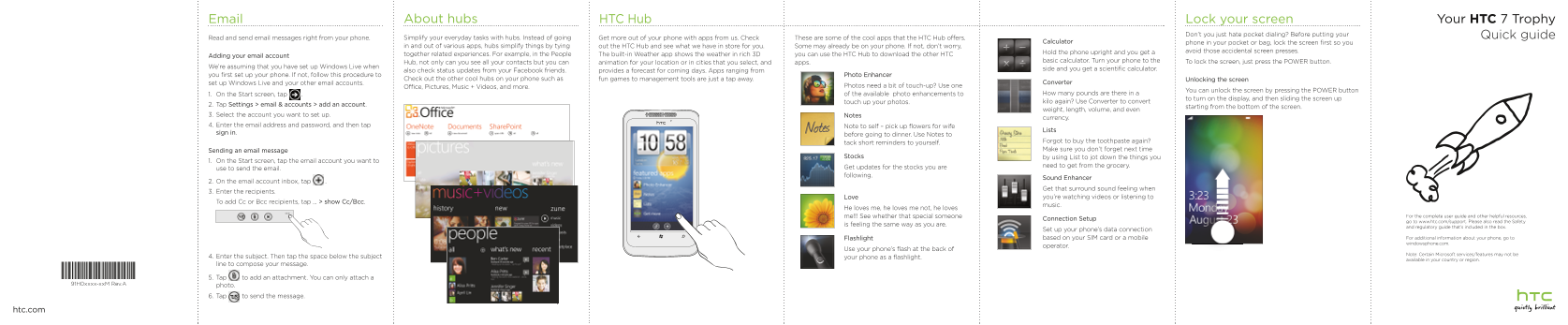
Page 1 Text Content
About hubs HTC Hub Email Lock your screen Your HTC 7 Trophy
Don’t you just hate pocket dialing? Before putting your Quick guide
Read and send email messages right from your phone. Simplify your everyday tasks with hubs. Instead of going Get more out of your phone with apps from us. Check These are some of the cool apps that the HTC Hub offers.
Calculator phone in your pocket or bag, lock the screen first so you
in and out of various apps, hubs simplify things by tying out the HTC Hub and see what we have in store for you. Some may already be on your phone. If not, don’t worry,
Hold the phone upright and you get a avoid those accidental screen presses.
Adding your email account together related experiences. For example, in the People The built-in Weather app shows the weather in rich 3D you can use the HTC Hub to download the other HTC
Hub, not only can you see all your contacts but you can basic calculator. Turn your phone to the To lock the screen, just press the POWER button.
animation for your location or in cities that you select, and apps.
We’re assuming that you have set up Windows Live when
also check status updates from your Facebook friends. side and you get a scientific calculator.
provides a forecast for coming days. Apps ranging from
you first set up your phone. If not, follow this procedure to Photo Enhancer
Check out the other cool hubs on your phone such as fun games to management tools are just a tap away. Unlocking the screen
set up Windows Live and your other email accounts. Converter
Office, Pictures, Music + Videos, and more. Photos need a bit of touch-up? Use one
You can unlock the screen by pressing the POWER button
1. On the Start screen, tap . of the available photo enhancements to How many pounds are there in a
to turn on the display, and then sliding the screen up
touch up your photos. kilo again? Use Converter to convert
2. Tap Settings > email & accounts > add an account.
starting from the bottom of the screen.
weight, length, volume, and even
3. Select the account you want to set up. Notes
currency.
4. Enter the email address and password, and then tap Note to self – pick up flowers for wife
Lists
sign in.
before going to dinner. Use Notes to
tack short reminders to yourself. Forgot to buy the toothpaste again? Sending an email message Make sure you don’t forget next time
Stocks by using List to jot down the things you
1. On the Start screen, tap the email account you want to
Get updates for the stocks you are need to get from the grocery.
use to send the email.
following.
Sound Enhancer
2. On the email account inbox, tap .
Get that surround sound feeling when
3. Enter the recipients.
Love you’re watching videos or listening to
To add Cc or Bcc recipients, tap ... > show Cc/Bcc.
music.
He loves me, he loves me not, he loves
me!!! See whether that special someone For the complete user guide and other helpful resources,
Connection Setup
go to www.htc.com/support. Please also read the Safety
is feeling the same way as you are.
and regulatory guide that’s included in the box.
Set up your phone’s data connection
Flashlight based on your SIM card or a mobile For additional information about your phone, go to windowsphone.com.
operator.
Use your phone’s flash at the back of
Note: Certain Microsoft services/features may not be
4. Enter the subject. Then tap the space below the subject your phone as a flashlight.
available in your country or region.
line to compose your message.
5. Tap to add an attachment. You can only attach a
91H0xxxx-xx M Rev.A photo.
6. Tap to send the message.
htc.com
Page Summary Contents For HTC 7 Trophy Quick Start Guide - User Manual
Manual Details
| Brand | HTC |
|---|---|
| Pages | 2 |
| File Size | 3.48 MB |
| Published | May 22, 2026 |
Enter the captcha to get the download link:

Frequently Asked Questions
How do I lock or unlock the screen?
To lock: press the POWER button. To unlock, simply press the POWER button again.
What applications can be accessed using the HTC Hub?
The hubs provide access to apps like Weather, Calculator, Contacts, Instagram/Facebook, and email management (Windows Live).
How do I send an email attachment?
On the email account inbox, tap 'Attach' then select a photo to attach it before sending.
What should I do if my phone needs charging?
Use the supplied power adapter and USB cable to charge the battery. Do not remove the battery while charging.