HTC 7 Pro Quick Guide
Summary
This comprehensive guide for your smartphone reveals how to leverage its full potential for every aspect of life. Learn how to manage email seamlessly, connect hands-free via Bluetooth headsets, and capture professional photos or videos. The manual provides step-by-step instructions for using real-time GPS navigation with Bing Maps, downloading entertainment apps from the Marketplace, and keeping organized with contacts and messaging. It is essential reading for general users, business travelers, and anyone wishing to maximize their device's capabilities with maximum connectivity and ease of use.
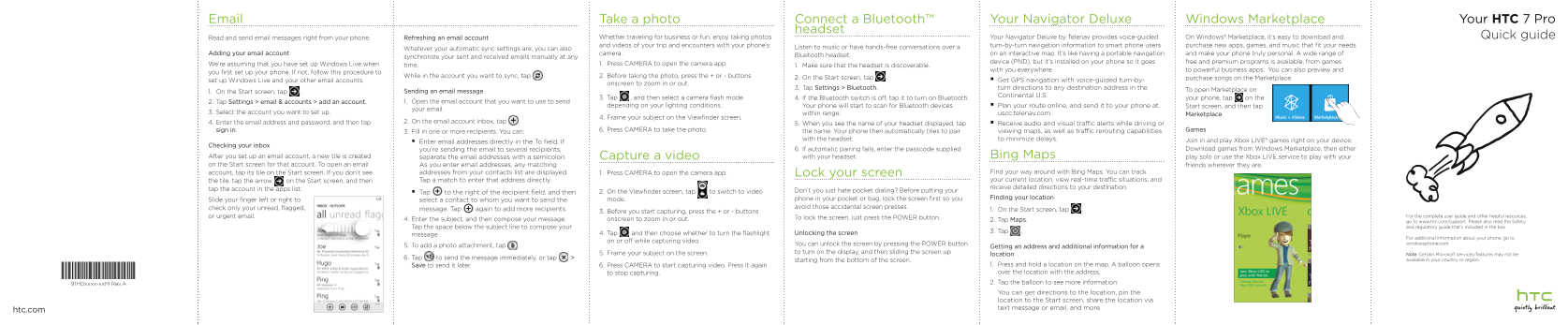
Page 1 Text Content
Email Take a photo Your Navigator Deluxe Windows Marketplace Your HTC 7 Pro Connect a Bluetooth™
headset
Read and send email messages right from your phone. Refreshing an email account Whether traveling for business or fun, enjoy taking photos Your Navigator Deluxe by Telenav provides voice-guided On Windows® Marketplace, it’s easy to download and Quick guide
and videos of your trip and encounters with your phone’s turn-by-turn navigation information to smart phone users purchase new apps, games, and music that fit your needs
Whatever your automatic sync settings are, you can also Listen to music or have hands-free conversations over a
Adding your email account camera. on an interactive map. It’s like having a portable navigation and make your phone truly personal. A wide range of
synchronize your sent and received emails manually at any Bluetooth headset.
device (PND), but it’s installed on your phone so it goes free and premium programs is available, from games
We’re assuming that you have set up Windows Live when time. 1. Press CAMERA to open the camera app.
1. Make sure that the headset is discoverable.
with you everywhere. to powerful business apps. You can also preview and
you first set up your phone. If not, follow this procedure to
While in the account you want to sync, tap . 2. Before taking the photo, press the + or - buttons 2. On the Start screen, tap .
purchase songs on the Marketplace.
set up Windows Live and your other email accounts. Get GPS navigation with voice-guided turn-by-
onscreen to zoom in or out.
3. Tap Settings > Bluetooth. turn directions to any destination address in the
Sending an email message To open Marketplace on
1. On the Start screen, tap .
Continental U.S.
3. Tap , and then select a camera flash mode 4. If the Bluetooth switch is off, tap it to turn on Bluetooth. your phone, tap on the
2. Tap Settings > email & accounts > add an account. 1. Open the email account that you want to use to send
depending on your lighting conditions. Your phone will start to scan for Bluetooth devices Plan your route online, and send it to your phone at Start screen, and then tap
your email.
3. Select the account you want to set up. within range. uscc.telenav.com.
Marketplace.
4. Frame your subject on the Viewfinder screen.
4. Enter the email address and password, and then tap 2. On the email account inbox, tap .
5. When you see the name of your headset displayed, tap Receive audio and visual traffic alerts while driving or
sign in. 6. Press CAMERA to take the photo. the name. Your phone then automatically tries to pair viewing maps, as well as traffic rerouting capabilities Games
3. Fill in one or more recipients. You can:
with the headset. to minimize delays. Join in and play Xbox LIVE® games right on your device.
Enter email addresses directly in the To field. If
Checking your inbox
you’re sending the email to several recipients, 6. If automatic pairing fails, enter the passcode supplied Download games from Windows Marketplace, then either
After you set up an email account, a new tile is created separate the email addresses with a semicolon. Capture a video with your headset. Bing Maps play solo or use the Xbox LIVE service to play with your on the Start screen for that account. To open an email As you enter email addresses, any matching friends wherever they are.
account, tap its tile on the Start screen. If you don’t see addresses from your contacts list are displayed. 1. Press CAMERA to open the camera app. Lock your screen Find your way around with Bing Maps. You can track the tile, tap the arrow on the Start screen, and then Tap a match to enter that address directly. your current location, view real-time traffic situations, and tap the account in the apps list. receive detailed directions to your destination.
2. On the Viewfinder screen, tap to switch to video Don’t you just hate pocket dialing? Before putting your
Tap to the right of the recipient field, and then
mode. phone in your pocket or bag, lock the screen first so you Finding your location
Slide your finger left or right to select a contact to whom you want to send the
check only your unread, flagged, avoid those accidental screen presses.
message. Tap again to add more recipients. 1. On the Start screen, tap .
3. Before you start capturing, press the + or - buttons
or urgent email. For the complete user guide and other helpful resources,
4. Enter the subject, and then compose your message. onscreen to zoom in or out. To lock the screen, just press the POWER button.
2. Tap Maps. go to www.htc.com/support. Please also read the Safety
Tap the space below the subject line to compose your and regulatory guide that’s included in the box.
3. Tap .
message. 4. Tap and then choose whether to turn the flashlight Unlocking the screen
For additional information about your phone, go to
on or off while capturing video.
You can unlock the screen by pressing the POWER button windowsphone.com.
5. To add a photo attachment, tap . Getting an address and additional information for a
5. Frame your subject on the screen. to turn on the display, and then sliding the screen up
location Note: Certain Microsoft services/features may not be
6. Tap to send the message immediately, or tap > available in your country or region.
starting from the bottom of the screen.
Save to send it later. 6. Press CAMERA to start capturing video. Press it again 1. Press and hold a location on the map. A balloon opens to stop capturing. over the location with the address. 91H0xxxx-xx M Rev.A 2. Tap the balloon to see more information. You can get directions to the location, pin the location to the Start screen, share the location via text message or email, and more.
htc.com
Page Summary Contents For HTC 7 Pro Quick Guide
Manual Details
| Brand | HTC |
|---|---|
| Pages | 2 |
| File Size | 1.26 MB |
| Published | May 22, 2026 |
Enter the captcha to get the download link:

Frequently Asked Questions
How can I manually sync my email messages if they are not updating?
On the email account inbox, tap the specific box, or select the account you want to synchronize and manually refresh.
What steps are needed to connect a Bluetooth headset?
Go to Settings > Bluetooth; first ensure the headset is discoverable, then tap your headset's name when found on the device list.
How do I take a photo or video using the camera app?
Press CAMERA on the Start screen. For photos, press the +/- buttons for zoom. To switch to video mode, use the button labeled 'Video'.