HTC Radar 4G Quick Guide User Manual
Summary
Connect seamlessly to your digital world with this comprehensive guide for the HTC Radar 4G smartphone. This manual provides essential instructions on utilizing advanced features, including staying connected via Wi-Fi or cellular data, browsing the web, and sending emails directly from your phone. Learn how to take crisp photos and videos, manage different integrated 'hubs'—from news feeds to entertainment streaming—and easily set up all core applications. Ideal for new users, this quick guide ensures you can fully unlock your phone’s capabilities, helping you capture memories, organize communication, and stay updated on everything from global markets to social circles.
Page 1 Text Content
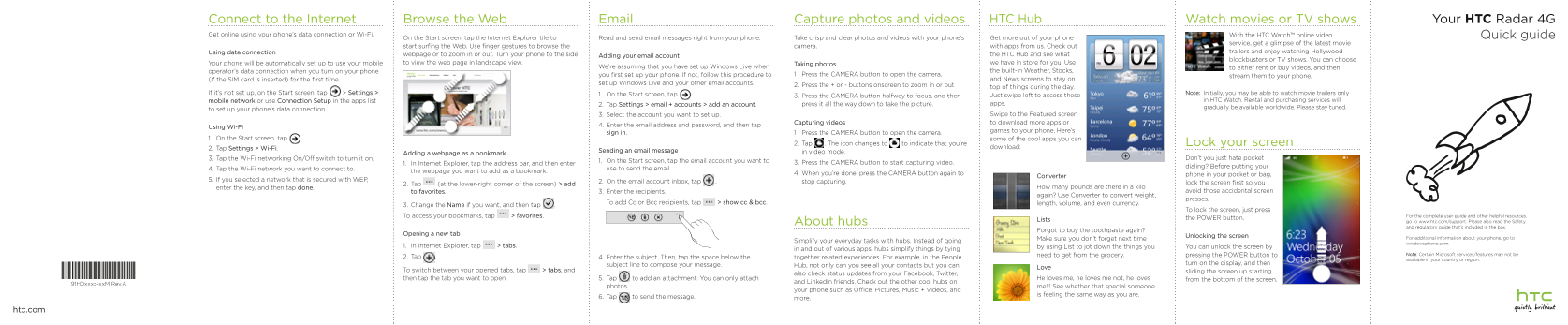
Connect to the Internet Capture photos and videos HTC Hub Email Watch movies or TV shows Your HTC Radar 4G Browse the Web Get online using your phone’s data connection or Wi-Fi. With the HTC Watch™ online video Quick guide
On the Start screen, tap the Internet Explorer tile to Read and send email messages right from your phone. Take crisp and clear photos and videos with your phone’s Get more out of your phone
service, get a glimpse of the latest movie
start surfing the Web. Use finger gestures to browse the camera. with apps from us. Check out
Using data connection trailers and enjoy watching Hollywood
webpage or to zoom in or out. Turn your phone to the side Adding your email account the HTC Hub and see what
blockbusters or TV shows. You can choose
Your phone will be automatically set up to use your mobile to view the web page in landscape view. Taking photos we have in store for you. Use
We’re assuming that you have set up Windows Live when to either rent or buy videos, and then
operator’s data connection when you turn on your phone the built-in Weather, Stocks,
you first set up your phone. If not, follow this procedure to 1 Press the CAMERA button to open the camera. stream them to your phone.
(if the SIM card is inserted) for the first time. and News screens to stay on
set up Windows Live and your other email accounts.
2. Press the + or - buttons onscreen to zoom in or out
top of things during the day.
If it’s not set up, on the Start screen, tap > Settings > 1. On the Start screen, tap !. Note: Initially, you may be able to watch movie trailers only
3. Press the CAMERA button halfway to focus, and then Just swipe left to access these
mobile network or use Connection Setup in the apps list in HTC Watch. Rental and purchasing services will
2. Tap Settings > email + accounts > add an account. press it all the way down to take the picture. apps.
gradually be available worldwide. Please stay tuned.
to set up your phone’s data connection.
3. Select the account you want to set up. Swipe to the Featured screen Capturing videos to download more apps or
4. Enter the email address and password, and then tap
Using Wi-Fi
games to your phone. Here’s
sign in. 1 Press the CAMERA button to open the camera.
1. On the Start screen, tap !. some of the cool apps you can
2. Tap . The icon changes to to indicate that you’re Lock your screen
2. Tap Settings > Wi-Fi. download:
Sending an email message in video mode.
Adding a webpage as a bookmark
3. Tap the Wi-Fi networking On/Off switch to turn it on. Don’t you just hate pocket
1. On the Start screen, tap the email account you want to 3. Press the CAMERA button to start capturing video.
1. In Internet Explorer, tap the address bar, and then enter
dialing? Before putting your
4. Tap the Wi-Fi network you want to connect to. use to send the email.
the webpage you want to add as a bookmark.
4. When you’re done, press the CAMERA button again to phone in your pocket or bag,
Converter
5. If you selected a network that is secured with WEP, 2. On the email account inbox, tap !.
stop capturing. lock the screen first so you
2. Tap (at the lower-right corner of the screen) > add
enter the key, and then tap done. How many pounds are there in a kilo
to favorites. 3. Enter the recipients. avoid those accidental screen
again? Use Converter to convert weight,
presses.
To add Cc or Bcc recipients, tap > show cc & bcc. length, volume, and even currency.
3. Change the Name if you want, and then tap .
To lock the screen, just press
To access your bookmarks, tap > favorites. For the complete user guide and other helpful resources,
Lists the POWER button.
About hubs go to www.htc.com/support. Please also read the Safety and regulatory guide that’s included in the box.
Forgot to buy the toothpaste again?
Opening a new tab
Unlocking the screen For additional information about your phone, go to
Make sure you don’t forget next time
Simplify your everyday tasks with hubs. Instead of going
windowsphone.com.
1. In Internet Explorer, tap > tabs. by using List to jot down the things you You can unlock the screen by
in and out of various apps, hubs simplify things by tying
need to get from the grocery. pressing the POWER button to Note: Certain Microsoft services/features may not be
2, Tap . 4. Enter the subject. Then, tap the space below the together related experiences. For example, in the People
available in your country or region.
subject line to compose your message. turn on the display, and then
Hub, not only can you see all your contacts but you can
To switch between your opened tabs, tap > tabs, and sliding the screen up starting
also check status updates from your Facebook, Twitter,
then tap the tab you want to open. 5. Tap to add an attachment. You can only attach He loves me, he loves me not, he loves from the bottom of the screen.
and Linked In friends. Check out the other cool hubs on
91H0xxxx-xx M Rev.A
photos. me!!! See whether that special someone
your phone such as Office, Pictures, Music + Videos, and
is feeling the same way as you are.
6. Tap to send the message. more.
htc.com
Page Summary Contents For HTC Radar 4G Quick Guide User Manual
Manual Details
| Brand | HTC |
|---|---|
| Pages | 2 |
| File Size | 709.61 KB |
| Published | May 22, 2026 |
Enter the captcha to get the download link:

Frequently Asked Questions
How do I set up my phone's data connection?
When you turn on your phone for the first time, it will automatically be set up to use your mobile operator’s data connection.
Where can I find instructions for adding email accounts or bookmarks?
Go to Settings > email + accounts > add an account. For bookmarks, go to the address bar in Internet Explorer.
What are the steps for taking a photo or video?
Press the CAMERA button to open the camera. To capture video, press and hold the button until you want to stop capturing, then press it again.
How do I lock my phone screen?
Simply press the POWER button to lock the screen.
What should I do if I need help with additional phone knowledge?
For the complete user guide and other helpful resources, visit www.htc.com/support.