HTC Jetstream Quick Start Guide User Manual
Summary
Master your new 4G LTE tablet with this complete user guide for reliable wireless connectivity on the go. The manual provides comprehensive instructions covering initial setup, detailed network management (Wi-Fi and cellular), personalization features, web browsing, and advanced functionality like Bluetooth pairing. Ideal for new owners needing a straightforward reference to maximize every feature of their portable communication device.
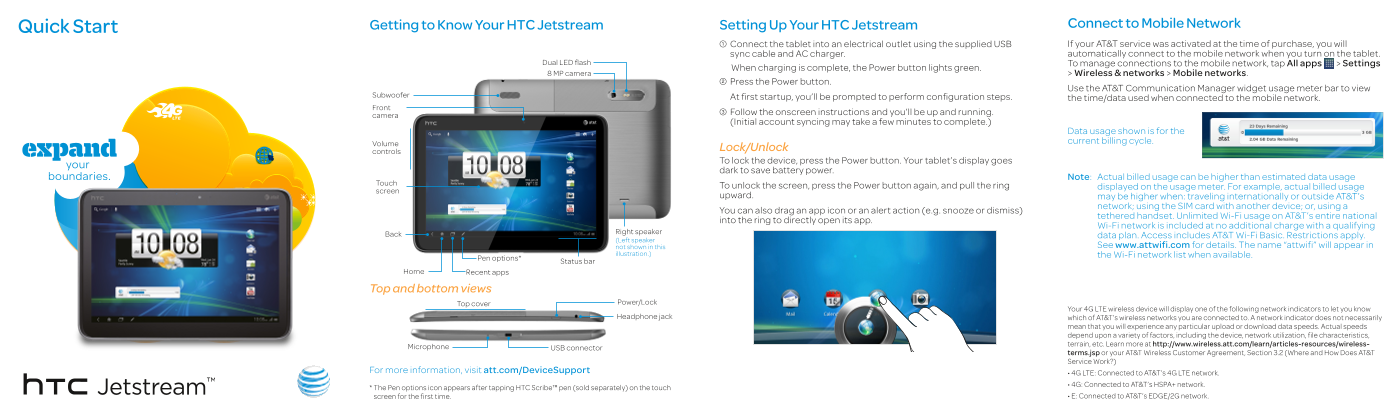
Page 1 Text Content
Quick Start Getting to Know Your HTC Jetstream Setting Up Your HTC Jetstream Connect to Mobile Network 1 Connect the tablet into an electrical outlet using the supplied USB If your AT&T service was activated at the time of purchase, you will sync cable and AC charger. automatically connect to the mobile network when you turn on the tablet.
Dual LED flash To manage connections to the mobile network, tap All apps > Settings
When charging is complete, the Power button lights green.
8 MP camera > Wireless & networks > Mobile networks.
2 Press the Power button.
Use the AT&T Communication Manager widget usage meter bar to view
Subwoofer At first startup, you’ll be prompted to perform configuration steps.
the time/data used when connected to the mobile network.
3 Follow the onscreen instructions and you’ll be up and running.
camera
(Initial account syncing may take a few minutes to complete.)
Data usage shown is for the current billing cycle.
Volume
Lock/Unlock
controls
To lock the device, press the Power button. Your tablet’s display goes dark to save battery power.
Note: Actual billed usage can be higher than estimated data usage
Touch
To unlock the screen, press the Power button again, and pull the ring displayed on the usage meter. For example, actual billed usage
screen
upward. may be higher when: traveling internationally or outside AT&T’s
network; using the SIM card with another device; or, using a
You can also drag an app icon or an alert action (e.g. snooze or dismiss)
tethered handset. Unlimited Wi-Fi usage on AT&T’s entire national
into the ring to directly open its app.
Wi-Fi network is included at no additional charge with a qualifying
Right speaker
data plan. Access includes AT&T Wi-Fi Basic. Restrictions apply.
(Left speaker
not shown in this See www.attwifi.com for details. The name “attwifi” will appear in
illustration.) the Wi-Fi network list when available.
Status bar Pen options*
Home Recent apps
Top and bottom views
Top cover Power/Lock
Your 4G LTE wireless device will display one of the following network indicators to let you know
Headphone jack which of AT&T’s wireless networks you are connected to. A network indicator does not necessarily
mean that you will experience any particular upload or download data speeds. Actual speeds depend upon a variety of factors, including the device, network utilization, file characteristics, terrain, etc. Learn more at http://www.wireless.att.com/learn/articles-resources/wireless-
Microphone USB connector
terms.jsp or your AT&T Wireless Customer Agreement, Section 3.2 (Where and How Does AT&T Service Work?)
For more information, visit att.com/Device Support
• 4G LTE: Connected to AT&T’s 4G LTE network. • 4G: Connected to AT&T’s HSPA+ network.
* The Pen options icon appears after tapping HTC Scribe™ pen (sold separately) on the touch
screen for the first time. • E: Connected to AT&T’s EDGE/2G network.
Page Summary Contents For HTC Jetstream Quick Start Guide User Manual
Manual Details
| Brand | HTC |
|---|---|
| Pages | 4 |
| File Size | 2.73 MB |
| Published | May 22, 2026 |
Enter the captcha to get the download link:

Frequently Asked Questions
How do I view my data usage?
Tap All apps > Settings > Wireless & networks > Mobile networks, then use the AT&T Communication Manager widget usage meter bar.
What are the initial setup steps for the device?
At first startup, you’ll be prompted to perform configuration steps. Follow the onscreen instructions until you are up and running.
How do I connect my tablet to a Wi-Fi network?
From the Home screen, tap All apps > Settings > Wireless & networks. Tap Wi-Fi settings, view the list of available networks, select yours, enter credentials, and tap Sign in.
Can I pair the device with another Bluetooth accessory?
On the Home screen, tap All apps > Settings > Wireless & networks, select Bluetooth, then find nearby devices, choose your device, and tap Pair.