HTC Titan II Quick Start Guide User Manual
Summary
Discover comprehensive control over your daily connectivity with this multifunction smartphone. This manual provides detailed guidance on every feature, enabling you to master calls, texting through messaging hubs, and managing music via integrated media services like Zune. Learn how to connect Bluetooth accessories, utilize the App Marketplace for thousands of apps, perform local searches, and set up advanced personal accounts. It is designed for users seeking a robust, comprehensive mobile experience that keeps them connected, organized, and in touch with friends and information—all from one sleek device.
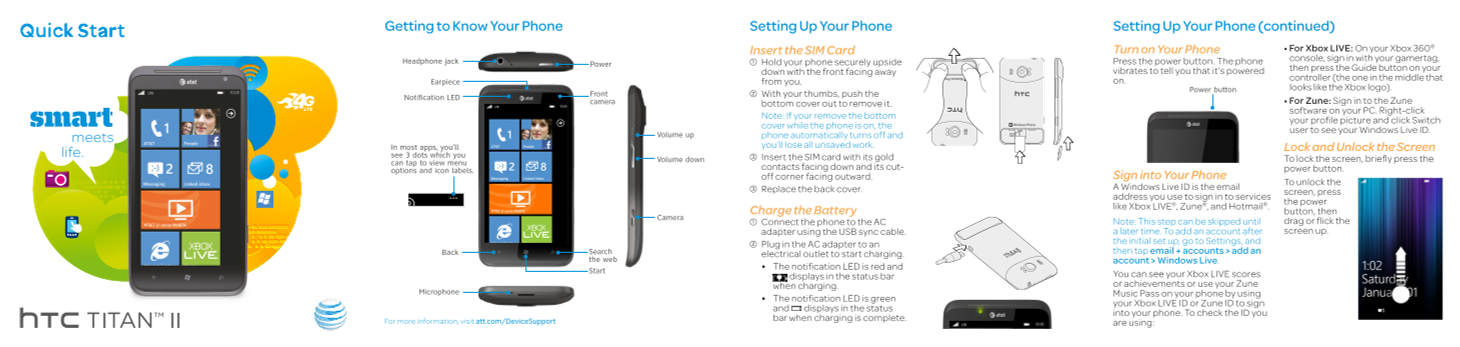
Page 1 Text Content
Setting Up Your Phone Getting to Know Your Phone Setting Up Your Phone (continued)
Quick Start
Insert the SIM Card Turn on Your Phone On your Xbox 360®
console, sign in with your gamertag,
1 Hold your phone securely upside Press the power button. The phone
Power Headphone jack
then press the Guide button on your
down with the front facing away vibrates to tell you that it’s powered
controller (the one in the middle that
Earpiece from you. on.
Power button looks like the Xbox logo).
2 With your thumbs, push the
Notification LED
camera Sign in to the Zune
bottom cover out to remove it.
software on your PC. Right-click
Note: If your remove the bottom
your profile picture and click Switch
cover while the phone is on, the
user to see your Windows Live ID.
Volume up phone automatically turns off and
In most apps, you’ll you’ll lose all unsaved work. Lock and Unlock the Screen
see 3 dots which you
Volume down 3 Insert the SIM card with its gold To lock the screen, briefly press the
can tap to view menu
contacts facing down and its cut- power button.
options and icon labels.
off corner facing outward. Sign into Your Phone
To unlock the
3 Replace the back cover. A Windows Live ID is the email
screen, press
address you use to sign in to services
the power
like Xbox LIVE®, Zune®, and Hotmail®.
Charge the Battery button, then
Camera
1 Connect the phone to the AC Note: This step can be skipped until drag or flick the adapter using the USB sync cable. a later time. To add an account after screen up.
the initial set up, go to Settings, and
2 Plug in the AC adapter to an
Search then tap email + accounts > add an
electrical outlet to start charging.
the web account > Windows Live.
The notification LED is red and
Start
displays in the status bar You can see your Xbox LIVE scores when charging. or achievements or use your Zune
Microphone Music Pass on your phone by using
The notification LED is green
your Xbox LIVE ID or Zune ID to sign
and displays in the status
into your phone. To check the ID you
bar when charging is complete.
For more information, visit att.com/Device Support are using:
Page Summary Contents For HTC Titan II Quick Start Guide User Manual
Manual Details
| Brand | HTC |
|---|---|
| Pages | 4 |
| File Size | 1.79 MB |
| Published | May 22, 2026 |
Enter the captcha to get the download link:

Frequently Asked Questions
How do I make a phone call?
Tap the Phone tile, enter the number (by tapping or holding '1' for speed dial), and tap call.
What can I do with My Phone People hub?
Find contacts, view friend updates, make calls, send messages to separated recipients, and pin people/locations to the Start screen.
How do I change my ringtone or sound?
Tap the top of the Start screen, go to Settings > Ringtone, select your desired sound, and tap save.
What steps are required for initial phone setup?
Insert the SIM card, power on the phone by holding the power button, sign in with a Windows Live ID/gamertag via PC or the phone itself.