Page 1
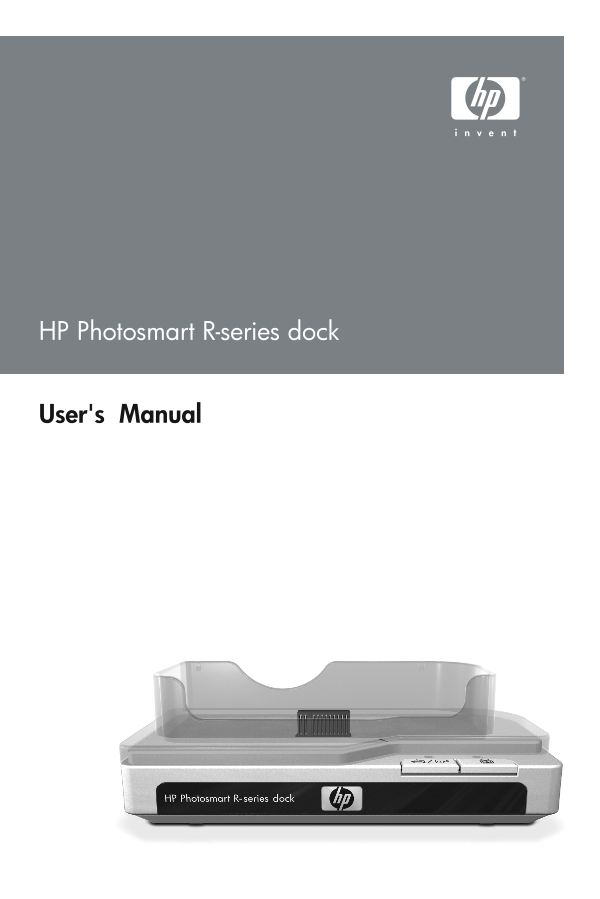
HP Photosmart R-series dock User's Manual
Page 3
HP Photosmart R-series dock Users Manual
Page 4
Trademark and copyright information © 2004 Copyright Hewlett-Packard Development Company, LP Reproduction, adaptation, or translation without prior written permission is prohibited, except as allowed ...
Page 5
Table of Contents Getting Started . . . . . . . . . . . . . . . . . . . . . . . . . . . . 6 Setting Up the Dock . . . . . . . . . . . . . . . . . . . . . . 6 Charging a Spare Battery . . . . . . . . ....
Page 6
Getting Started The HP Photosmart R-series camera dock allows you to easily download images to your computer, print images directly to a printer, recharge the camera battery and a spare battery at the...
Page 7
Connect the TV, AC power adapter, and USB cables to the right-hand side of the dock. Icon Description Connect the dock to a TV using the audio/video cable with the part number C6324-61601. Connect the...
Page 8
Remove any cables that may be attached to your camera. Then, insert the camera into the camera dock as shown here. The back of the camera must point toward the edge of the dock with the two buttons. C...
Page 9
Dock Lights and Buttons Name Description Spare Shows the power/battery charging status. If this battery light is: charging On - the spare battery in the dock is fully charged light Blinking - the spar...
Page 10
Name Description Power Shows the power/camera battery charging status. light If this light is: On - the camera is in the dock, the dock has power, a spare battery may or may not be in the dock chargin...
Page 11
Press the Save/Print button on the dock. The HP Image Transfer software will launch on your computer. If you have set the software to automatically transfer the images from the camera, the images will...
Page 12
Press the Save/Print button on the camera dock to start the print dialog. The Print Setup menu displays on the camera. If you already selected images to print in the camera, the number of images selec...
Page 13
TIP If you cannot locate video and audio input jacks on your TV to fit the connectors on the audio/video cable, you should be able to use the video and audio input jacks on a video cassette recorder (...
Page 14
Using the Remote You can use the dock remote control to pause the slideshow, magnify an image, rotate an image, select an image for HP Instant Share, or mark an image for printing. Before you can use ...
Page 15
Dock Remote Control Buttons Button Description Activates the TV connection and displays the first image in the camera on the TV (same as TV button the TV button on the dock). Starts and pauses the sli...
Page 16
Button Description Magnifies the image just as you can with the Zoom lever on your camera. Pressing it again Magnify goes to the next magnification level. Use the button arrow buttons to pan around th...
Page 17
Technical Support Please refer to your camera User's Manual for support procedures and contact information. Troubleshooting NOTE For additional troubleshooting information, please see the Troubleshoot...
Page 18
Problem Possible cause Solution The camera The camera is Make sure the camera is inserted batteries will not securely in completely into the dock. not charge, the dock. and the The camera Confirm that...
Page 19
Problem Possible cause Solution The camera There is a Run the dock functionality test by is not functional unplugging the power cord from recognized problem with the dock, then holding down the by the...
Page 20
Battery Charge Times Where Battery is Average Charge Signal When Charged Charging Has Time* Completed In camera while 4 to 7 hours Power light on dock camera is in dock (depending on turns On camera m...
Page 21
Do not connect the positive terminal and the negative terminal of the battery to each other with any metal object (such as wire). Do not carry or store the battery together with necklaces, hairpins, o...
Page 22
Do not disassemble the camera or the dock. Unplug the HP AC power adapter from the electrical outlet before cleaning. After extensive use, the lithium ion battery may begin to swell. If it becomes dif...
Page 23
HP Photosmart 3.3V AC power adapter for HP Photosmart R-series camerasC8912B (Not available in Latin America) HP Photosmart SD Memory cards HP Photosmart 64 MB SD memory cardC8896A HP Photosmart 128...