Page 1
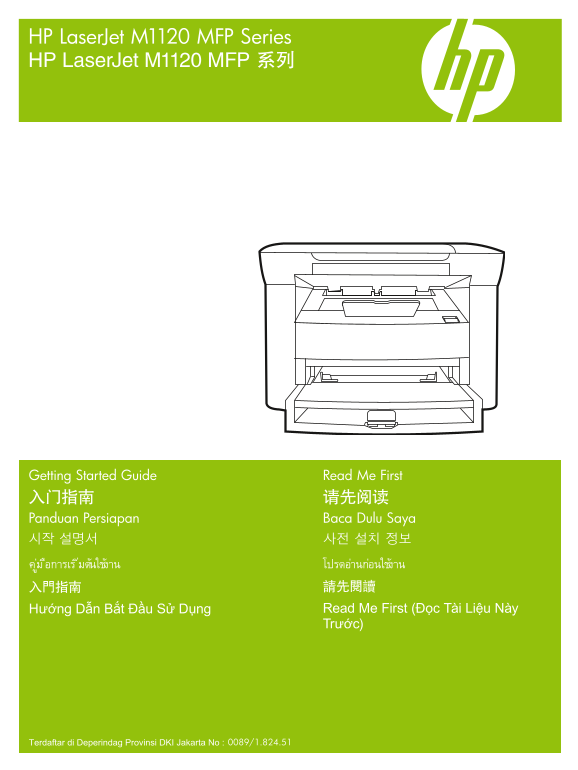
HP Laser Jet M1120 MFP Series HP Laser Jet M1120 MFP 系列 Getting Started Guide Read Me First 入门指南 请先阅读 Panduan Persiapan Baca Dulu Saya 시작 설명서 사전 설치 정보 ูม่ อืการเร ิม่ต้นใช้งาน โปรดอา่นกอ่นใช้งาน 入門指南 ...
Page 2
Copyright and License 版权与许可 © 2008 Copyright Hewlett-Packard Development Company, L.P. © 2008 Copyright Hewlett-Packard Development Reproduction, adaptation or translation without prior written Compan...
Page 3
Select a sturdy, well-ventilated, dust-free area to position the product. 选择一个稳固、通风良好且无尘的区域放置产品。 Pilih tempat yang kokoh, berventilasi baik, dan bebas debu untuk meletakkan produk. 단단하고 환기가 잘 되며 먼지가 없...
Page 4
There are two sections in this guide: • Set up the hardware • Install the software 本指南包括两部分: • 安装硬件 • 安装软件 Ada dua bagian dalam panduan ini: • Memasang perangkat keras • Menginstal perangkat lunak 이 설...
Page 5
Set up the hardware. Unpack the product. 安装硬件。 打开产品包装。 Pasang perangkat keras. Buka kemasan produk. 하드웨어 설정. 제품을 개봉하십시오. ติดตั้งฮาร์ดแวร์ นำเครื่องออกจากกล่องบรรจุ 設定硬體。 拆開產品的包裝。 Cài đặt phần cứng. Mở...
Page 6
Remove all orange shipping tape. 撕下所有橙色装运胶带。 Lepas semua pita pengiriman warna jingga. 주황색 포장용 테이프를 제거하십시오. แกะเทปสีส้มที่ติดมากับเครื่องออกทั้งหมด 撕下所有橙色膠帶。 Tháo tất cả băng dán vận chuyển màu cam. I...
Page 7
Install the paper tray, adjust the paper guides, and then load paper. 安装纸盘,调整纸张导板,然后装入纸张。 Pasang baki kertas, sesuaikan pemandu kertas, kemudian muatlah kertas. 용지함을 설치하고 용지 조정대를 조정한 다음 용지를 넣습니다. ติดต...
Page 8
Install the print cartridge. 安装打印碳粉盒。 Pasang kartrid cetak. 카트리지를 설치하십시오. ติดตั้งตลับหมึกพิมพ์ 安裝碳粉匣。 Lắp hộp mực.
Page 9
For network setup, connect the network cable now. (Network models only.) 对于网络安装,请现在连接网络电缆。 (仅限网络型号。) Untuk pengaturan jaringan, hubungkan kabel jaringan sekarang. (Model jaringan saja.) 네트워크 설정을 위해 지금...
Page 10
Connect the power cord, and then turn on the product. 连接电源线,然后打开本产品电源。 Hubungkan kabel listrik kemudian hidupkan produk. 전원 코드를 연결한 다음 제품의 전원을 켜십시오. ต่อสายไฟ และเปิดเครื่อง 連接電源線,然後開啟本產品電源。 Cắm dây ng...
Page 11
Control panel features. Press Setup to view menus. Use the arrows to select the menu options. Press OK to accept the selection. Press Cancel to return to the ready screen. 控制面板功能。 按下设置以查看菜单。 使用箭头选择菜单选...
Page 12
Install the software. 安装软件。 Instal perangkat lunak. 소프트웨어 설치. ติดตั้งซอฟต์แวร์ 安裝軟體。 Cài đặt phần mềm. Go to step 12. 转至步骤 12。 Pindah ke langkah 12. 12단계로 이동하십시오. ไปที่ขั้นตอนที่ 12 請跳至步驟 12。 Thực hiệ...
Page 13
Insert the CD and follow the instructions onscreen to install the software. • If the installation program does not start, click Start, click Run, click Browse, select the Setup.exe file on the CD, and...
Page 14
For USB, connect the USB cable when prompted. 对于 USB,请在出现提示时连接 USB 电缆。 Untuk USB, hubungkan kabel USB bila diminta. USB의 경우, USB를 연결하라는 메시지가 나타나면 USB를 연결하십시오. สำหรับ USB ให้เชื่อมต่อสายเคเบิล USB เมื่...
Page 15
For Macintosh, connect the USB cable or the network cable. Insert the CD and double-click the installer icon. Follow the instructions onscreen to install the software. 对于 Macintosh,请连接 USB 电缆或网络电缆。 插入...
Page 16
Test the product. From the control panel, press Setup, use the arrow buttons to select Reports, select Config report, and then press OK. 测试产品。在控制面板上按下 设置,使用箭头按钮选择报告,选择配置报告,然后按下 OK。 Lakukan tes pada pr...
Page 17
Test copy. Load the configuration report on the flatbed, and then press Start Copy. 测试复印。将配置报告放在平板上,然后按下开始复印。 Lakukan tes pada fotokopi. Muat laporan konfigurasi pada flatbed, kemudian tekan Start Cop...
Page 18
Product Documentation. The electronic User Guide is on the CD-ROM that came with the product or is in the HP program folder on your computer. It contains the following: • Problem Solve • Important saf...
Page 20
© 2008 Hewlett-Packard Development Company, L.P. www.hp.com *CB537-90907* *CB537-90907* CB537-90907