HP Deskjet 6540 Printer Series Setup Poster - (Windows)
Summary
This comprehensive setup guide is designed for new users of the HP Deskjet 6540-50 series printer. It provides detailed, step-by-step instructions covering the complete physical assembly process, including attaching peripherals and safely installing print cartridges. The manual also walks you through necessary software installation using various operating systems (like Windows XP/Me), concluding with advanced networking setup options and essential troubleshooting tips to ensure a smooth start for any environment.
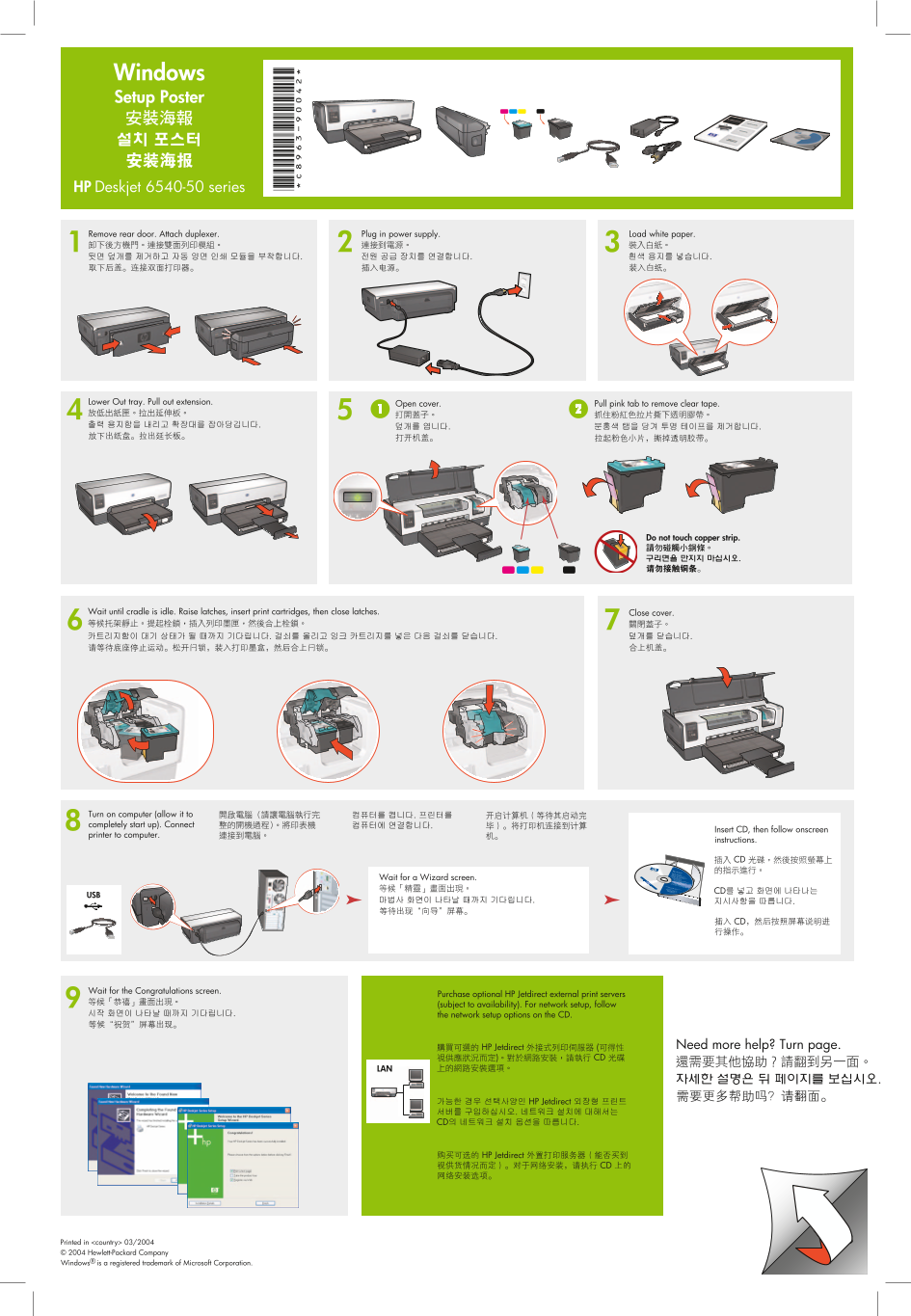
Page 1 Text Content
Windows Setup Poster
HP Deskjet 6540-50 series
Plug in power supply.Remove rear door. Attach duplexer. Load white paper.
Lower Out tray. Pull out extension. Open cover. Pull pink tab to remove clear tape.
Do not touch copper strip.
Wait until cradle is idle. Raise latches, insert print cartridges, then close latches. Close cover.
Turn on computer (allow it to completely start up). Connect
Insert CD, then follow onscreen
printer to computer.
instructions.
Wait for a Wizard screen.
Wait for the Congratulations screen.
Purchase optional HP Jetdirect external print servers (subject to availability). For network setup, follow the network setup options on the CD.
Need more help? Turn page.
Printed in <country> 03/2004 © 2004 Hewlett-Packard Company Windows® is a registered trademark of Microsoft Corporation.
Page Summary Contents For HP Deskjet 6540 Printer Series Setup Poster - (Windows)
Manual Details
| Brand | HP |
|---|---|
| Pages | 2 |
| File Size | 1.61 MB |
| Published | June 18, 2026 |
Enter the captcha to get the download link:

Frequently Asked Questions
How do I properly install the ink cartridges?
Raise the latches, insert the print cartridges, then close the latches.
What do I do to complete setup if there is no screen displayed?
Click Start > Run; click Browse; select HPPP CD in the Look in list; then open Setup and follow instructions.
If the printer installation fails or struggles to connect, what are the troubleshooting steps?
Disconnect the cable, restart your computer, temporarily disable firewalls or anti-virus software, and rerun the setup from the CD.